
Wondershare Filmora
The video editor that lets you use Sora 2, Veo 3.1, and Kling 2.5 directly inside your timeline — plus voice cloning, AI music, dynamic captions, and a library of 2.3M+ creative assets. Professional results, beginner-friendly learning curve.
Try Filmora →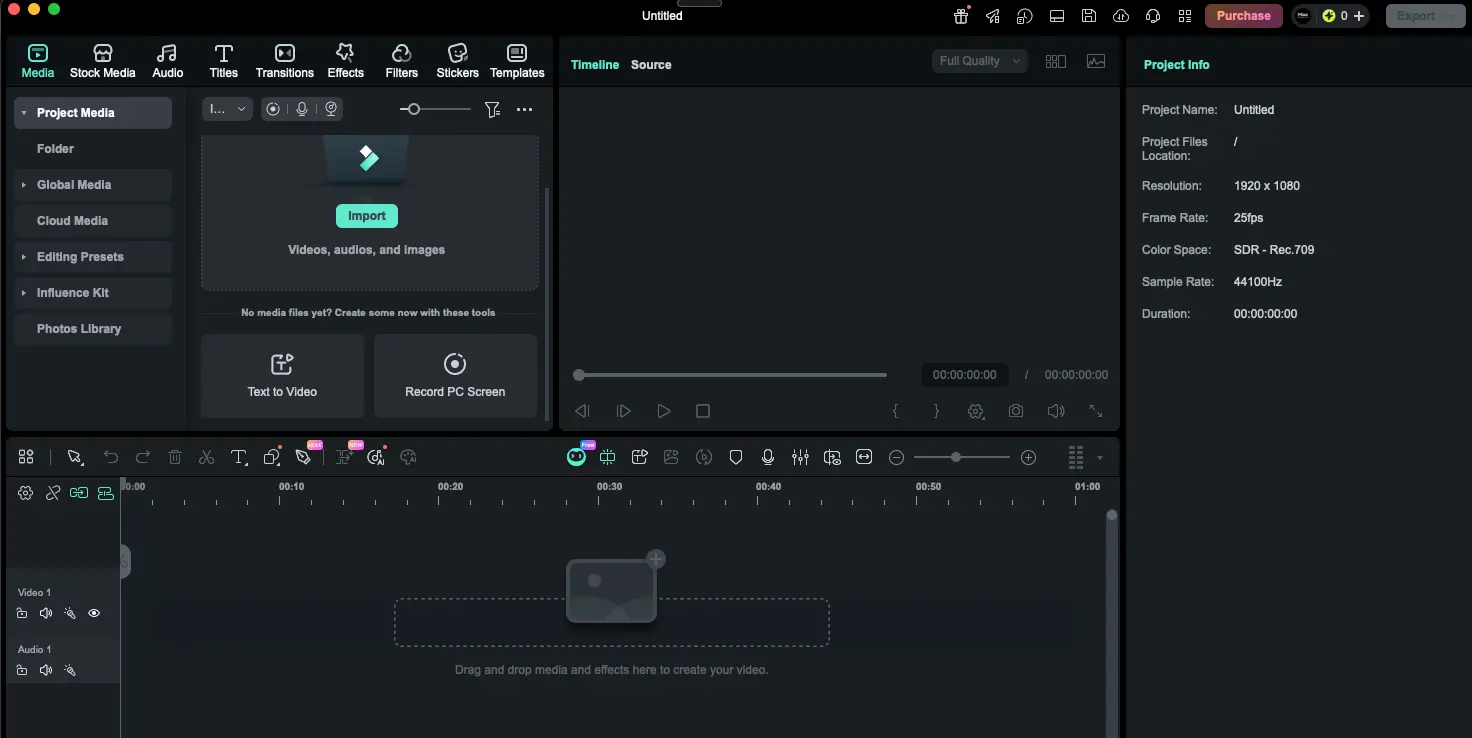
The Most Accessible AI Video Editor
for Creators & Small Businesses
Here's the thing about Filmora 15 — it's probably the easiest way to access frontier AI video models like Sora 2 and Veo 3.1 without leaving your editing timeline. You can go from a text prompt to a generated video clip to a polished export in one app. The interface is genuinely intuitive (we've seen complete beginners produce decent videos in under an hour), and the 2.3 million creative assets mean you rarely need to hunt for stock elsewhere. The catch? Wondershare's pricing has layers — and the AI credits system can surprise you if you're not paying attention.
✓ What We Love
- Broadest AI suite at this price (Sora 2, Veo 3.1)
- Exceptional ease of use—#1 cited strength
- Cross-platform (Windows, Mac, iOS, Android)
- 2.3M+ creative assets & 36K+ templates
! Could Be Better
- Full experience requires stacking subscriptions
- AI credits deplete quickly with generative features
- Performance can struggle on complex timelines
What Is Wondershare Filmora?
A clear look at what Filmora does, who actually benefits from it, and where it fits in the crowded video editing landscape of 2026.
If you've ever opened Adobe Premiere, felt overwhelmed by the interface, and closed it within five minutes — Filmora was basically built for you. It's a video editor designed to give you professional-looking results without demanding weeks of your life to learn. With over 100 million downloads on Android alone and a 4.5/5 rating on GetApp from 720+ verified reviews, it's clearly resonating with a lot of people.
Filmora occupies the sweet spot between consumer apps like CapCut (great for quick social clips, but limited for anything longer than 15 minutes) and full professional suites like DaVinci Resolve or Premiere (immensely powerful, but with learning curves measured in months, not hours). The current version — Filmora 15 (v15.2.5, February 2026) — is hands-down the biggest upgrade the product has ever received. We're talking AI video generation powered by Sora 2, Veo 3.1, and Kling 2.5, a proper dual-timeline editing system, a pen tool for motion design, animated charts for explainer content, and multi-track audio export supporting up to 10 audio tracks.
But here's what really sets Filmora apart in 2026: the sheer breadth of its AI toolkit. Other editors have started sprinkling in AI features here and there — an auto-caption tool, maybe a background remover. Filmora went all-in. You get text-to-video generation, image-to-video animation, voice cloning, AI music generation, dynamic word-by-word captions, AI translation with lip sync, and auto-reframing for different social platforms. All of this runs on an internal AI credits system — which is simultaneously the feature's biggest strength (frontier AI models right inside your editor!) and its most common pain point (those credits can disappear faster than you'd expect, especially with video generation).
Who Is Filmora Best For?
YouTubers, social media creators, educators, and small business marketers who care about polished output but don't want to become full-time video editors. It's especially great if you're excited about AI shortcuts like auto-captions, text-to-video, and voice cloning, or if you need one license that works across Windows, Mac, iOS, and Android. Not the right pick if you need cinematic color grading or broadcast-level audio — that's DaVinci Resolve territory.
On the asset side, Filmora ships with a library of 2.3 million+ creative assets — we're talking 12,000+ effects, 1.5 million stock media items, 36,000+ title templates, and 22,000+ music tracks on the paid tier. For many independent creators, this alone can replace a separate stock subscription. Filmora is developed by Wondershare Technology (Shenzhen-based, publicly traded on the Chinese A-share market) and runs on Windows, macOS, iOS, and Android. No Linux support, unfortunately.
See Filmora in Action
We took these screenshots while exploring Filmora 15 — here's what the interface and AI tools actually look like.
Main Editing Interface
Filmora's clean workspace with timeline, preview, and media panels
First impressions matter, and Filmora nails it. The workspace follows a familiar three-panel layout — media browser on the left, preview window top-right, timeline along the bottom. Nothing feels cluttered. The top toolbar gives you quick access to Media, Stock Media, Audio, Titles, Transitions, Effects, Filters, Stickers, and Templates. You can genuinely be editing your first clip within a few minutes of opening the app, and discover deeper features as you go. That's hard to pull off.
AI Effects Panel
Browse and apply AI-powered visual effects with one click
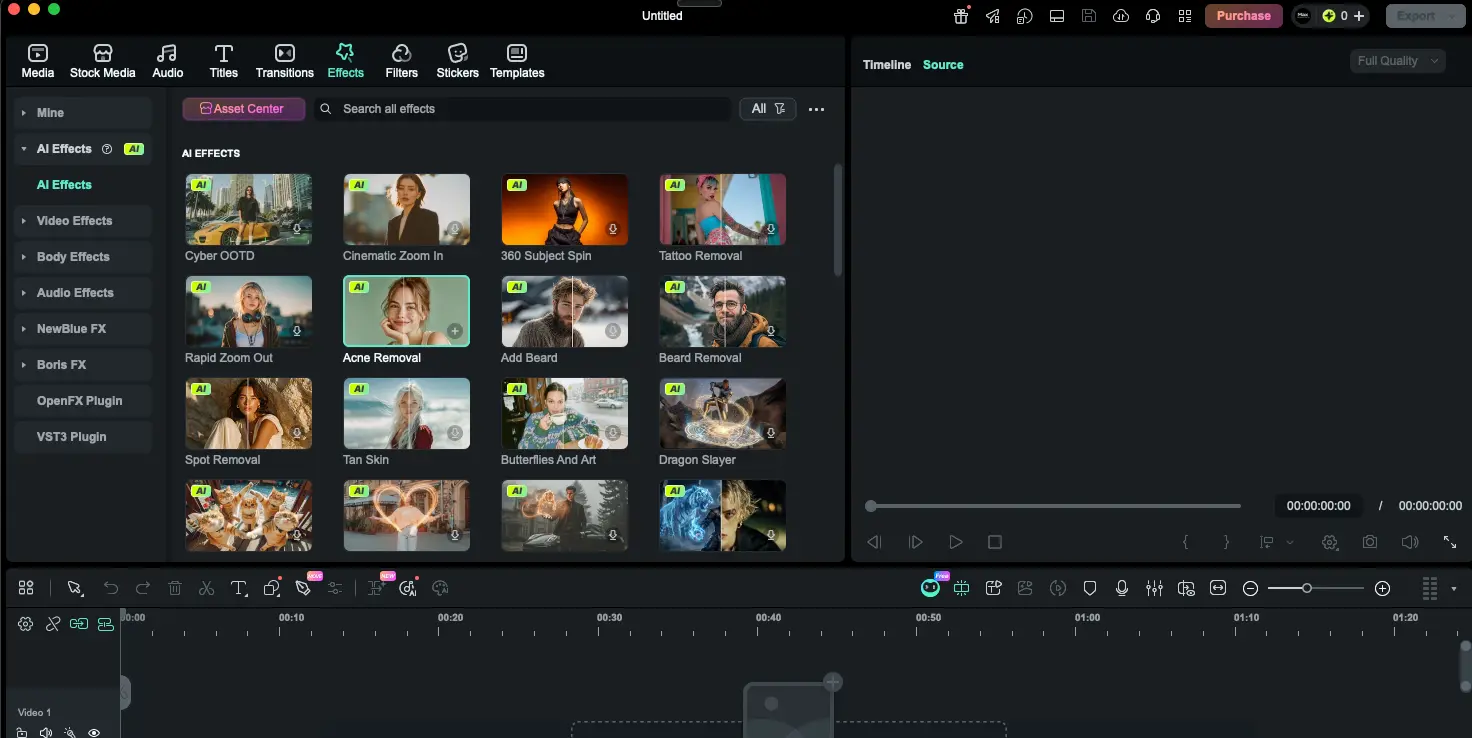
This is where Filmora gets fun. The AI Effects panel is packed with creative tools organized by category — AI Effects, Video Effects, Body Effects, Audio Effects — plus third-party plugins from NewBlue FX, Boris FX, and OpenFX. Some of the AI effects are surprisingly specific: Cinematic Zoom In, 360 Subject Spin, Tattoo Removal, Acne Removal, Spot Removal. Each one previews on hover, and applying them is a simple drag to the timeline. It's the kind of feature set that makes you want to experiment.
AI Image-to-Video (Veo 3.1)
Generate video clips from static images using frontier AI models
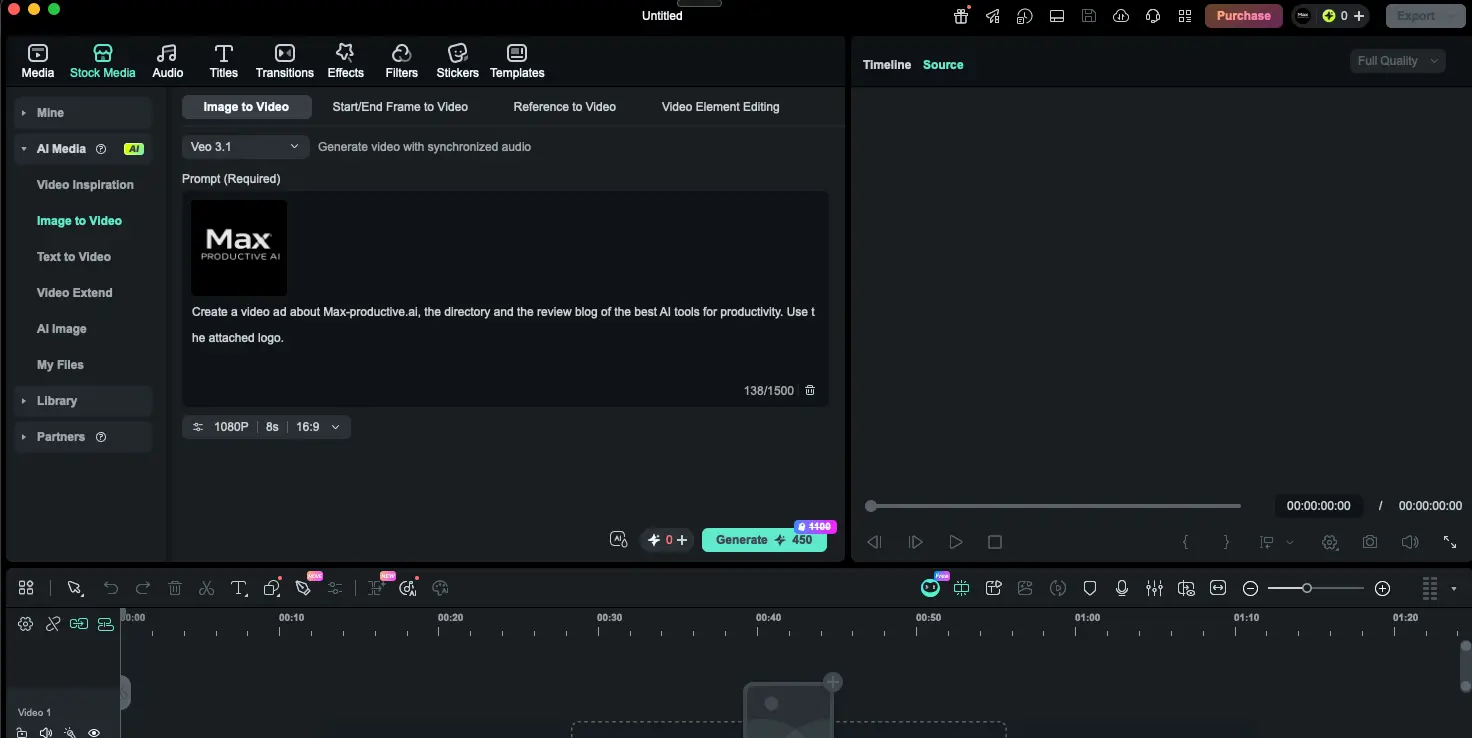
This is the feature that makes Filmora 15 feel like it belongs in 2026. Upload a reference image, write a text prompt, pick a model (Veo 3.1, Sora 2, or Kling 2.5), and generate a video clip — all without leaving the editor. You also get Text-to-Video, Start/End Frame-to-Video, Reference-to-Video, and Video Element Editing modes. Fair warning though: generation costs 250–450 AI credits depending on the model and settings, so one or two generations can eat a significant chunk of your monthly budget.
AI Mate Assistant
Chat-based AI assistant for editing guidance and quick actions
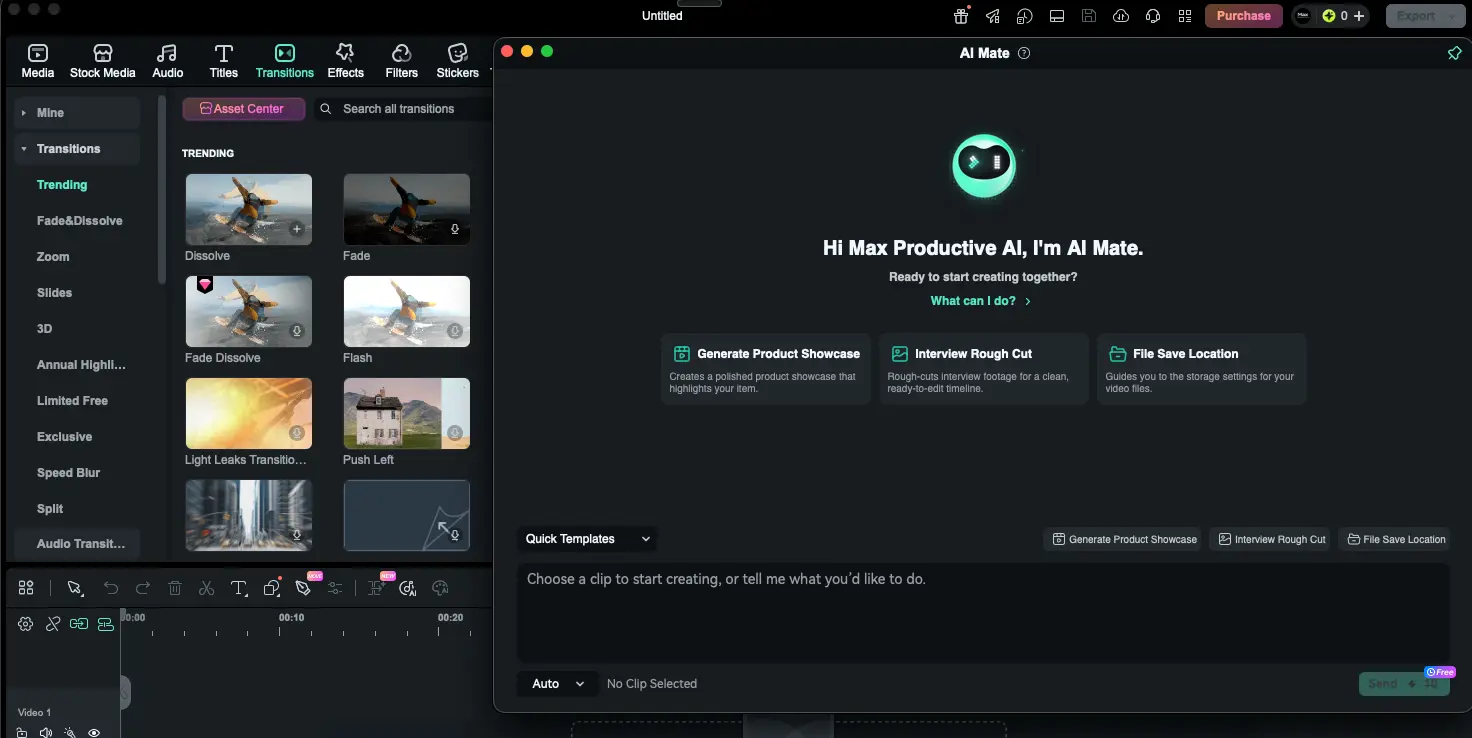
AI Mate is Filmora's built-in chat assistant — think of it as a co-editor you can talk to. Ask it to generate a product showcase, rough-cut an interview, or just help you find the right setting. It accepts natural language instructions, which is genuinely handy when you don't know where a specific tool lives in the menus. Meanwhile, the left panel gives you the full Transitions library — Trending, Fade & Dissolve, Zoom, 3D, Slides, Speed Blur, Split, and more. Some AI Mate features are free; others eat into your credit budget.
Templates Library
Ready-made video templates for fast content production
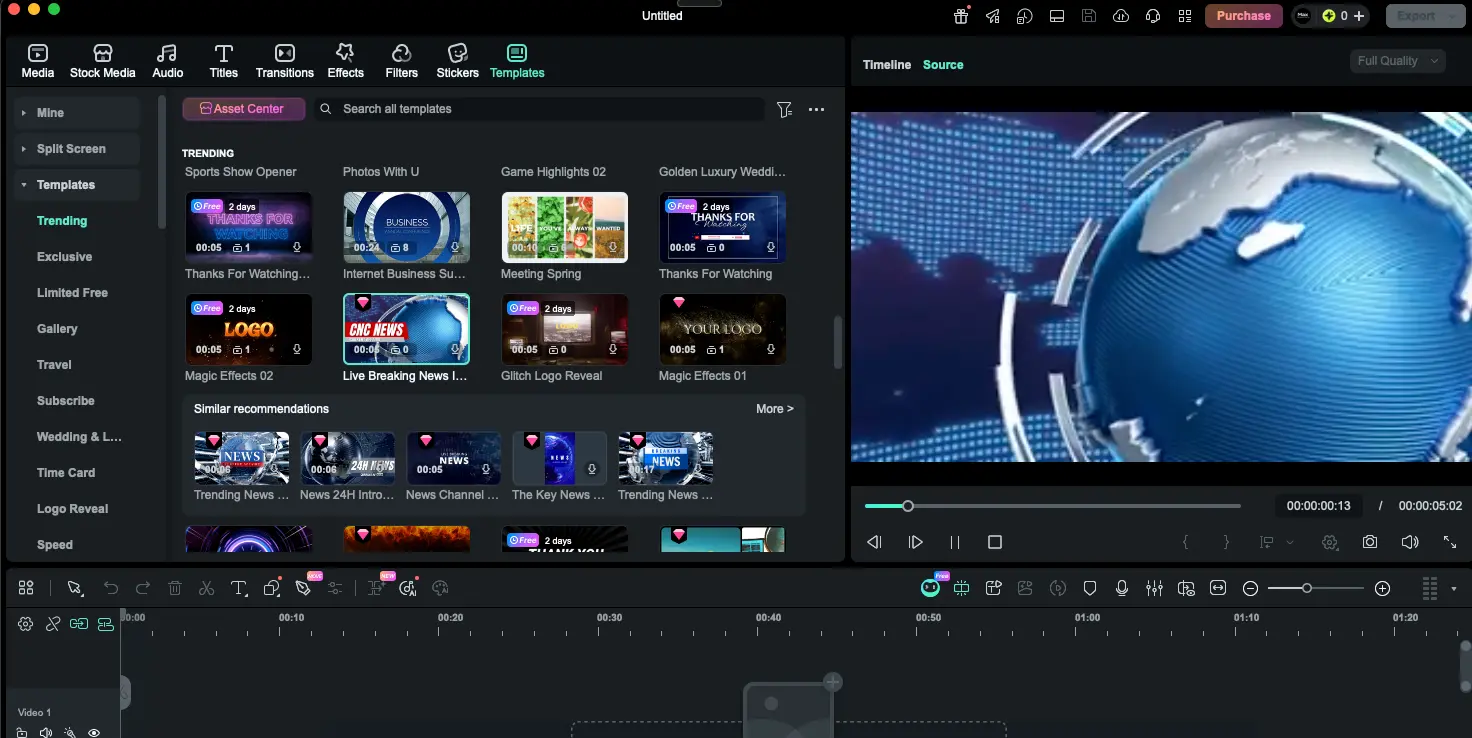
Don't want to start from scratch? The template library is your shortcut. Templates are organized into categories — Trending, Exclusive, Limited Free, Gallery, Travel, Subscribe, Wedding, Time Card, Logo Reveal, Speed — and preview on hover so you can browse quickly. You'll notice some have "Free" badges with time limits (e.g., "2 days"), which is Wondershare's way of giving you a taste before pushing the Creative Assets add-on. The "Similar Recommendations" feature is actually useful for discovering templates you might not have searched for directly.
Ready to explore Filmora's AI-powered editing tools?
Try Filmora →Free version available • No credit card required to downloadKey Features
The tools that actually matter — and where Filmora 15 earns (or loses) its keep.
AI Text-to-Video
Generate video clips from text prompts using Sora 2, Veo 3.1, or Kling 2.5 — three of the most capable AI video models available. Also supports Image-to-Video and AI Extend (scene continuation). Costs 50–450 credits per generation.
Dynamic Captions
Animated, word-by-word subtitles generated automatically from speech-to-text. Highly useful for YouTube, TikTok, and Instagram content where captioned videos see significantly higher engagement. Multiple animation styles available.
AI Voice Cloning
Replicate any voice for voiceover production — useful for maintaining consistent narration across videos or creating voiceovers without booking studio time. Costs 100 credits per use.
AI Translation + Lip Sync
Translates spoken audio and synchronizes lip movements to the new language — enabling creators to reach international audiences without re-recording. Costs 16 credits per minute of video.
Dual-Timeline Editing
Manage compound clips across multiple timeline tabs — a significant workflow improvement for complex projects. Combined with subproject import and source/timeline preview, this brings Filmora closer to professional NLE capabilities.
AI Music Generator
Creates royalty-free background music by specifying mood, genre, and duration. No licensing headaches for YouTube or social content. Costs 30–60 credits per generation or 250 credits per minute.
AI Smart Cutout & Object Remover
One-click background removal from video footage and intelligent erasure of unwanted elements from frames. Smart Masking tracks and isolates specific objects over time for more precise editing control.
2.3M+ Creative Assets
Access 12,000+ effects, 1.5M stock media items, 36,000+ title templates, and 22,000+ music tracks. The free tier includes a smaller selection; the full premium library requires the Creative Assets add-on ($79.99/year).
And that's not even the full list. Filmora 15 also packs AI Text-Based Editing (edit video by editing the transcript — think Descript-lite), AI Auto Reframe (auto-adjusts aspect ratios for TikTok, Reels, Shorts), AI Beats (syncs your cut points to music rhythm), AI Audio Denoise, AI Video Enhancer (upscales low-res footage), AI Copywriting, AI Sound Effects, and AI Sticker Generator. The new pen tool and animated charts are also worth calling out — they make Filmora more capable for motion design and explainer video production than any previous version.
Experience Filmora's full AI editing toolkit:
Try Filmora →Free version available • Advanced plan includes 1,000 AI credits/monthFilmora Pricing Plans
Here's where things get a bit complicated — let's break down what you actually pay and what you actually get.
Basic
Advanced
Perpetual
Important: The Basic plan has zero AI credits—none of the AI features work without a separate credit purchase. At $107.88/year without AI access, the Advanced plan at $49.99/year with 1,000 monthly credits is significantly better value.
Annual Plan vs. Perpetual Plan — Which to Choose?
This is the detail that catches most people off guard. The Perpetual plan's 1,000 AI credits are a one-time lifetime allocation that never resets. Generate one text-to-video clip via Veo 3.1 (450 credits) and you've already burned nearly half your entire lifetime budget. If AI features are part of why you're buying Filmora — and in 2026, they probably are — the Annual plan is the smarter bet by far. The Perpetual plan only makes sense if you're using Filmora as a straightforward timeline editor and barely touching the AI tools.
For context on where Filmora sits price-wise: Adobe Premiere runs $263.88/year (subscription only, no perpetual option); DaVinci Resolve's free version is legitimately powerful with no watermark; CapCut Pro costs $74.99/year; and Descript starts at $192/year ($16/month). Filmora's Advanced plan at $49.99/year with AI features built in is genuinely competitive — just don't forget to factor in the Creative Assets add-on ($79.99/year) if you want the full premium library.
Detailed Pros & Cons
What we genuinely like, what frustrates us, and what you should know before buying.
✓ Pros
This isn't marketing fluff — Filmora really is that easy to pick up. "Ease of use" is the #1 cited strength across thousands of reviews, and it shows. We've seen people with zero editing experience put together a decent video in their first session. The interface does a great job of being simple up front while hiding advanced tools for when you're ready.
Name another sub-$50/year editor that gives you direct access to Sora 2, Veo 3.1, and Kling 2.5 alongside voice cloning, AI music generation, dynamic captions, and AI translation with lip sync. We couldn't find one either. If you want to experiment with frontier AI video models without leaving your timeline, Filmora is currently the most complete option in this price range.
Your Filmora license covers Windows, Mac, iOS, and Android. Start editing on your laptop, review on your phone, make a quick fix on your tablet. It's a small thing, but when you're a creator juggling devices, it matters more than you'd think.
Between 12,000+ effects, 1.5M stock media items, 36,000+ title templates, and 22,000+ music tracks, Filmora's built-in library is deep enough that many creators can cancel their separate stock subscriptions entirely. The free selection is decent for getting started; the premium library (via the Creative Assets add-on) is where the real production value lives.
$49.99/year for the Advanced plan — with 1,000 monthly AI credits — is less than two months of Adobe Premiere ($263.88/year) and less than Final Cut Pro's one-time cost ($299.99). For creators who don't need professional color grading or broadcast-level tools, this is real value.
Filmora 15 added 15+ major features over version 14 — dual-timeline editing, the pen tool, animated charts, frontier AI model integrations. This isn't a tool that's coasting. Annual plan subscribers get all major version upgrades automatically, so you're always on the latest.
✗ Cons
This is the thing most new users don't expect. The full Filmora experience often means: Advanced ($49.99/year) + Creative Assets add-on ($79.99/year) = ~$129.98/year. The Team plan excludes both AI credits and Creative Assets — meaning those are separate purchases on top. Each component offers value, but the total can catch you off guard if you assumed one purchase covers everything.
Here's a detail worth knowing: Text-to-Speech charges 1 credit per 10 characters, not words. And one text-to-video generation via Veo 3.1 costs 450 credits — nearly half your monthly allocation on the Advanced plan. A couple of AI video experiments and a few voiceovers can eat through your credits surprisingly fast. Heavy AI users should budget for additional credit packs.
Filmora handles straightforward editing and standard HD/4K work smoothly on mid-range hardware. But stack up multiple tracks, heavy effects, large 4K source files, or intensive AI processing, and you may see slowdowns or the occasional crash. It's not a dealbreaker for most workflows, but it's worth knowing the limits.
Filmora's color tools get the job done for YouTube and social content, but they're not in the same universe as DaVinci Resolve's color science. If cinematic color is central to what you do, Filmora will feel limiting. For everyone else, the built-in LUTs and basic correction tools are perfectly adequate.
At $8.99/month ($107.88/year), the Basic plan ships with zero AI credits. Not reduced credits — zero. None of the flagship AI features work. Meanwhile, the Advanced plan at $49.99/year gives you everything including 1,000 monthly credits. We genuinely don't understand why anyone would choose Basic — but the option exists and could mislead newcomers.
If you're on Linux, DaVinci Resolve is your only real option among serious desktop video editors. Filmora doesn't support it and there's no indication that's changing.
Filmora vs Alternatives
Every editor has a sweet spot. Here's who each one is really built for — so you can stop second-guessing and pick the right tool.
| Feature | Filmora 15 | DaVinci Resolve | CapCut | Descript |
|---|---|---|---|---|
| Best For | Creators & YouTubers | Pro filmmakers | Short-form social | Podcasters & interviews |
| Ease of Use | ⭐⭐⭐⭐⭐ | ⭐⭐⭐ | ⭐⭐⭐⭐⭐ | ⭐⭐⭐⭐ |
| Starting Price | $49.99/yr | Free / $295 | Free / $74.99/yr | $192/yr |
| AI Text-to-Video | ✓ Sora 2, Veo 3.1, Kling 2.5 | Partial | ✗ | ✓ Limited |
| AI Voice Cloning | ✓ | ✗ | ✗ | ✓ |
| AI Dynamic Captions | ✓ | ✓ | ✓ | ✓ |
| Color Grading | Basic | Hollywood-grade | Basic | Basic |
| Free Tier | Watermarked | Full, no watermark | Good free tier | Limited |
| Platforms | Win, Mac, iOS, Android | Win, Mac, Linux | All + Web | Win, Mac, Web |
Which Tool Is Right For You?
Wondershare Filmora
Best for CreatorsBest for: YouTubers, social media creators, educators, and small businesses who want professional-looking videos without spending weeks on tutorials. If you're the kind of creator who gets excited about trying AI text-to-video and voice cloning but doesn't want to fight with a complex interface, this is your editor. The sweet spot between "consumer app" and "pro tool" — at a price that won't break the bank.

Descript
Best for PodcastersBest for: Podcasters, course creators, and anyone who spends most of their editing time on talking-head footage. Descript's killer feature is transcript-based editing — you literally edit your video by editing the text of what was said. Delete a sentence from the transcript, and the video cut happens automatically. AI filler word removal and Studio Sound are genuine time-savers. Not the right tool for cinematic work or complex visual edits, but for dialogue-heavy content, nothing else comes close. Read our Descript review →

CapCut
Best for Short-FormBest for: TikTok, Reels, and Shorts creators who want the fastest possible path from raw footage to published video. CapCut's beat-sync and auto-template features are genuinely hard to beat for short-form content — and the free tier is generous. The trade-offs? A 15-minute video length limit and very limited audio track support. If your videos regularly exceed 10 minutes or you need multi-track editing, Filmora is the better choice. For quick social clips, CapCut is still king. Read our CapCut review →

VEED.io
Best for Subtitles & DubbingBest for: Marketers and teams who need AI subtitles, dubbing in 120+ languages, and AI avatars — without installing anything. VEED runs entirely in your browser and also gives you access to multiple frontier AI video models (Veo 3.1, Runway Gen-4, Kling 2.5) through its AI Playground. It's incredibly accessible for quick projects. Just know that browser-based means there's a performance ceiling — larger, more complex projects can get sluggish. Read our VEED.io review →

PowerDirector 365
Best Stock Library ValueBest for: Editors who want Shutterstock and Getty stock libraries baked into their subscription from day one. At $79.99/year, PowerDirector includes stock media that would cost you hundreds separately — plus solid AI features like motion tracking, multicam, background removal, and HDR support. It's earned PCMag Editors' Choice recognition for enthusiast editing. A strong Filmora alternative if stock media access is your main priority. Read our PowerDirector review →

Pictory
Best for Text-to-VideoBest for: Content marketers sitting on a pile of blog posts and articles who want to turn them into video without starting from scratch. Pictory's text-to-video workflow is purpose-built for repurposing written content — feed it a blog URL or script, and it generates a video with matching visuals. Not a traditional editor (don't expect timeline precision), but as a content repurposing engine, it's hard to beat. Read our Pictory review →

Movavi Video Editor
Simplest for BeginnersBest for: Absolute beginners who want the gentlest possible on-ramp to video editing. Movavi strips away the complexity and gives you a clean, straightforward interface where you can produce your first video in minutes — not hours. It offers a $79.95 one-time purchase option (no subscriptions), which is refreshingly simple. The trade-off is that you'll outgrow it faster than Filmora: no multicam, no HEVC support, no text-to-video AI, and 4K can be unstable. But as a "my very first editor," it's hard to argue with. Read our Movavi review →
Frequently Asked Questions
Should You Try Wondershare Filmora?
Look, there's no shortage of video editors in 2026. But Filmora 15 has carved out a really compelling niche: it's the editor where you can go from "I've never made a video" to "that actually looks professional" in an afternoon — and along the way, you get to play with Sora 2, Veo 3.1, voice cloning, AI music, and dynamic captions without subscribing to five different services. That combination of accessibility and AI firepower is hard to find at $49.99/year.
Is it perfect? No. The pricing has more layers than it should, and the AI credits system will catch some people off guard (remember: 450 credits for one Veo 3.1 generation out of your 1,000 monthly budget). Complex timelines can also get choppy. But for the millions of YouTubers, educators, marketers, and small business owners who just need to make good videos efficiently — Filmora delivers. And when you compare the cost to Premiere ($263.88/year) or the learning curve to DaVinci Resolve, the trade-offs become a lot easier to accept.
Our Recommendation
Download the free version first — explore the interface, try the basic editing tools, burn through those 100 free AI credits. If it clicks (and for most people, it does), go straight to the Advanced plan ($49.99/year). It's clearly the best value: 1,000 AI credits per month, all future updates, 10 GB cloud storage. Skip the Basic plan entirely — it's a false economy. And if you find yourself reaching for premium effects and templates constantly, that's when you add the Creative Assets subscription. For professional colorists and filmmakers who need broadcast-grade tools, DaVinci Resolve is still the answer — but that's a different audience entirely.
Ready to Create Professional Videos with AI?
Join millions of creators using Filmora's AI-powered video editor with Sora 2, Veo 3.1, and 2.3M+ creative assets