
Movavi Video Editor review
Movavi Video Editor is a beginner-friendly desktop editor for Mac and Windows, with one-click AI tools and, new in Video Editor 2027, ready-made templates. It turns your own footage into a polished social video fast, once you know what your plan includes.
Free version to try it. Paid plans from $19.95 for the first month.
This review contains affiliate links. We may earn a commission at no extra cost to you.
Verdict: the friendliest desktop editor, with the extras sold separately
As of October 2026, Movavi Video Editor is one of the easiest desktop editors to pick up, and the 2027 release adds ready-made templates that make it easier still. In our Mac test, auto subtitles, background removal and audio cleanup all worked as Movavi claims, and the captions needed one fix. The catch is the pricing. Video Editor Plus costs $69.95 a year, but the full effects library and many templates are separate purchases, and Movavi's store pages don't always agree on prices. It's a very good editor once you know what your plan covers.
What we like
- Easy to learn
- Auto subtitles that need little fixing
- One-click AI cleanup
Best for. Beginners, YouTubers and small businesses who want to turn their own footage into polished social videos on a Mac or PC, without learning a professional editor.
Try Movavi freeWhat we don't
- Pricing is hard to read
- Premium extras cost more
- Several subscriptions to manage
Not for you if. You want the most features for the money, or every premium effect without an add-on. Filmora costs less a year, PowerDirector goes further on advanced editing, and Descript suits talking-head videos you'd rather edit as text.
Compare alternativesHow we tested Movavi
- Method
- Hands-on edit of our own video, October 2026
- Access
- A paid Movavi Video Suite license, Mac version
- Scope
- One 35-second vertical YouTube Short: subtitles, AI tools, effects, templates, export
- Not tested
- Windows version, motion tracking, screen recording, long or 4K projects
We installed Movavi Video Editor 2027 on a Mac with our own Video Suite license. Then we imported one of our YouTube Shorts, a 35-second vertical video about building a game with Claude Opus 4.5. We generated auto subtitles, opened the color tools, tried background removal and audio cleanup, browsed the effects library, opened several of the new templates, including crown-marked ones, and exported the result. Everything we tried worked as Movavi describes it. The screenshots below come from that project.
Prices and plan details come from Movavi's store pages and help center, and release dates from its official release notes. User opinion comes from Trustpilot, Steam, Reddit and Digital Camera World's review. We didn't test the Windows version, motion tracking, the screen recorder or a long 4K project, so those parts lean on Movavi's documentation. It's one short project, so read it as a first-hand impression rather than a stress test.
What changed since our last review
- September 2026
- Movavi Video Editor 2027 arrived on September 29 with Templates and Blocks: ready-made videos and short pre-edited segments you fill with your own clips.
- June 2026
- New subtitle styles that highlight each word as it's spoken.
- May 2026
- Karaoke-style word highlighting for auto subtitles, and a faster Auto crop that switches the aspect ratio while keeping the subject in frame.
- March 2026
- An AI video denoise preset in Color adjustments, which Movavi says smooths grain without blurring faces.
Movavi
Our rating: 4.1 / 5
Video Editor Plus costs $69.95 a year. A monthly plan starts at $19.95.
Try Movavi freeOr compare Filmora, PowerDirector and CapCut.
What is Movavi Video Editor?
Movavi Video Editor is a desktop video editor for Mac and Windows, made for people who want good-looking videos without learning professional software. You drag clips onto a timeline, add titles, transitions and music, and use one-click AI tools for subtitles, background removal and noise cleanup. It comes from Movavi, which also sells a screen recorder, a video converter and bundles of all three.
The product moves quickly. Movavi ships an update roughly every two weeks. The 2027 version, released on September 29, 2026, adds Templates and Blocks: complete video designs and short pre-edited segments you fill with your own footage. Over the past year it also gained word-by-word subtitle highlighting, an AI video denoise preset and an auto crop that reframes horizontal clips for vertical platforms.
Unlike VEED, it's a desktop app, so your projects live on your computer. Unlike CapCut, which is built around short-form social video, it's a general-purpose editor for any kind of video. Compared with Filmora and PowerDirector, it trades some depth for a gentler learning curve. That's the right trade for a first editor, and it's why the people who like Movavi so often mention how easy it is.
Movavi hands-on: editing a YouTube Short on Mac
These screenshots come from our test project, in the order we worked. Tap or click any image to open it full size.
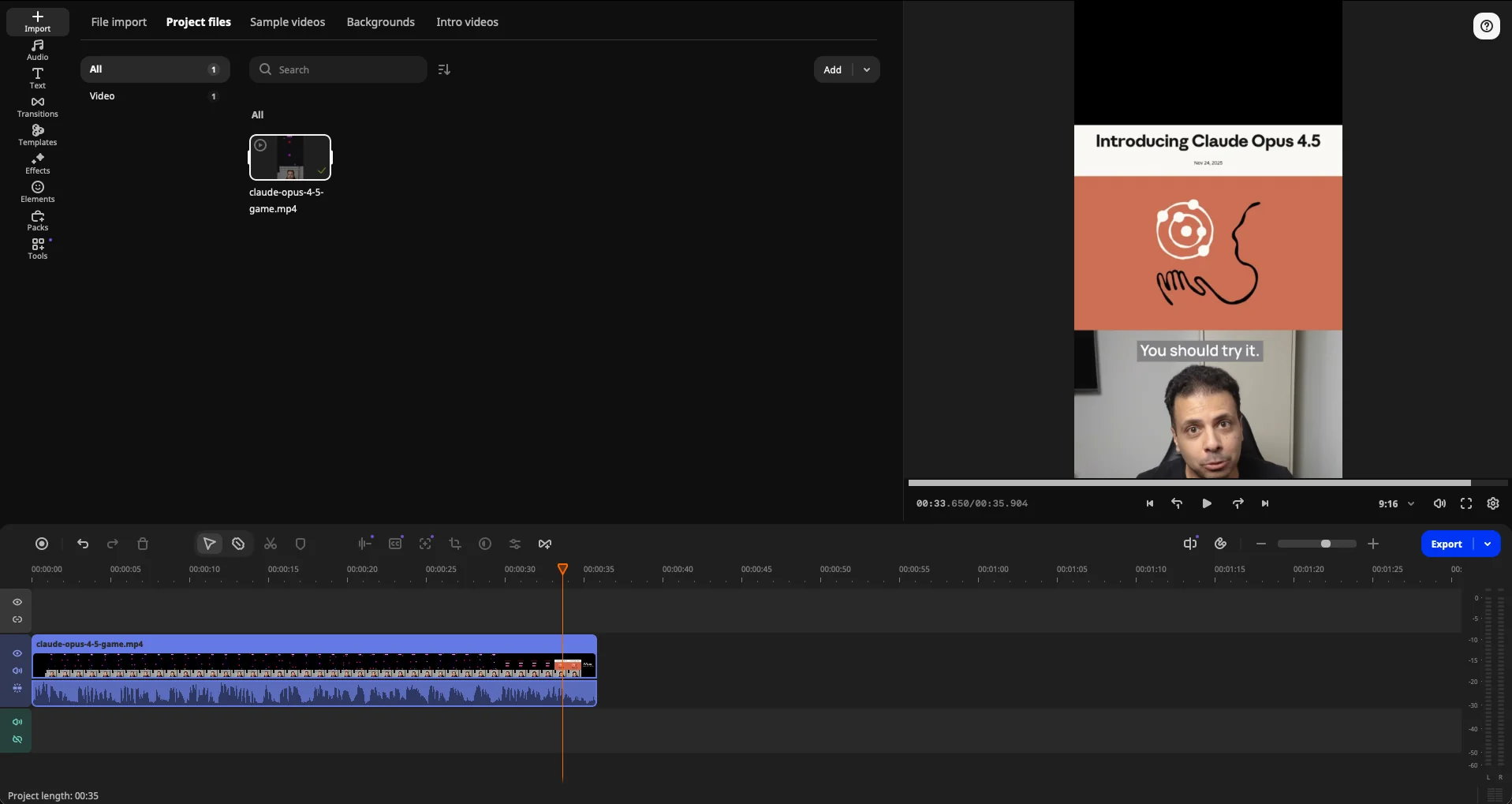
Importing our video
Movavi opens on the Import panel. Besides your own files, it has tabs for sample videos, backgrounds and intro clips, which help if you're starting from nothing. We dropped in our 35-second Short, and the project is set to 9:16 under the preview, so a vertical video stays vertical. The sidebar on the left names every tool: Audio, Text, Transitions, Templates, Effects, Elements, Packs and Tools. There's no hunting through menus.
Our advice: set the aspect ratio before you add titles or effects, so nothing needs repositioning later.
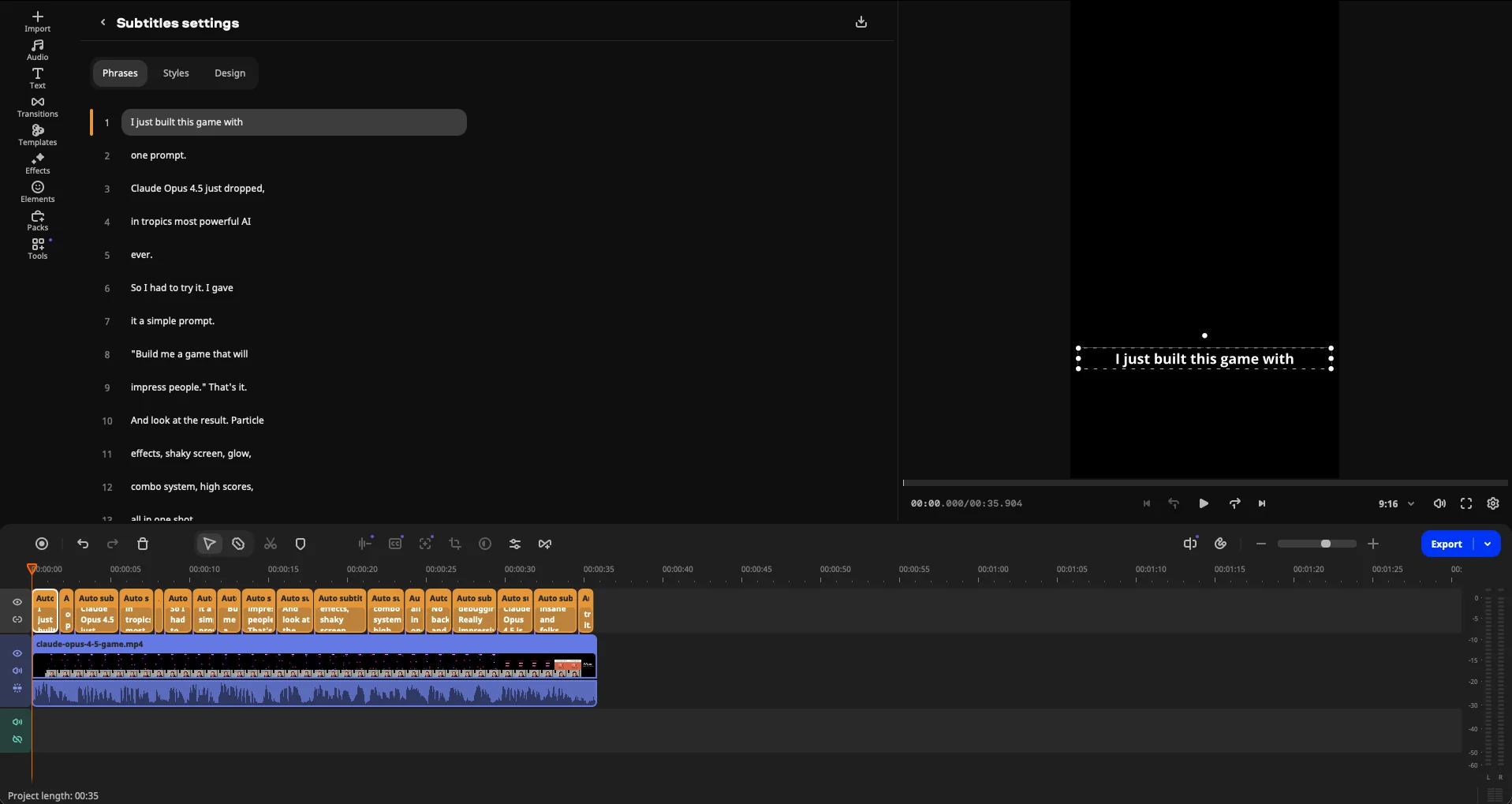
Auto subtitles
Captions were the feature we cared about most, since nearly every Short needs them. Movavi transcribed our voice and split it into short phrases, each one a clip on its own subtitle track above the video. The Phrases tab lists them for editing, and the Styles and Design tabs handle the look, including the word-highlight styles added this year.
The transcript was close to perfect. It got "Claude Opus 4.5" right but heard "Anthropic's" as "in tropics", a common slip for speech-to-text with brand names. You can correct it in the Phrases tab, so proofread names before you export.
AI color tools, background removal and audio cleanup
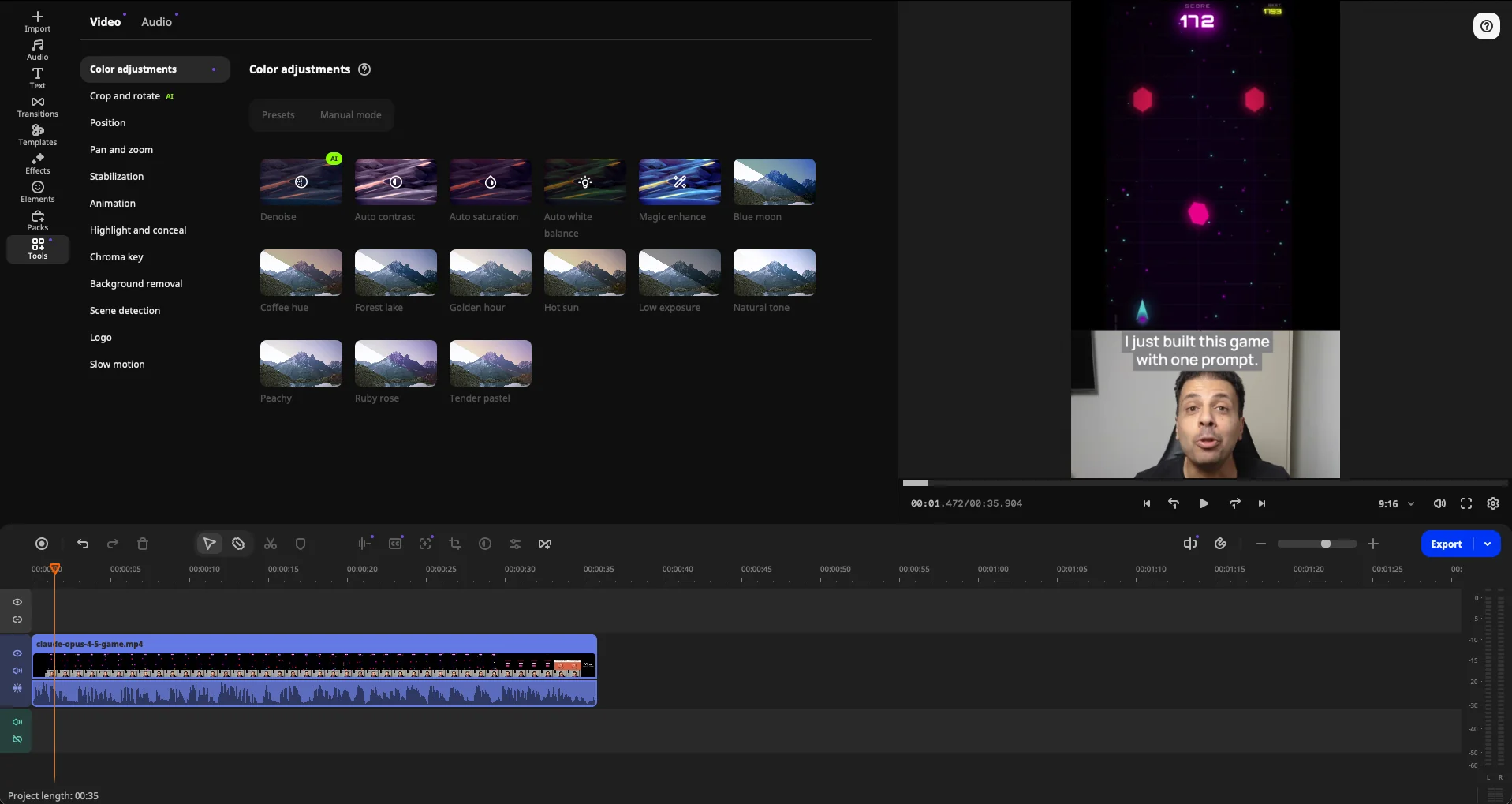
The Tools panel holds the one-click fixes. Color adjustments opens on presets: Denoise, marked AI, then Auto contrast, Auto saturation, Auto white balance, Magic enhance and ten looks such as Golden hour and Natural tone. Manual mode is there when you want sliders. The same list has Crop and rotate with an AI auto crop, Stabilization, Chroma key, Background removal, Scene detection and Slow motion, and the Audio tab holds the sound tools.
We tried background removal and audio cleanup on our clip, and both did what Movavi promises with no setup. For a talking-head Short like ours, those two tools do most of the polishing.
Try the AI tools on your own footage.
Try Movavi free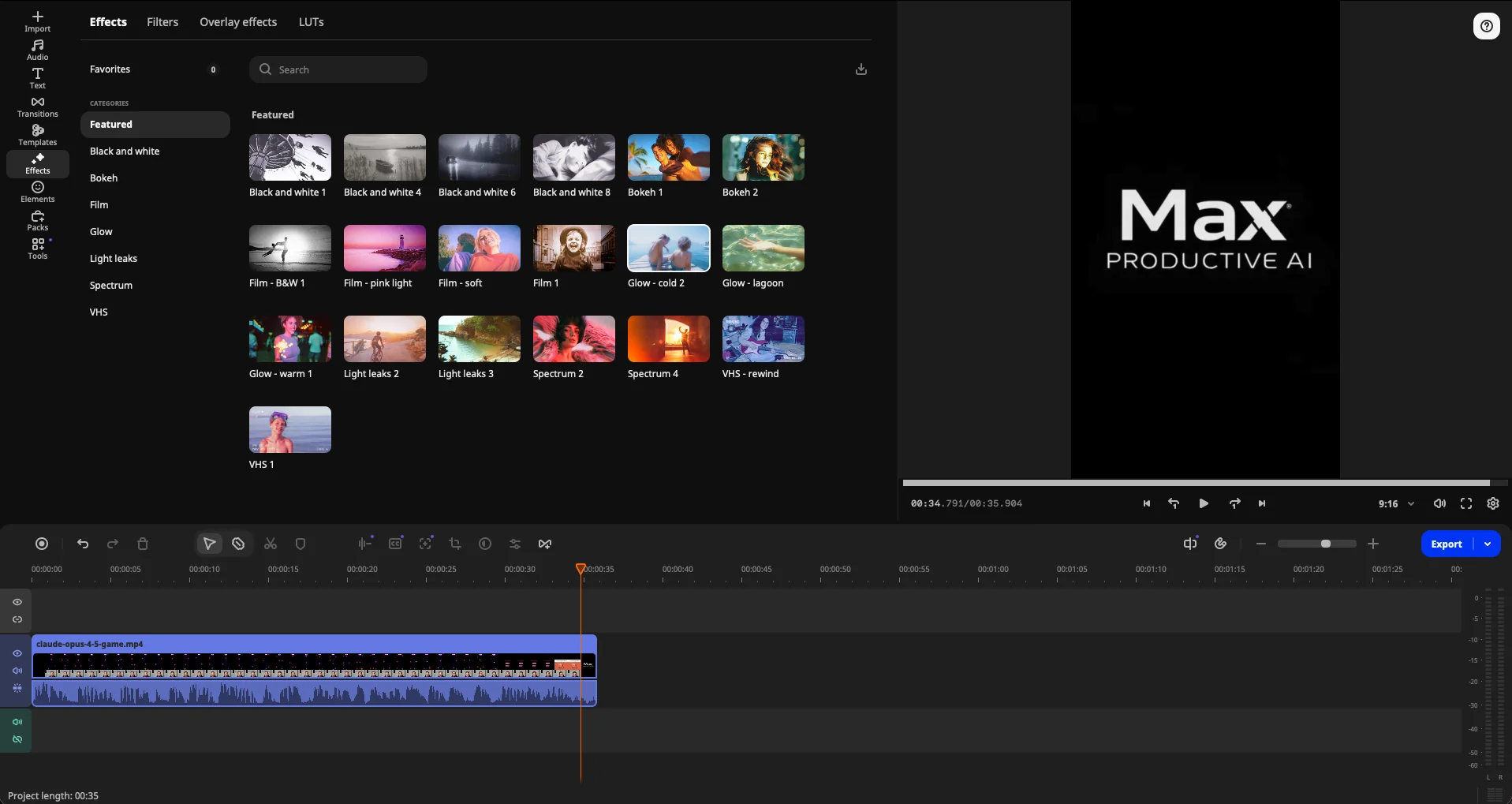
The effects library
The Effects panel has four tabs, Effects, Filters, Overlay effects and LUTs, with categories such as Black and white, Bokeh, Film, Glow, Light leaks and VHS. You can search the library and save favorites.
One thing to know before you fall for a look: items marked with a crown are paid content from the separate Movavi Effects library. Use one without the matching license and the export gets a watermark. Check for the crown before you build a style around an effect.
Templates and Blocks, new in 2027
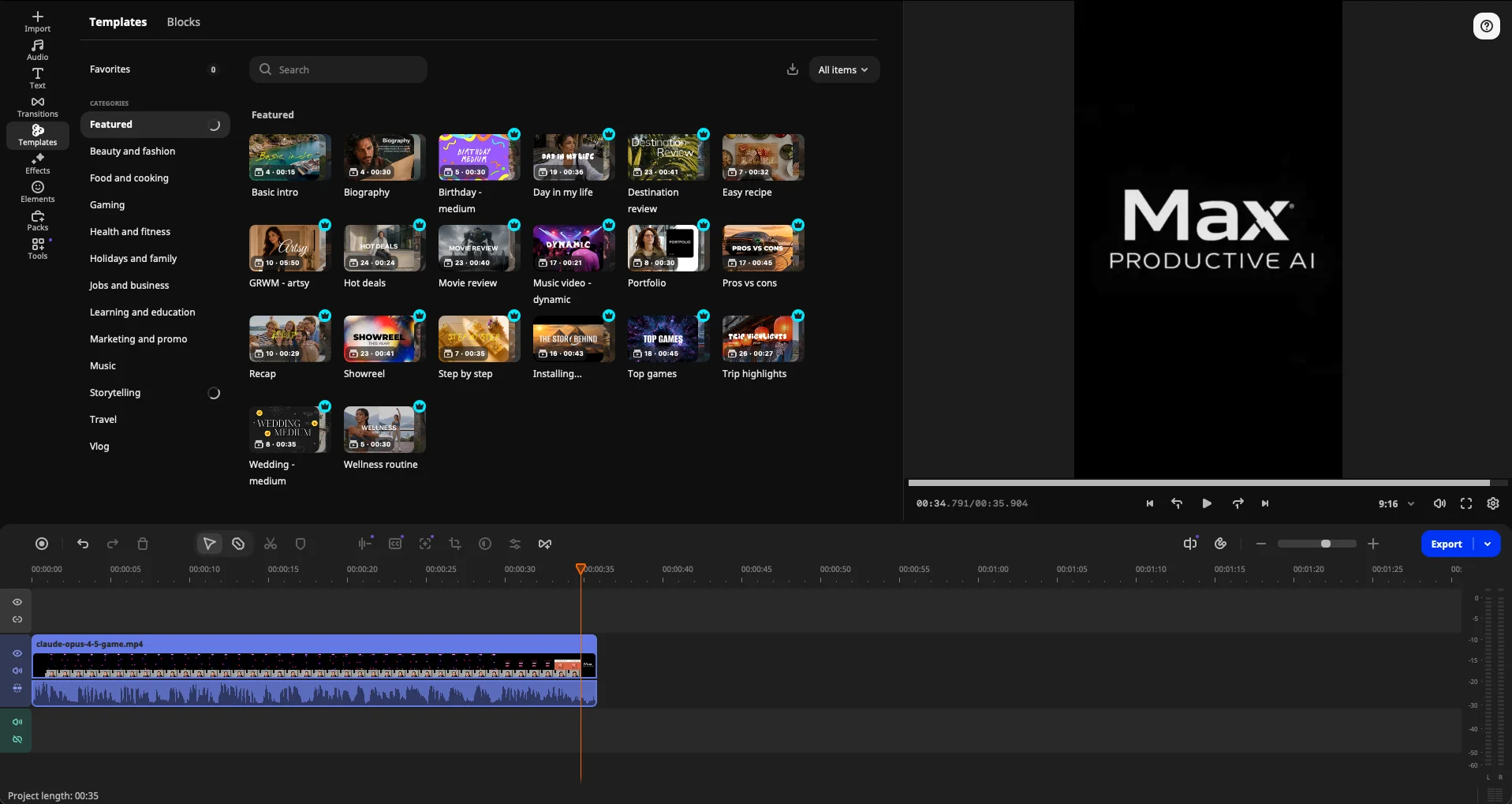
Templates are the headline of version 27. Pick a design such as Top games, Trip highlights or Pros vs cons, drop in your clips, and the edit, music, transitions and text are already done. Each card shows its running time and how many pieces it's built from. The Blocks tab offers the pieces on their own, such as intros, countdowns and collages, to place between your clips.
Eighteen of the 20 featured templates carry the crown icon. The ones we tried worked in our project with a Video Suite license. Movavi's help center, though, says premium templates need Movavi Templates access or a bundle that includes it, such as Movavi Unlimited. If templates are the reason you're buying, check that your plan lists them.
Movavi key features
Here's what the editor does well, and which parts cost extra. Where a feature goes beyond our test, we rely on Movavi's documentation.
-
Auto subtitles
Speech-to-text captions on their own track, with 30+ styles, word-by-word highlighting and translation into English, Spanish, Korean, Portuguese, Russian and Hindi. You can export them as an SRT file for YouTube. Movavi doesn't publish one clear count of the languages it can transcribe.
-
AI background removal
Cuts you out of the background without a green screen, so you can place yourself over a slide, a game or a new backdrop. It worked well on our talking-head footage.
-
AI audio cleanup
Removes background noise from voice recordings in one step. On our Short it did what it promises.
-
Color presets and AI video denoise
Auto contrast, saturation and white balance, Magic enhance, ten looks and, since March 2026, an AI denoise preset for grainy footage. Manual mode adds sliders when you want control.
-
Auto crop and motion tracking
Auto crop reframes a horizontal clip for vertical platforms and follows the main subject. Motion tracking pins text or stickers to a moving object. Digital Camera World notes it only works on the main video track. We didn't test it.
-
Silence removal
Cuts pauses automatically, with settings for pause length and volume threshold. It should save time on talking-head videos and tutorials.
-
Templates and Blocks
New in 2027Complete video designs and short pre-edited segments across 12 categories, from Gaming to Travel. A few are free, and crown-marked ones are premium.
-
Movavi Effects
Separate subscriptionA library of titles, transitions, stickers, LUTs and music tracks. Movavi's own pages quote anywhere from 6,000 to more than 10,000 effects, so take the exact count loosely.
One note on maturity. Movavi has made editors for years, and the timeline, effects and export are long-standing features. Templates and Blocks only arrived on September 29, 2026, so expect the collection and its pricing to change. We'll update this review as they settle.
Movavi pricing
As of October 2026, Movavi's US store lists a monthly Video Editor plan from $19.95, Video Editor Plus at $69.95 a year and Video Suite Plus at $99.95 a year. Prices change with promotions, and the full effects library and premium templates are sold separately.
| Plan detail | Video Editor (monthly) | Video Editor Plus | Video Suite Plus |
|---|---|---|---|
| Price | $19.95 for the first month, then $23.95 a month | $69.95 a year | $99.95 a year |
| Billing | Monthly, renews automatically | Yearly. A lifetime license is also offered | Yearly |
| What you get | The editor with its AI tools | The editor plus 3 effects packs | The editor, screen recorder and converter, plus 3 effects packs |
| Updates | Included while subscribed | Included while subscribed | Included while subscribed |
| Best for | One project, or a proper trial | Most YouTubers and hobbyists | Creators who also record their screen |
Swipe sideways to see every plan.
Prices come from Movavi's US store pages and help center, last checked in October 2026. Movavi runs frequent promotions and some of its store pages show different prices, so confirm the total at checkout.
See the current offer for each plan.
See Movavi plansWhich Movavi plan should you choose?
The monthly plan suits a single project, or a proper trial of the paid features before you commit. Video Editor Plus is the one we'd pick for most people: a year of the editor and its AI tools, plus three effects packs, for under $6 a month. Video Suite Plus adds the screen recorder and converter (we tested with a Video Suite license), which is worth it if you make tutorials. If you want every premium effect and template, look at Movavi Unlimited, which Movavi's help center says includes full Effects and Templates access while it's active.
Is Movavi worth the money?
For a beginner who'll use the built-in tools, yes. At current promotional prices, Video Editor Plus costs about $20 a year more than Filmora Basic and a little less than the $79.99 list price of PowerDirector 365. Both are cheaper than a year of Descript Hobbyist. Where the bill grows is the extras. If your style relies on premium effects, add the Effects subscription, which Movavi's store lists at $49.95 a month or $89.85 a year, or go straight to Unlimited.
Effects, templates and watermarks: what costs extra
Movavi sells three things separately: the editor, Movavi Effects (premium titles, transitions, stickers, music and effects) and Movavi Templates (premium templates and Blocks). Paid items carry a crown icon in the app. Use one without the matching license and your export gets a watermark, even if the editor itself is activated.
It's one of the most frequent complaints in user reviews: people finish a project, export it, and only then meet the watermark. The fix is simple once you know it. Remove the crown-marked items, or buy the matching access. Some store offers bundle Effects access with the editor, so read the plan description at checkout.
Free version, trials and refunds
The free version lets you try the editor, but exports may carry a watermark and stop at 60 seconds of video, depending on the version. Movavi Effects trials work differently: they can ask for payment details and turn into a paid subscription unless you cancel.
Paid plans come with a 14-day money-back guarantee for technical or other problems that support can't solve. Each subscription (editor, Effects, Templates) is canceled separately from your Movavi account, and canceling stops renewals rather than refunding the current period.
Lifetime license or subscription?
Movavi still sells lifetime licenses next to its yearly plans. A lifetime license keeps the version you buy working. Movavi doesn't clearly say whether it includes the next major release, such as a future 2028 version, so ask before you pay if that matters to you. Subscriptions include every update for as long as they're active.
Movavi pros and cons
Pros
Easy to learn
Every tool sits in a labelled sidebar, and most fixes take one click. It's a strength users mention often, and the named panels make it easy to find your way on a first project.
Auto subtitles that need little fixing
Our captions needed one correction in 35 seconds of speech. With styles, word highlighting, translation and SRT export, it covers what a Shorts creator needs.
One-click AI cleanup
Background removal and audio cleanup need no setup, and on our Short both did what they promise. The AI denoise preset sits one click away in Color adjustments.
Templates give beginners a head start
The 2027 Templates and Blocks hand you a finished structure with music and transitions. You swap in your clips and adjust, which is far quicker than building a video from scratch.
Frequent updates
Movavi released a new version roughly every two weeks over the past year, adding word highlighting, auto crop and video denoise along the way.
Native on Mac and Windows
It runs natively on Apple silicon Macs and on Windows 10 and 11, so you can edit on the computer you already have.
Cons
Pricing is hard to read
Movavi's store pages don't always agree. We found different prices for the same plan and promotions that had already ended. Check the total at checkout.
Premium extras cost more
The full effects library and premium templates sit behind separate purchases, and crown-marked items add a watermark if you don't have access. It's easy to miss until export.
Several subscriptions to manage
The editor, Effects and Templates can each be a separate subscription, renewed and canceled on its own. Keep track of what you've signed up for.
Mixed reports on stability
Some users on Steam and Reddit report slowdowns, crashes or hardware-acceleration problems, depending on their computer. We didn't hit any in our short test, but we didn't push it hard either.
Less depth than step-up editors
Filmora and PowerDirector offer more advanced tools. If you plan to grow into complex edits, you may outgrow Movavi.
Movavi alternatives
All seven tools below are in our AI video editing directory. The table covers the four closest to Movavi.
| Compared on | Movavi Reviewed | Filmora | PowerDirector | CapCut | Descript |
|---|---|---|---|---|---|
| Entry paid plan | $69.95 a year (Plus), or $19.95 for a first month | $49.99 a year (Basic) | $79.99 a year (PowerDirector 365), often discounted | Pro, price varies by region | $16 a month, billed annually |
| Platforms | Mac, Windows | Mac, Windows | Mac, Windows | Mac, Windows, web, mobile | Mac, Windows, web |
| Free option | Free version with watermark | Free version with watermark | Free Essential version | Free plan | Free plan with watermark |
| Auto subtitles | Yes, with translation | Yes, AI credits may apply | Yes | Yes, Pro on desktop | Yes, on every plan |
| How you edit | Timeline, one-click tools, templates | Timeline with creative effects | Timeline with advanced tools | Timeline and templates, social-first | Edit the transcript like a document |
| Best for | Beginners and YouTubers on desktop | Creators who want more effects | Enthusiasts who want more control | Short-form social video | Talking-head videos and podcasts |
Swipe sideways to see every tool.
Movavi vs Filmora
These two are the classic beginner desktop editors, and they're closer than their marketing suggests. Both run on Mac and Windows, both sell premium creative assets separately, and both lean on one-click AI. Filmora Basic costs about $20 a year less. Movavi's labelled sidebar makes it the gentler one to start with, and its new templates help if you'd rather not build from scratch. Choose Filmora for price and creative range, Movavi for the easiest first steps.
Movavi vs CapCut and Descript
CapCut is the pick for short-form social video, especially if you also edit on your phone. It has a free plan, though auto captions on desktop need Pro, and Pro pricing varies by region. Descript works differently: you edit the transcript and the video follows, which is faster for interviews, podcasts and talking-head videos, and captions come with every plan. Movavi sits between them as a traditional desktop timeline with effects and templates.
Which alternative fits you?
-

Wondershare FilmoraOur rating: 4.2 / 5
Best for: Creators who want a beginner-friendly desktop editor with a larger creative toolkit at a lower yearly price.
Basic costs $49.99 a year and covers Windows and Mac. Its creative asset library is a separate subscription, much like Movavi Effects.
Read our Wondershare Filmora review Visit Wondershare Filmora
-

PowerDirectorOur rating: 4.4 / 5
Best for: Windows and Mac users who expect to grow into more advanced editing.
PowerDirector 365 lists at $79.99 a year and is often discounted, with a free Essential version to try. It gives you more control than Movavi, with a steeper learning curve.
-

CapCutOur rating: 4.0 / 5
Best for: Short-form creators who edit on phone and desktop and want trend-ready templates.
CapCut has a free plan on desktop, web and mobile. Auto captions on desktop need Pro, whose price depends on your region and device.
-

DescriptOur rating: 4.6 / 5
Best for: Podcasters and talking-head creators who'd rather edit words than clips.
Hobbyist costs $16 a month billed annually, or $24 monthly, and captions come with every plan, Free included. It's less suited to effects-heavy edits.
-

VEEDOur rating: 4.2 / 5
Best for: Marketers and small teams who want to edit and caption in the browser.
VEED runs in the browser, so there's nothing to install, and it has mobile apps too. Paid plans are billed per seat, which matters once you add collaborators.
-

SubmagicOur rating: 4.8 / 5
Best for: Shorts and Reels creators who mainly need eye-catching animated captions.
Submagic focuses on captions and quick social edits rather than full timeline editing. Use it alone for caption-first Shorts, or next to Movavi.
-

GlingOur rating: 4.1 / 5
Best for: YouTubers who want the rough cut of a long talking video done for them.
Gling removes silences and bad takes from raw footage, then hands the cut to your editor. It complements Movavi more than it replaces it.
Movavi FAQ
Is Movavi Video Editor free?
No, Movavi Video Editor is a paid app, but there is a free version to try it. As of October 2026, free exports may carry a watermark and stop at 60 seconds of video, depending on the version. Paid plans start at $19.95 for the first month of the monthly subscription.
How much does Movavi cost?
As of October 2026, Movavi Video Editor costs $19.95 for the first month on the monthly plan, then $23.95 a month, according to its store page. Video Editor Plus is $69.95 a year, and Video Suite Plus, which adds a screen recorder and converter, is $99.95 a year. The full Movavi Effects library and premium templates cost extra, and prices change often with promotions.
Is Movavi good for beginners?
Yes, Movavi Video Editor is one of the easiest desktop editors for beginners. Every tool sits in a labelled sidebar, most fixes take one click, and the 2027 templates give you a finished structure to fill with your own clips. It has less depth than Filmora or PowerDirector, which only matters once you want advanced edits.
Why does Movavi add a watermark to my video?
Movavi adds a watermark when the editor isn't activated, or when your project uses crown-marked paid items that your license doesn't cover. Paid effects, titles, music, templates and Blocks are licensed separately from the editor. To export without the watermark, remove the crown-marked items or buy access to Movavi Effects or Movavi Templates, then export again.
What's new in Movavi Video Editor 2027?
Movavi Video Editor 2027, released on September 29, 2026, adds Templates and Blocks. Templates are complete video designs with editing, music, transitions and text already in place. Blocks are short pre-edited segments, such as intros, countdowns and collages, that you fill with your own footage. A few are free, and crown-marked ones need premium access.
What AI features does Movavi have?
Movavi Video Editor's AI tools include auto subtitles with translation, background removal without a green screen, audio noise removal, an AI video denoise preset, auto crop and motion tracking. It also removes silences automatically. In our test on a Mac, auto subtitles, background removal and audio cleanup all worked as described.
Does Movavi work on Mac?
Yes, Movavi Video Editor runs on macOS 12 or later, natively on Apple silicon Macs, as well as on Windows 10 and 11. We tested the 2027 version on a Mac with a Video Suite license, and importing, auto subtitles, background removal, audio cleanup, templates and export all worked as described.
Is Movavi better than Filmora?
Movavi is easier to start with, while Filmora costs less and offers more creative range. Filmora's Basic plan costs $49.99 a year against $69.95 for Movavi Video Editor Plus. Both sell premium assets separately. Pick Movavi for the gentlest learning curve and its new templates, Filmora for price and depth.
How do I cancel a Movavi subscription?
You cancel each Movavi subscription separately from your Movavi account, because the editor, Movavi Effects and Movavi Templates don't cancel together. Canceling stops future renewals but doesn't trigger an automatic refund, though paid plans have a 14-day money-back guarantee for problems support can't fix.
Should you try Movavi?
Movavi doesn't try to be the deepest editor on the market, and that's its appeal. It's the one we'd hand to someone making their first YouTube videos. It's quick to learn, its AI tools work without setup and, since version 27, templates do the structure for you. The limits are real. Pricing takes some reading, premium effects and templates cost extra, and keen editors will outgrow it. If you want polished videos without a learning curve, Movavi earns its 4.1.
What we'd do. Download the free version and edit one real video before you pay. Generate auto subtitles and proofread the names, try background removal and audio cleanup, and open a few templates. Watch for the crown icon: if your favorite looks are crown-marked, budget for Effects or Unlimited. Then pick Video Editor Plus for a year, or the monthly plan for a one-off project.
Our rating: 4.1 / 5
Very good
About this review
Based on a hands-on edit of our own video with a paid Movavi Video Suite license on Mac, Movavi's store pages, release notes and help center, and public user feedback. First published 31 March 2026. Last updated 9 October 2026.
Sources checked
- Pricing and plans. Movavi store and Video Suite page, checked October 2026.
- Features and release dates. Movavi release notes and system requirements.
- Licensing and watermarks. Movavi help center.
- Independent opinion. Digital Camera World's review, plus user reviews on Trustpilot, Steam and Reddit.
Ratings are our overall editorial judgment on a 5-point scale: 4.5 and up is Excellent, 4.0 to 4.4 Very good, 3.5 to 3.9 Good, 3.0 to 3.4 Fair. We do not use sub-scores.
This review contains affiliate links, so we may earn a commission at no extra cost to you. Our ratings and editorial opinions remain independent.