
Gling AI
AI video editor built for YouTubers: automatically cut silences, remove filler words, and eliminate bad takes from talking-head footage. Get a clean rough cut in minutes, then export to Premiere Pro, Final Cut Pro, or DaVinci Resolve.
Try Gling AI →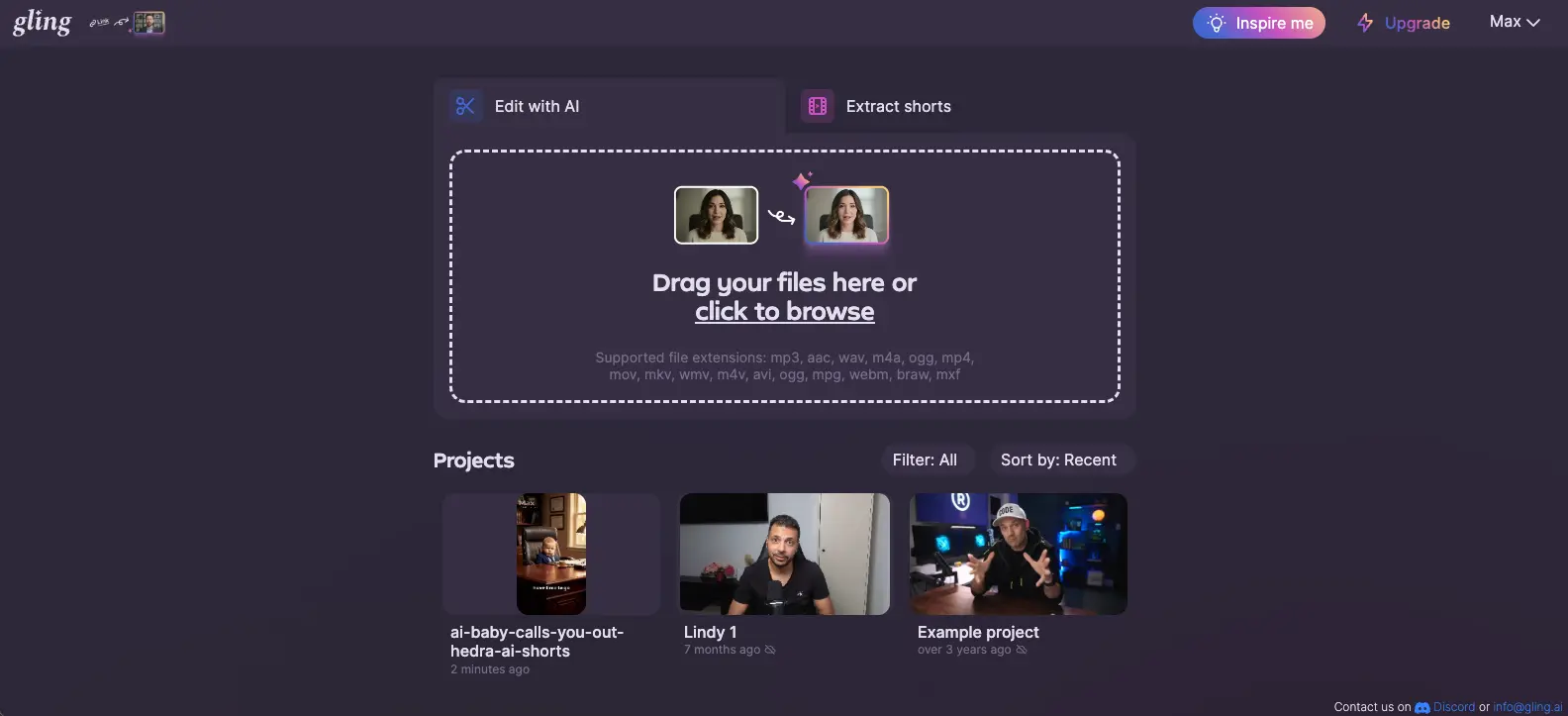
The Rough Cut King
for Solo YouTubers
Gling AI does one thing and does it well: it takes your raw, unpolished talking-head footage and delivers a clean rough cut in minutes instead of hours. The text-based editing is genuinely intuitive—delete a sentence from the transcript and the video follows. At $10/month on the annual Plus plan, it's one of the highest-ROI tools a solo YouTuber can add to their stack. It won't replace your NLE, and it won't help with anything beyond dialogue-driven content—but for that specific job, nothing else at this price point comes close.
✓ What We Love
- Turns 2-3 hour rough cuts into a 5-minute AI pass
- 96.7% safety score—almost never cuts what it shouldn't
- XML export to Premiere, FCP, and DaVinci Resolve
- Desktop app works offline with local file processing
! Could Be Better
- Only useful for talking-head / dialogue content
- Leaves ~22.5% of filler—manual review still needed
- Some users report export framerate jitter
What Is Gling AI?
Who built it, what problem it solves, and whether it fits your editing workflow.
Gling AI is a specialized AI video editor built for one specific job: automating the rough cut of talking-head video. Founded in 2022 by Sefi Keller and Yonatan Bendahan, it scans your raw footage, transcribes the audio, identifies silences, filler words ("um," "uh"), repeated lines, and bad takes—then removes them automatically. What's left is a clean, trimmed edit you can export directly to your NLE for final polish.
Here's the thing—this isn't trying to be Premiere Pro or Filmora. It doesn't do color grading, motion graphics, or complex audio mixing. It does exactly one thing, and it does it faster than you can manually. A 60-minute raw recording typically gets its first rough cut in under 5 minutes. For creators who spend 2-3 hours per video just cutting dead air and retakes, that time savings is genuinely transformative.
As of April 2026, over 50,000 creators use Gling, including high-profile YouTubers like Shelby Church (1.8M subscribers), DamiLee (1.5M subscribers), and Israel Com Aline (2.2M subscribers). It holds a 4.6/5 on Product Hunt and 4.0/5 on Capterra. The tool is available as a native desktop app for Mac and Windows (with local file processing for low-bandwidth situations) and as a browser-based web editor.
Who Is Gling AI Best For?
Solo YouTubers publishing talking-head tutorials, commentary, or educational content. Online course creators recording lectures. Podcasters producing video versions of their shows. Beginner editors with zero prior experience—Gling's text-based approach makes video editing as simple as editing a Google Doc. Also strong for marketers producing explainer or testimonial videos at scale.
What separates Gling from general-purpose AI editors like VEED.io or CapCut is its deliberate focus on the NLE workflow. Rather than trying to be your only editor, it positions itself as the first step—the AI that handles the tedious part so you can focus on the creative part in your preferred professional tool. XML and EDL exports open directly in Premiere Pro, Final Cut Pro, and DaVinci Resolve. That integration isn't an afterthought; it's the product's core design philosophy.
See Gling AI in Action
Real screenshots from the platform showing the editing workflow and key features.
Dashboard & Upload
Your starting point: drag and drop raw footage or choose from recent projects
Clean, dark-themed interface. The upload area accepts a wide range of formats—MP4, MOV, MKV, AVI, and more. The project library below shows recent edits with thumbnails, making it easy to pick up where you left off. Worth noting: the "Inspire me" button in the top corner generates YouTube content ideas based on your channel, which is a nice touch for creators stuck on what to film next.
Enhance Your Video — Feature Selection
Choose which AI enhancements to apply before editing begins
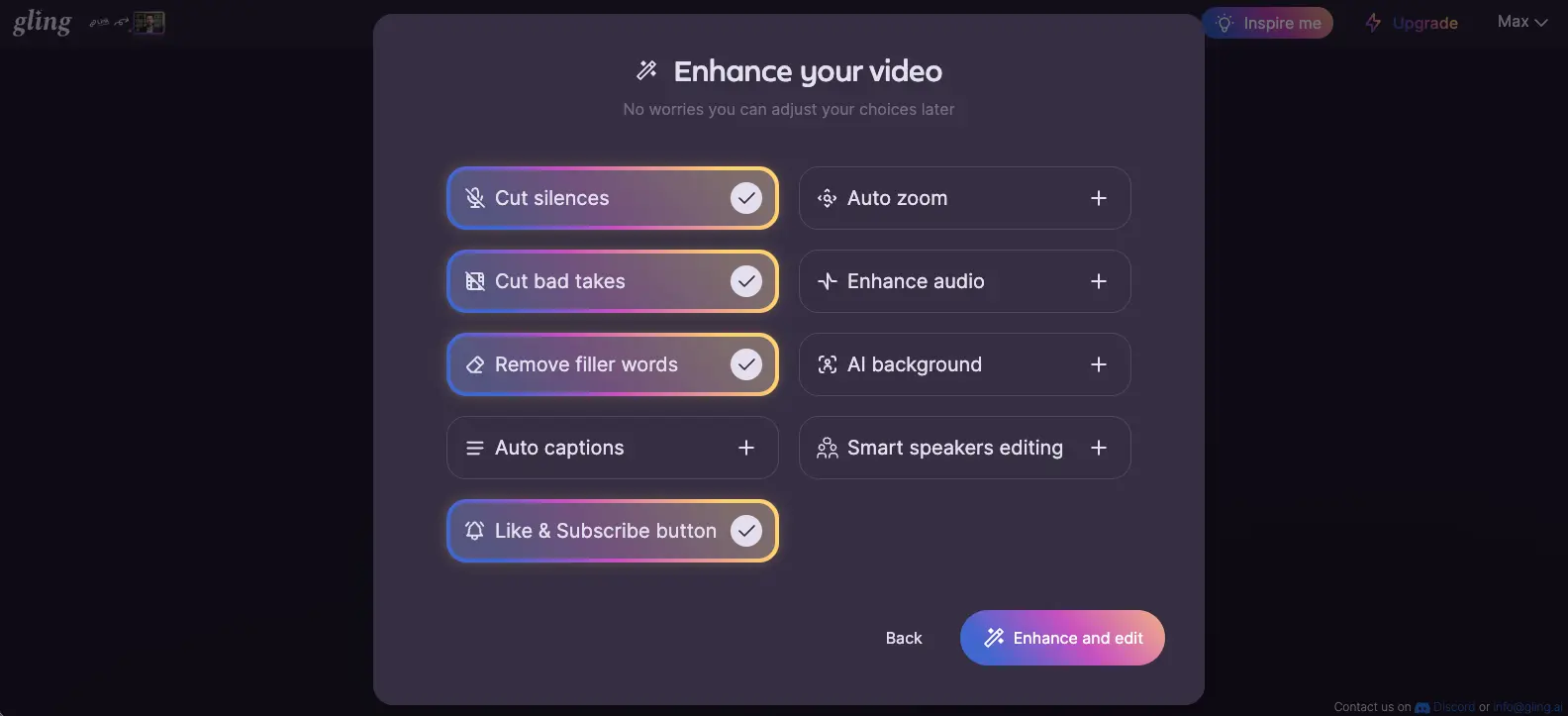
This is where Gling shows its hand. The three core features—Cut silences, Cut bad takes, and Remove filler words—are pre-selected by default. Below those, you get enhancement options like Auto captions, Auto zoom, Enhance audio, AI background replacement, and even a "Like & Subscribe button" overlay. The modular approach means you pick exactly what you need and skip what you don't.
Text-Based Editing Interface
Edit your video like a Google Doc—delete text, delete the corresponding video
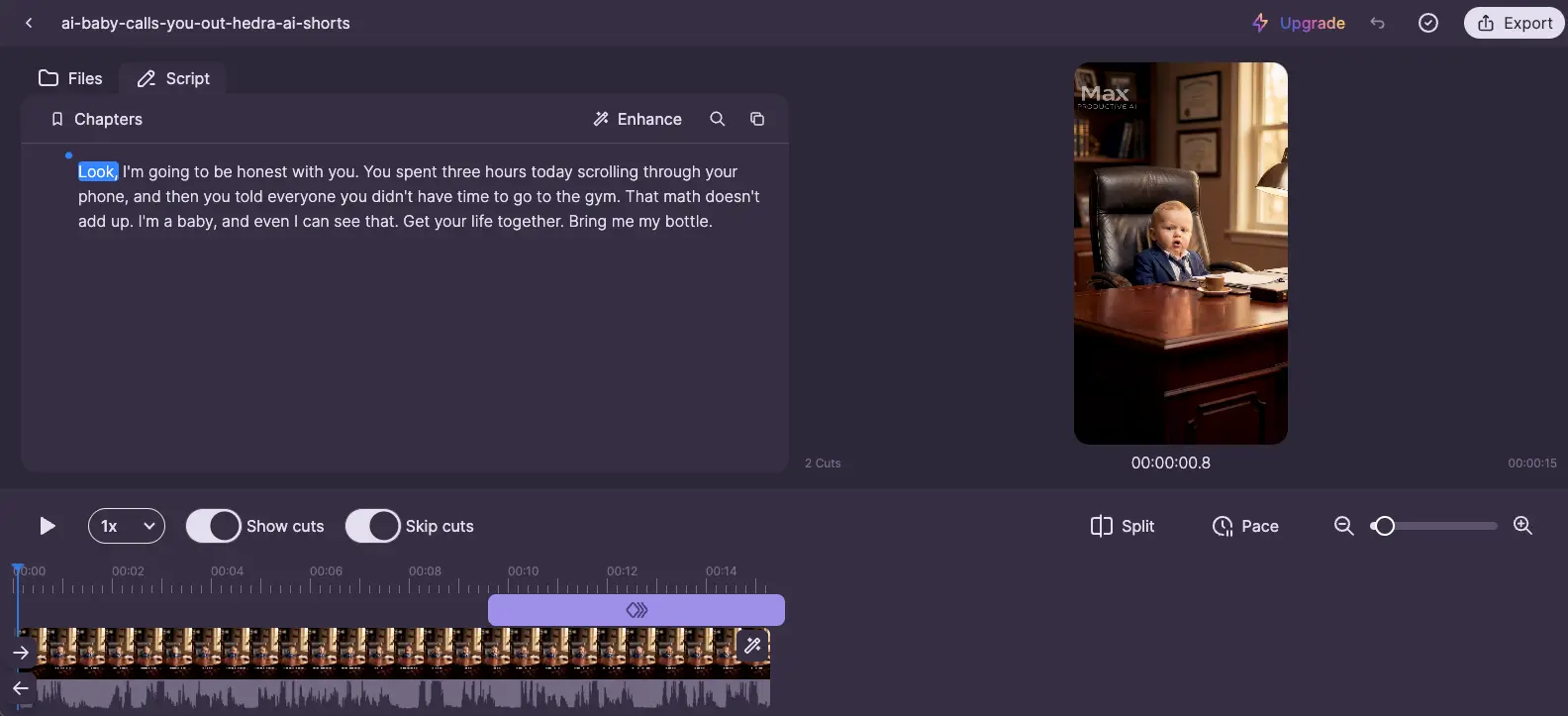
This is the core of the product—and honestly, it's a clever approach. The left panel shows your transcribed text. Words highlighted in blue have been marked for cutting. The "2 Cuts" indicator below the preview confirms the AI has already trimmed the footage. Toggle "Show cuts" to see what was removed, or "Skip cuts" to preview the clean version. The timeline at the bottom lets you do manual adjustments if the AI got something wrong, which it will occasionally.
Want to see how Gling handles your footage?
Try Gling AI Free →Free plan included • No credit card requiredEnhance Panel — B-Roll, Captions & Audio
Post-processing options for polishing your rough cut
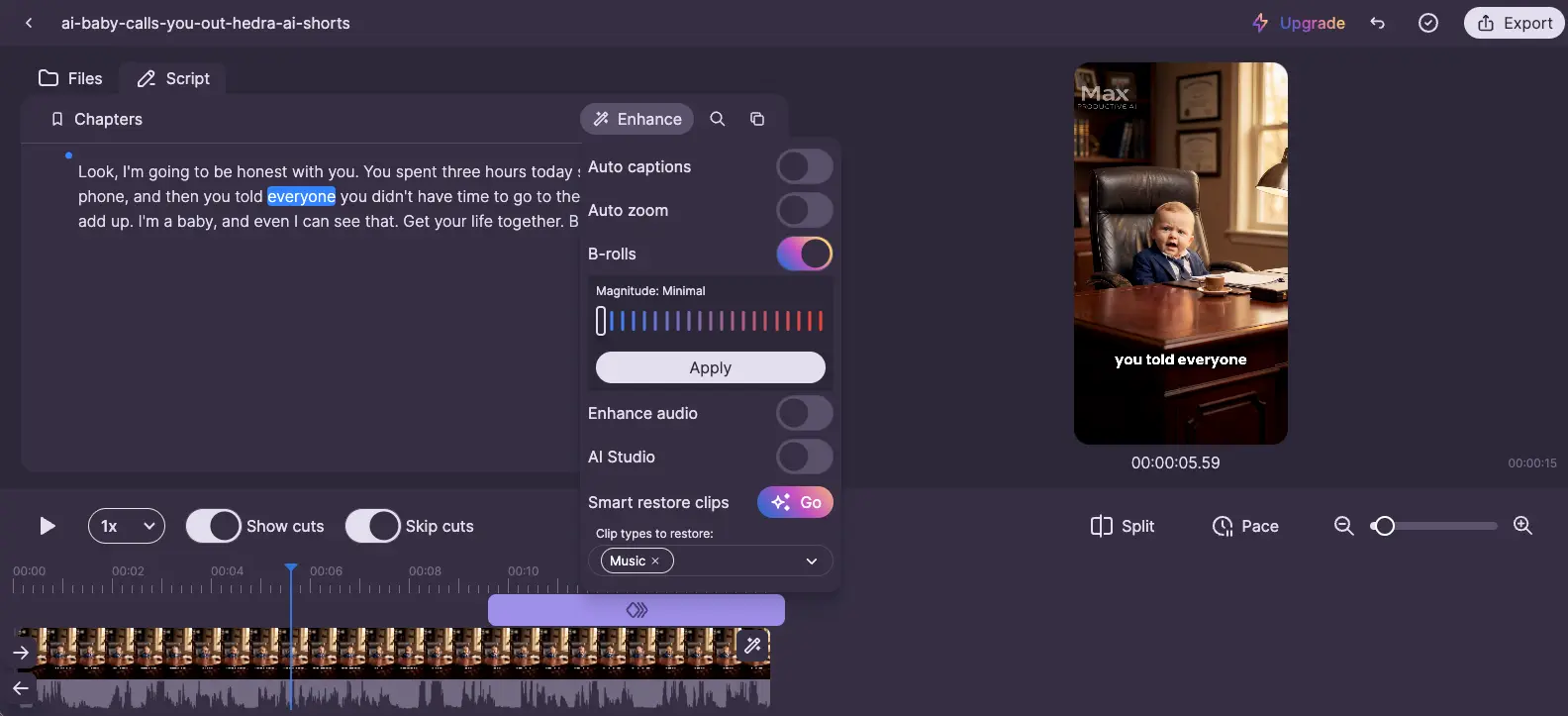
The Enhance panel gives you one-click access to add-on features. The B-rolls toggle automatically inserts AI-generated contextual footage into talking-head segments—set the magnitude from Minimal to more aggressive. "Smart restore clips" is a useful safety net that recovers content the AI may have cut too aggressively. The auto captions and audio enhancement features round out the package, though dedicated captioning tools like Submagic still produce better-styled captions for social media.
AI Background Generator
Replace your background without a green screen
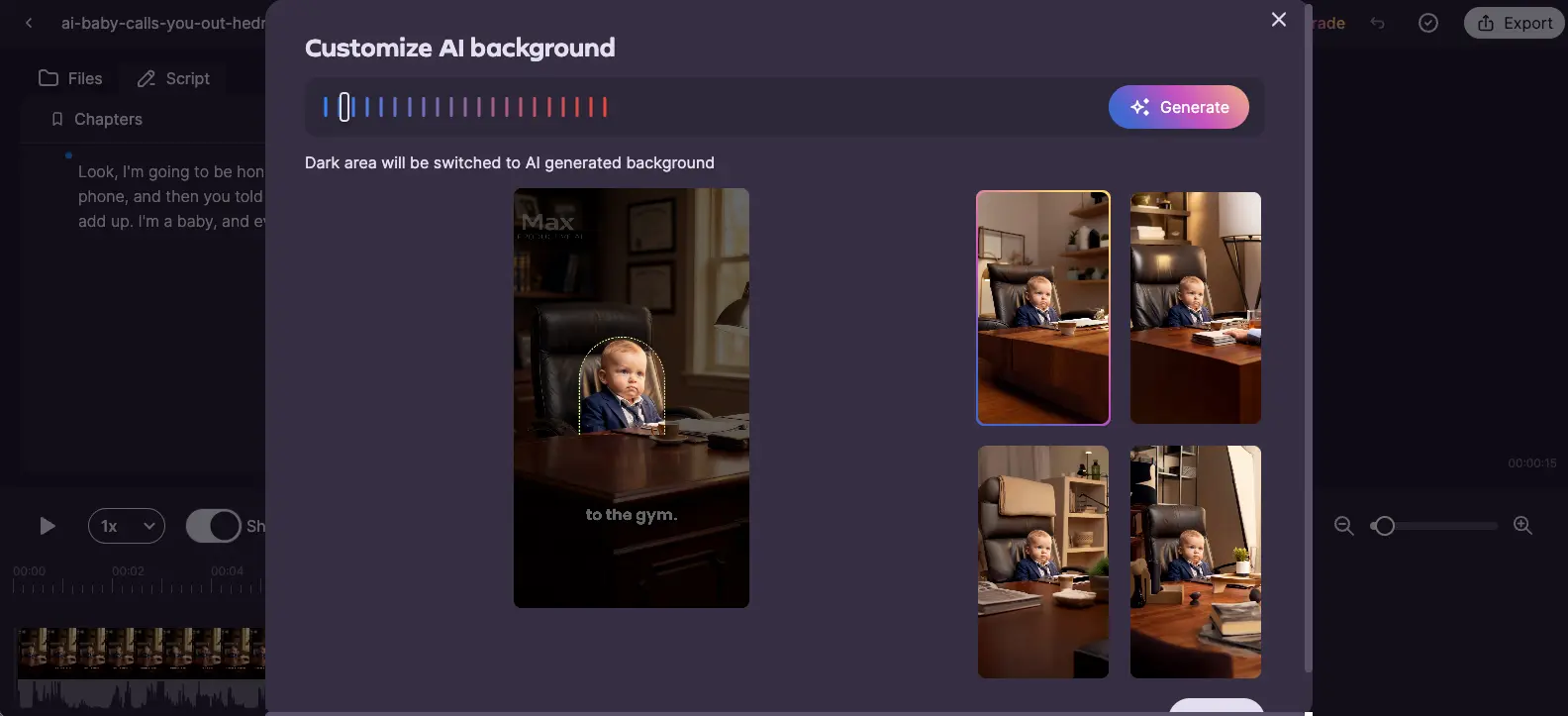
A nice bonus feature—Gling can isolate your subject and swap the background with AI-generated alternatives. The dark area gets replaced, and you choose from several generated options. It's not as refined as a proper green screen setup, but for creators recording in messy rooms or wanting visual variety without reshooting, it's a practical time-saver.
How Gling AI Works
From raw footage to rough cut in four steps. The whole process takes under 5 minutes for a 60-minute recording.
Upload Your Raw Footage
Drag and drop your video file into Gling's dashboard, or open a locally cached file on the desktop app. Supported formats include MP4, MOV, MKV, AVI, WAV, M4A, and more. The desktop app is particularly useful if you have a slow internet connection—it processes files locally without needing to upload everything to the cloud.
Select Your AI Enhancements
Before processing begins, pick which features you want applied: silence removal, filler word cutting, bad takes detection, auto captions, auto zoom, background replacement, and more. The core trio (silences, filler words, bad takes) is pre-selected by default. You can also toggle the sensitivity slider between "Aggressive" and "Natural"—Aggressive strips everything, Natural preserves some vocal habits and intentional pauses.
Review the Text-Based Edit
Here's where Gling earns its keep. The AI generates an editable transcript of your entire video. Words and sentences marked for cutting are highlighted. Delete a sentence from the transcript and the corresponding video segment disappears. It's as intuitive as editing a document, which is exactly the point—you don't need to understand timelines, razor tools, or keyboard shortcuts. Toggle "Show cuts" to compare before and after. If the AI over-cut a dramatic pause, restore it with a click.
Export to Your NLE or Direct Publish
Once you're satisfied, export the edited sequence as XML for Final Cut Pro, XML/EDL for Premiere Pro or DaVinci Resolve, direct MP4 for CapCut or immediate publishing, MP3 for audio-only podcasts, or SRT for subtitle files. The XML export is the killer feature here—your rough cut opens in your NLE with all cuts intact, ready for b-roll, transitions, color grading, and final polish.
Desktop App Advantage
Unlike browser-only editors, Gling's desktop app (Mac and Windows) processes files locally. This matters for creators in regions with unreliable internet or those working with large 4K files. The desktop app also avoids the browser crash risk that plagues tools like VEED.io during heavy renders.
Key Features
What you're actually getting—and what's genuinely useful versus what's still developing.
Silence & Filler Word Removal
The feature that justifies the whole product. Gling scans your audio waveform, identifies dead air and filler words ("um," "uh"), and cuts them. The 2026 update added intentional pause detection—so dramatic pauses don't get axed—and a custom stoplist for regional speech patterns. You'll still want to review the output, but the heavy lifting is done.
Bad Takes Detection
This is Gling's unique differentiator. When you repeat a sentence three times because you fumbled the first two, Gling identifies all versions, picks the best delivery, and removes the rest. No other tool at this price does this as well—it's the single biggest time-saver for creators who don't use a teleprompter.
Text-Based Editing
Edit video by editing text. Your footage becomes a transcript—delete a word and the video cut follows. For creators who find timeline editors intimidating, this is a different way of thinking about editing entirely. It's also fast: scanning a transcript and deleting sentences is much quicker than scrubbing through a timeline.
NLE Export (XML/EDL)
Export your rough cut as XML for Final Cut Pro, XML/EDL for Premiere Pro and DaVinci Resolve, or direct MP4. This is what makes Gling a workflow tool rather than a toy—your cuts transfer directly into your professional editor with no re-editing needed. Also supports MP3 and SRT export for podcasters.
Multicam Editing
Multi-angle footage can be synced and switched within Gling. Useful for creators recording with two camera angles, though the feature is still less mature than dedicated multicam support in Premiere or Final Cut.
AI B-Roll Generator
Automatically generates contextual b-roll footage to insert into talking-head segments. You control the magnitude from minimal to aggressive. It's a good supplement but won't replace hand-picked b-roll for polished content—think of it as a quick-and-dirty enhancement for less production-heavy videos.
YouTube Tools
Title generator, chapters generator, and next video suggestions—all based on your transcript. These are genuinely useful extras that make Gling more than just a trimmer. The chapter markers format directly for YouTube descriptions, saving an annoying manual step.
AI Background Replacement
Swap your background without a green screen. The AI isolates your subject and generates alternative backgrounds. Not studio-quality, but practical for creators recording in less-than-ideal environments who want visual variety without reshooting.
Pricing Plans
Hours-based pricing with a permanent free tier. Annual billing cuts costs in half.
Free
- ✓ 1 hour AI-edited media/month
- ✓ All core features included
- ✓ Text-based editing
- ✓ NLE export (XML/EDL)
- ⚠ Watermark on exports
Plus (Annual)
- ✓ 10 hours AI-edited media/month
- ✓ All features included
- ✓ No watermark
- ✓ Desktop + web access
- ✓ $20/mo if billed monthly
Pro (Annual)
- ✓ 30 hours AI-edited media/month
- ✓ All features included
- ✓ No watermark
- ✓ Premium support
- ✓ $40/mo if billed monthly
Important: All paid plans include identical features—tiers differ only by hours of AI-edited media
Pricing last verified April 2026. Visit Gling AI for current rates.
Is It Worth the Money?
At $10/month on the annual Plus plan, Gling pays for itself after a single video if your time is worth more than $5/hour. For a creator publishing weekly 20-minute videos from 60-minute raw recordings, that's roughly 8-12 hours saved per month. Even accounting for the manual review pass, the net time savings is substantial.
For context: Descript starts at $16/month (annual) with a more complex credit system. Filmora offers a $79.99 perpetual license but it's a full editor, not a rough-cut tool. Movavi has lifetime pricing from ~$36 but doesn't offer AI silence removal at Gling's level. For the specific job of automated rough cuts, Gling's annual pricing is the most competitive in the category.
Detailed Pros & Cons
An honest breakdown based on independent benchmarks and real user feedback.
✓ Pros
This isn't marketing fluff. A 60-minute raw recording gets its rough cut in under 5 minutes. Creators who used to spend 2-3 hours cutting dead air and retakes now spend that time on creative work instead. For weekly publishers, that's 8-12 hours reclaimed per month—at $10/month, the ROI is absurd.
In an independent benchmark, Gling correctly preserved 96.7% of content that should be kept. That means it almost never accidentally cuts meaningful content—a critical metric that matters more than how much filler it removes. You can trust it not to destroy your best takes.
If you can edit a document, you can use Gling. No timeline skills needed, no keyboard shortcuts to memorize. Delete a sentence from the transcript, the video follows. For creators who find traditional editors intimidating—or who just want to move faster—this approach is a real unlock.
XML/EDL export to Premiere Pro, Final Cut Pro, and DaVinci Resolve isn't a gimmick. Your rough cut opens in your NLE with all cuts intact. This matters because it means Gling fits into existing professional workflows rather than asking you to change them.
Unlike browser-only tools, Gling's desktop app handles files locally. No massive uploads, no dependence on fast internet, no browser crash anxiety. For creators in regions with unreliable connectivity, this is a practical advantage that competitors like Submagic and SendShort can't match.
The title generator, chapters generator, and next video suggestions go beyond basic editing. They turn Gling into a lightweight content strategy assistant—small features individually, but collectively they save an extra 15-20 minutes per upload.
✗ Cons
I can't emphasize this enough: Gling only works well for dialogue-driven content. Cinematic footage, event videos, music-timed edits, b-roll-first storytelling—Gling adds zero value to any of these. If your content isn't primarily someone talking to camera, look elsewhere. This is a deliberate trade-off, not a bug, but it limits the audience significantly.
Gling's precision score is 77.5%, which means roughly one in four filler moments stays in the cut. You'll need about 10 minutes of manual cleanup after the AI pass. That's still dramatically better than editing from scratch, but don't expect a perfectly clean output you can publish without reviewing.
Despite the 2026 intentional pause detection update, some users still report the AI cutting dramatic pauses that should have been kept. The "Natural" sensitivity setting helps, but it's not perfect. If your delivery style relies on deliberate silence for emphasis, you'll need to watch for false positives.
A recurring complaint on Reddit: some users report jitter and inconsistent frame rates on exported MP4 files. This appears to affect a subset of users rather than everyone, but it's a real frustration when it happens—especially if you're exporting final video rather than XML to an NLE.
One hour per month with a watermark is barely enough to test the tool meaningfully. If you're producing even one 20-minute video per week, you'll hit the limit on your first upload. It works as a proof of concept, but don't expect to run a channel on it.
This is by design—Gling is a rough-cut tool, not a full editor. But it means you always need a second tool for final production. Budget for Filmora, Premiere, or DaVinci Resolve (free) in addition to Gling.
Gling AI vs Alternatives
How Gling stacks up against the main competitors in the AI video editing space.
| Feature | Reviewed Gling AI | Descript | CapCut | VEED.io |
|---|---|---|---|---|
| Starting Price (Annual) | $10/mo | $16/mo | Free / $5.99 | ~$12/mo |
| Free Plan | ✓ 1hr/mo + watermark | ✓ 60 min | ✓ Generous | ✓ Limited |
| Silence/Filler Removal | ✅ Best-in-class | ✅ Strong | ⚠️ Basic | ⚠️ Basic |
| Bad Takes Detection | ✅ Unique | ❌ | ❌ | ❌ |
| Text-Based Editing | ✅ | ✅ | ❌ | ❌ |
| NLE Export (XML/EDL) | ✅ Premiere, FCP, Resolve | ✅ Premiere | ❌ | ❌ |
| Desktop App | ✅ Mac + Windows | ✅ Mac + Windows | ✅ Mac + Windows | ❌ Browser only |
| Best For | Solo YouTubers, rough cuts | Podcasts, interviews | TikTok, mobile-first | Marketing teams |
Which Tool Is Right For You?
Gling AI
ReviewedBest for: Solo YouTubers and educators who record talking-head content and want to automate the rough cut. The sweet spot is if you publish 1-4 videos per week, edit alone, and use a professional NLE for final production. The text-based editing approach and NLE export make it the fastest path from raw footage to a clean starting point.

Descript
Multi-SpeakerBest for: Podcasters, interview hosts, and multi-speaker content. Descript has better speaker diarization, AI voice cloning, eye contact correction, and dubbing in 20+ languages. It's a richer platform overall, but slower for solo rough cuts and more expensive. Many creators use both tools—Gling for the first pass, Descript for advanced post-production. See our detailed Descript vs Gling comparison →

Submagic
Short-Form KingBest for: Creators who need viral-ready TikToks, Reels, and YouTube Shorts with animated captions. Submagic has 99% caption accuracy across 48 languages and premium B-roll automation—but it's a short-form tool, not a rough-cut tool. If you're repurposing long-form content into clips, Submagic handles the output side while Gling handles the input side.

Podcastle
Podcast-FirstBest for: Audio podcasters who want recording, editing, and hosting in one platform. Supports remote multi-guest recording with separate tracks and 1,000+ AI voices. If your primary output is an audio podcast with occasional video, Podcastle is the all-in-one solution. For video-first YouTube work, Gling is the better choice.
VEED.io
All-In-OneBest for: Marketing teams needing AI avatars, multi-language subtitles (100+ languages), and browser-based collaboration without any software installation. VEED is the most versatile online editor in the category, but it's overkill for a YouTuber who just needs rough cuts done. A strong combo: Gling for rough cuts → VEED for final marketing polish and avatar-based content.

Wondershare Filmora
Full EditorBest for: Creators who want a full desktop NLE with AI features at an affordable price. Filmora 15 includes text-based editing, AI copilot, and a $79.99 perpetual license. It's a different category—Filmora is where you do the final edit after Gling does the rough cut. A powerful combo: Gling Plus ($10/mo) + DaVinci Resolve (free) or Filmora ($80 one-time).

Movavi
Budget EditorBest for: Beginners who want a traditional desktop editor at the lowest possible price. Movavi runs on low-spec hardware (4GB RAM) and offers a lifetime license from ~$36. It doesn't have Gling's AI silence removal, but it's a solid, affordable NLE for final production if you're working on a tight budget.
Frequently Asked Questions
Should You Try Gling AI?
Gling AI earns its reputation as the "rough cut king" for talking-head creators. It does exactly what it promises—takes raw, unpolished footage and delivers a clean starting point in minutes. The text-based editing is intuitive enough for complete beginners, while the NLE export is professional enough for seasoned editors. At $10/month on the annual Plus plan, it's one of the best-value tools a solo YouTuber can invest in.
The limitations are real and worth acknowledging. It only works for dialogue-driven content. The AI leaves behind enough filler that you'll still need a manual review pass. Some users hit export quality issues. And the free tier is too restrictive to seriously evaluate the tool. But for the specific problem it solves—automating the most tedious part of the editing process—Gling delivers better than most alternatives at a lower price.
Our Recommendation
Start with the free plan to test whether Gling handles your speaking style and recording setup well. If the AI's cuts feel accurate after one or two test videos, upgrade to Plus ($10/month annual). Pair it with DaVinci Resolve (free) for final production—the XML export works directly. Total cost: $10/month for a complete rough-cut-to-final workflow. That's hard to argue with.