
Riverside
AI-powered platform for recording, editing, and distributing studio-quality podcasts and video. Local-first recording captures 4K video and 48 kHz WAV audio on each participant's device—so internet drops never ruin your content.
Try Riverside →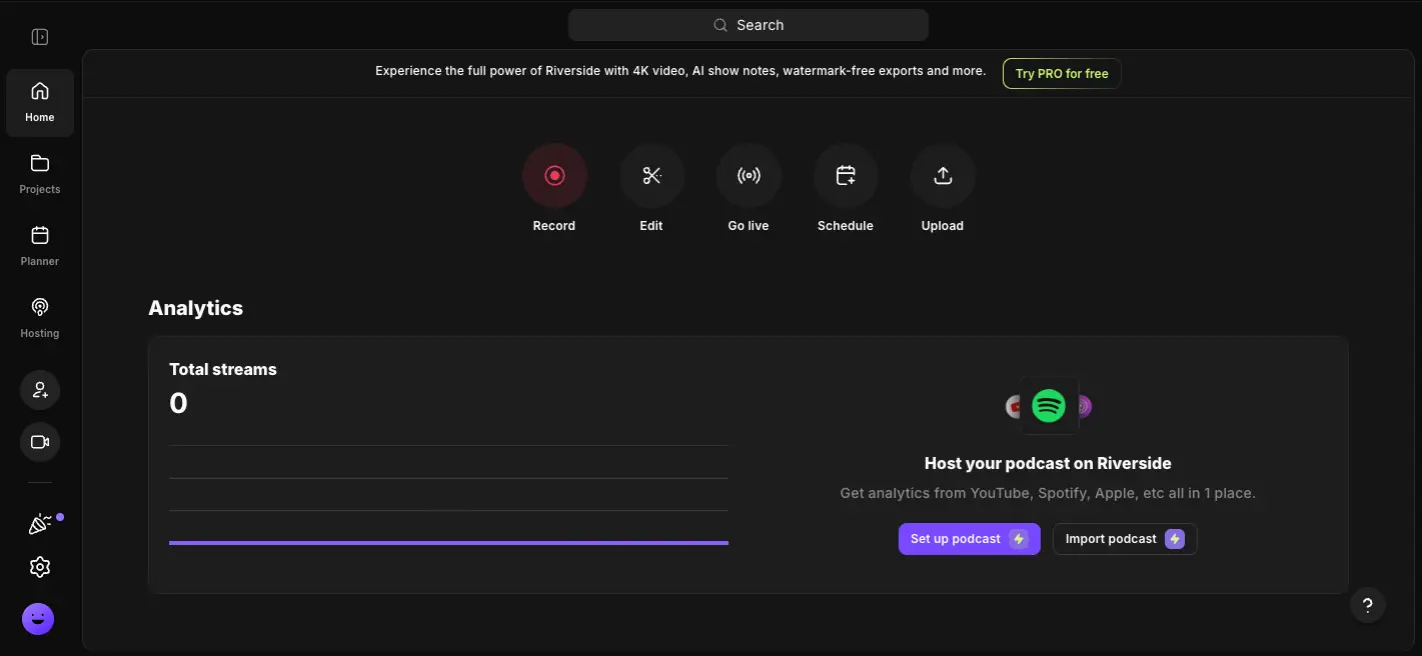
The Best All-in-One Platform
for Quality-First Content Creators
Riverside solves a problem that most video tools ignore: recording quality that doesn't depend on your guest's Wi-Fi. Its local-first architecture captures broadcast-ready 4K video and uncompressed audio directly on each person's device, then uploads everything in the background. The AI editing suite—particularly the chat-based editor and Magic Clips—turns hours of post-production into minutes. It's not a replacement for DaVinci Resolve or Premiere Pro, but for creators who want to record, edit, clip, and distribute from one platform, nothing else covers this much ground at $24/month.
✓ What We Love
- Local recording: 4K + 48 kHz WAV unaffected by internet issues
- Zero-friction guest experience—no account or download needed
- Chat-based AI editor + Magic Clips save real hours
- Record, edit, stream live, and host your podcast in one tool
! Could Be Better
- Pro plan's 5 hrs/month multi-track cap feels tight
- Occasional session freezing (recording is safe, but it's disruptive)
- Chrome and Edge only—no Firefox or Safari
- Free plan's 2 hours is a lifetime cap, not monthly
What Is Riverside?
Who built it, what problem it solves, and whether it belongs in your workflow.
Riverside is a cloud-based platform built for one thing above all else: capturing the best possible recording quality from remote participants. Founded in 2020 by brothers Nadav and Gideon Keyson, the company has raised $80 million in total funding—including a $30 million Series C in December 2024 backed by notable angel investors like Casey Neistat, Marques Brownlee, and Guy Raz. That investor list isn't just name-dropping; it signals that working creators trust the product enough to put money behind it.
Here's the core idea. When you record on Zoom or Google Meet, audio and video are compressed and streamed over the internet in real time. If your guest's connection hiccups, your recording suffers. Riverside takes a different approach: it records locally on each participant's device and uploads files progressively in the background. Even if someone's internet drops entirely mid-session, the recording keeps going at full resolution on their machine. The result? Up to 4K video and 48 kHz uncompressed WAV audio per person—separate tracks, no quality loss from network issues.
But Riverside isn't just a recording tool anymore. Since launch, it's expanded into a full end-to-end content creation platform covering recording, AI-powered editing, short-form clip generation, live multi-streaming, and podcast hosting with distribution. That's a lot of ground for one tool, and honestly, not every part is equally polished. The recording engine is genuinely best-in-class. The AI editing features are impressive and improving fast. The live streaming works well. But if you need the kind of deep post-production control you'd get in Descript or a professional NLE, Riverside won't fully replace those workflows.
Who Is Riverside Best For?
Podcasters and video creators who record remote interviews and prioritize audio/video quality above all else. Particularly strong for creators who want to record, edit, create social clips, and distribute from a single platform—without juggling three or four separate tools. Also a solid pick for teams that live-stream while simultaneously capturing a high-quality recording for post-production.
Worth noting: the guest experience is one of Riverside's biggest practical advantages. Your guest clicks a link, joins in Chrome or Edge, and that's it—no account creation, no app download, no technical setup. If you've ever spent 15 minutes troubleshooting a guest's audio on another platform, you'll appreciate how much friction this removes. It's the kind of detail that matters more than it sounds on paper, especially when you're recording executives or public figures who won't tolerate setup headaches.
See Riverside in Action
Real screenshots from the platform showing the dashboard, AI tools, and editing workflow.
Dashboard Overview
Your starting point for recording, editing, streaming, and managing content
The dashboard keeps things clean. Five core actions sit front and center: Record, Edit, Go Live, Schedule, and Upload. Below that, you get podcast analytics with streaming data from Spotify, Apple Podcasts, and YouTube. The left sidebar gives quick access to Projects, Planner, and Hosting. It's a lot of functionality, but the layout doesn't overwhelm—you're never more than two clicks from anything.
AI Tools Panel
One-click AI features for refining your recording without manual editing
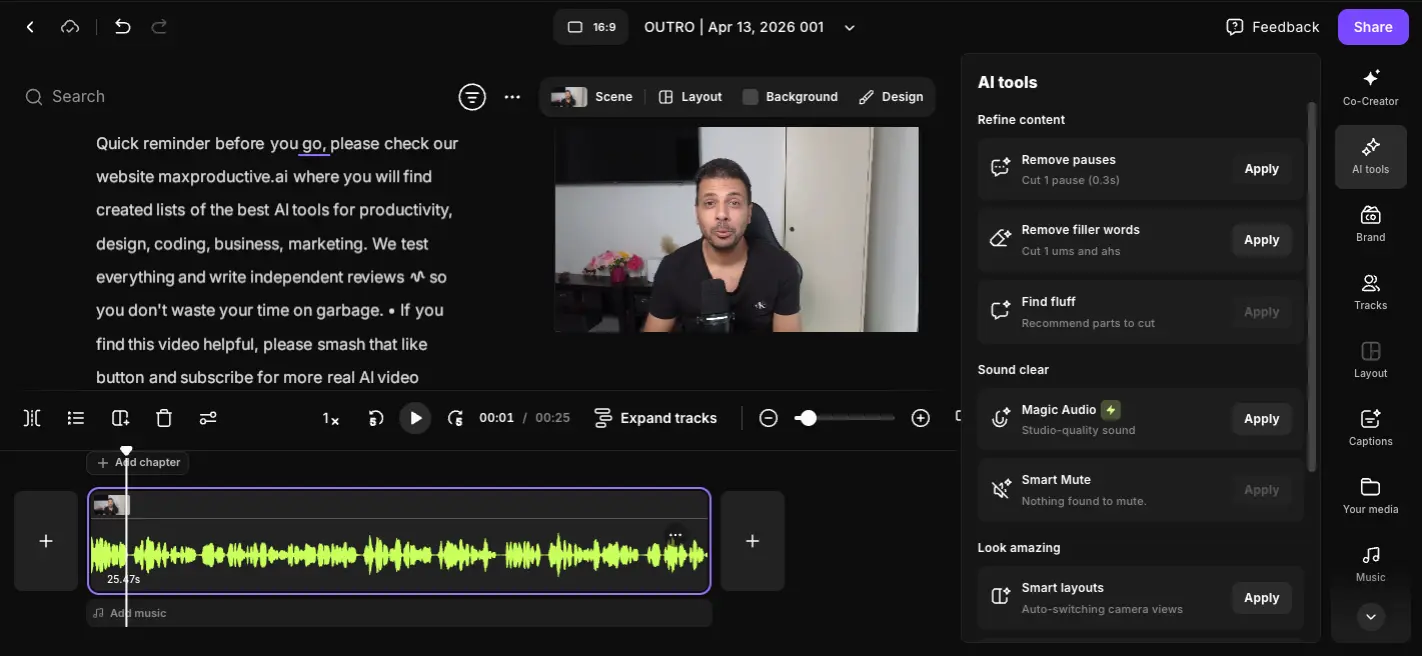
This is where Riverside's AI features live. The panel groups tools into three categories: Refine Content (remove pauses, filler words, and fluff), Sound Clear (Magic Audio for noise removal, Smart Mute for background sound), and Look Amazing (Smart Layouts for automatic camera switching). Each tool has a one-click "Apply" button. I appreciate that they show you exactly what each tool found—like "Cut 1 pause (0.3s)"—before you apply it. No guessing.
Want to test Riverside's AI editing tools yourself?
Try Riverside Free →14-day free trial on paid plans • No credit card for free planImages & B-Roll Library
Auto-generate B-roll and search royalty-free images without leaving the editor
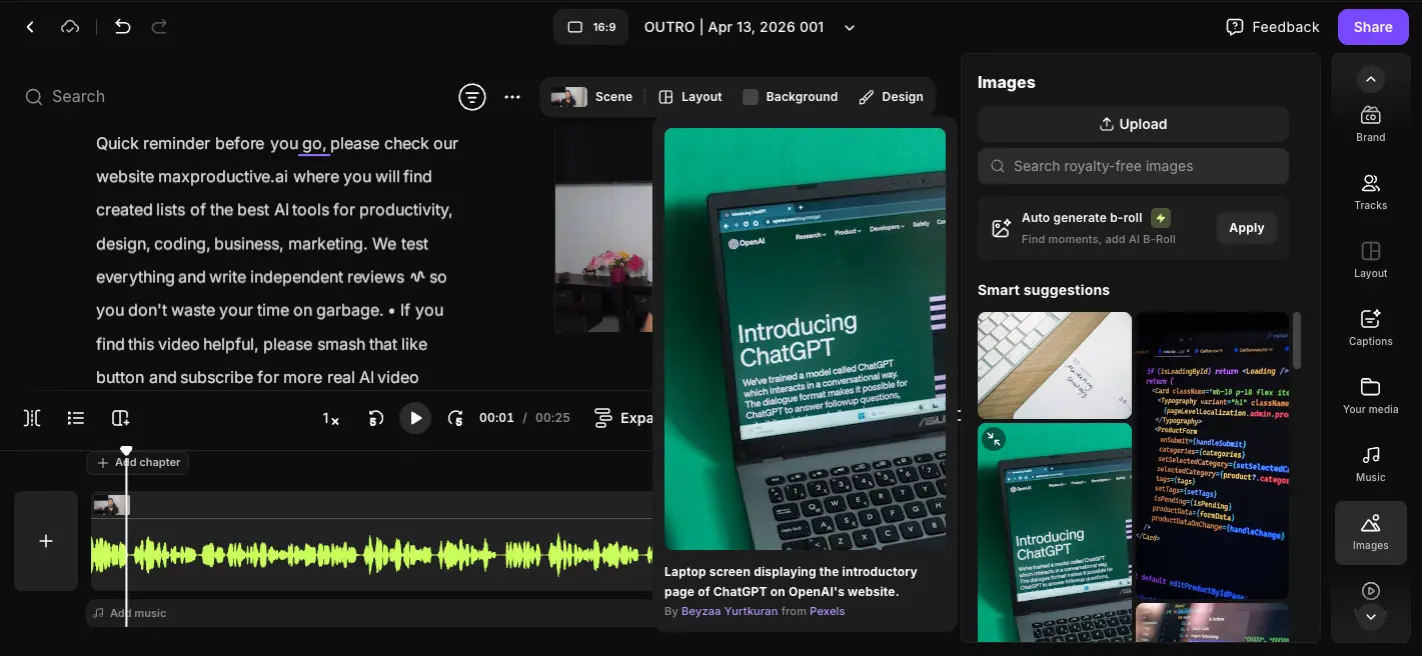
A nice touch for creators who want polished videos without hunting for stock footage separately. The "Auto generate b-roll" button uses AI to identify relevant moments in your recording and suggests images from Pexels. Smart Suggestions below offer contextually relevant options based on your content. It won't replace a dedicated stock library, but for quick social clips and podcast videos, it saves a real step in the workflow.
Co-Creator AI Editor & Magic Clip
Chat with an AI agent to edit your content using natural language instructions
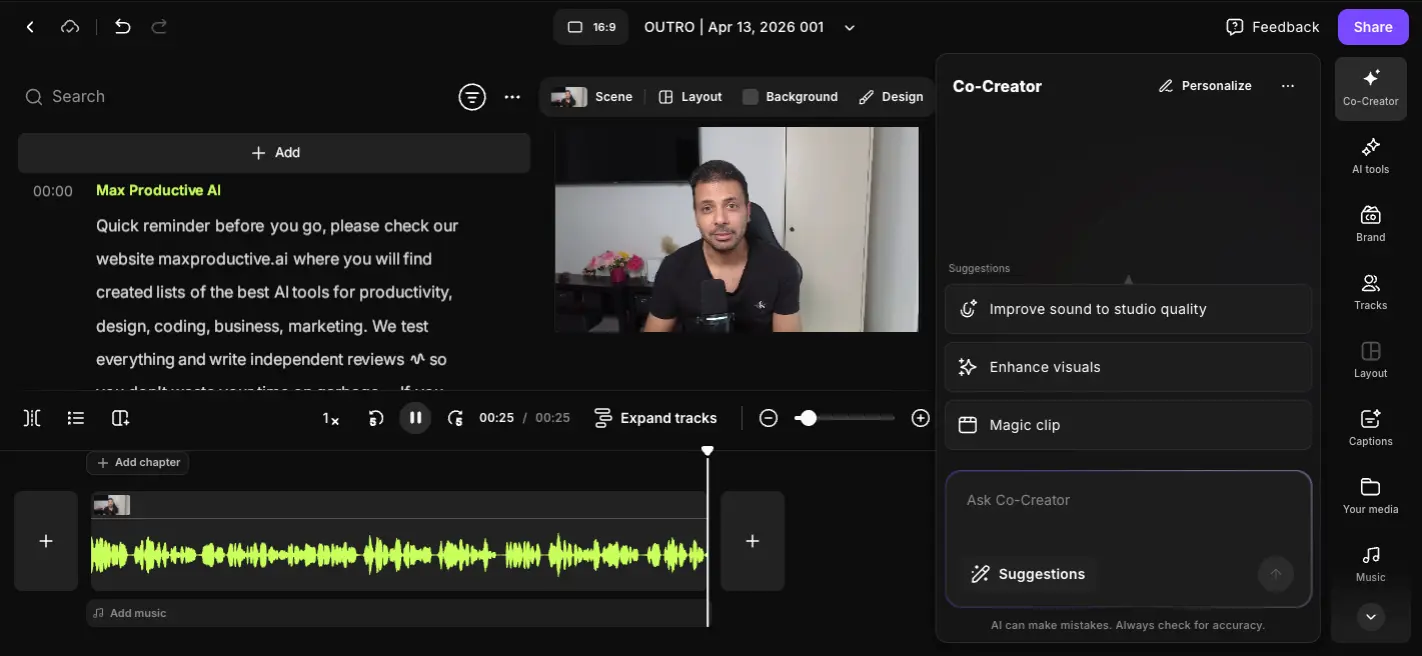
This is probably Riverside's most forward-looking feature. Launched in September 2025, Co-Creator lets you type editing instructions in plain English—"create a 60-second reel," "remove all silences," "add background music"—and the AI executes them. Below the chat, quick suggestions like "Improve sound to studio quality" and "Magic clip" offer one-tap actions. It's not perfect for complex edits, but for turning a raw recording into a publishable clip? Genuinely useful and getting better with each update.
How Riverside Works
From invite link to published episode in four steps. The recording quality is where Riverside earns its keep.
Create a Session & Invite Guests
Click "Record" from the dashboard, name your session, and Riverside generates a unique invite link. Send it to your guests—they click to join in Chrome or Edge, no account or app download required. You can set up a teleprompter, configure recording settings, and test audio/video before hitting record. The guest onboarding is genuinely frictionless, which matters more than it sounds when you're coordinating with busy people.
Record Locally on Every Device
Here's what makes Riverside different from everything else. When you hit record, audio and video are saved directly to each participant's own device—not streamed over the internet. Riverside then progressively uploads these local files to the cloud in small chunks during the session. By the time you stop recording, most files are already in your dashboard. If a guest's internet cuts out, their local file keeps recording uninterrupted. If a browser crashes, the locally saved file is preserved. You always get the raw, full-resolution material—up to 4K video and 48 kHz WAV audio per person, each on separate tracks.
Edit with AI or Text-Based Tools
Once your recording uploads, Riverside auto-generates a transcript. From there, you can edit the video by editing the text—delete a word from the transcript and it disappears from the audio/video. Or use Co-Creator to type instructions like "remove all filler words" or "create a 90-second highlight reel." Magic Clips automatically identifies the most engaging moments and generates social-ready clips. For most creators, this is where Riverside saves the most time compared to traditional editing workflows.
Export, Publish, or Go Live
Download your finished video as MP4, audio as WAV or MP3, or grab individual tracks in a ZIP for professional NLE editing in Premiere Pro or DaVinci Resolve. Export Magic Clips in vertical (9:16), square (1:1), or horizontal (16:9) for any social platform. If you host your podcast on Riverside, schedule and distribute directly to Spotify, Apple Podcasts, YouTube, and Amazon Music. Or stream live to multiple platforms simultaneously while recording the high-quality version.
Bandwidth Control Mode
A detail that rarely gets mentioned in reviews but matters in practice: Riverside's Bandwidth Control mode can pause video upload entirely until recording ends. This is critical for guests on weak connections—it ensures the local recording gets full device resources during the session. The upload happens afterward, with no quality loss. If you record international guests regularly, this feature alone prevents failed sessions.
Key Features
What Riverside actually delivers across recording, editing, streaming, and distribution.
Local-First Recording
The feature that defines Riverside. Audio and video are captured on each participant's device at full resolution—4K video, 48 kHz WAV audio, separate tracks per person. Internet instability doesn't touch the recording. This is the single biggest reason to choose Riverside over alternatives that rely on cloud-based capture.
Chat-Based AI Editor (Co-Creator)
Launched September 2025. Type editing instructions in plain English and the AI executes them. Genuinely useful for quick turnarounds—creating social clips, removing silences, adjusting pacing. It's not a replacement for manual precision editing, but for the 80% of edits that are routine, it's a real time-saver.
Magic Clips
AI scans your recording, identifies the most engaging moments, and generates short-form clips ranked by estimated virality. Outputs in 9:16 (Shorts/Reels/TikTok), 1:1 (Instagram), or 16:9 (YouTube). The ranking system isn't perfect—you'll occasionally disagree with the AI's picks—but it's a strong starting point that beats manually scrubbing through hours of footage.
Text-Based Editing
Edit your recording by editing its auto-generated transcript. Delete a sentence from the text and it disappears from the video. Faster and more intuitive than timeline scrubbing for most content, though Descript still has the edge on text-based editing depth and refinement.
Multi-Destination Live Streaming
Stream in HD to YouTube, Facebook, LinkedIn, Instagram, X, Twitch, and custom RTMP endpoints—all simultaneously while recording a separate high-quality version. Includes audience call-ins, omnichat, and lower-third overlays. Available on the Live plan ($34/month annual) and above.
AI Transcription (100+ Languages)
Automatic transcripts powered by OpenAI Whisper with roughly 99% accuracy. Unlimited on Pro and above. Supports over 100 languages and dialects with accent recognition. Exports as SRT for captions or text for show notes. This alone replaces a separate transcription service for most creators.
AI Show Notes & Chapters
One-click generation of episode summaries, chapter markers, SEO titles, keywords, and sound bites. Handy for podcast distribution where metadata matters. The quality is good enough to publish with minor tweaks—not perfect out of the box, but a meaningful time reduction from writing everything manually.
Podcast Hosting & Distribution
Added in 2025. Schedule releases and distribute directly to Spotify, Apple Podcasts, YouTube, and Amazon Music from the same platform where you recorded and edited. Episode analytics included on Pro and above. For creators already using Riverside for recording, this eliminates the need for a separate hosting service.
Additional features worth mentioning: eye contact correction (AI adjusts your gaze to look at the camera even when reading a teleprompter), Magic Audio for background noise removal, Magic Episode for one-click full episode production, animated captions with custom styling, and a multicam mode that lets you use your phone as a secondary camera alongside your desktop setup.
Pricing Plans
Five tiers from free to enterprise. The key variable is multi-track recording hours.
Free
- ✓ 2 hrs multi-track (lifetime cap)
- ✓ 720p video quality
- ✓ Basic AI tools + Magic Clips
- ✓ Unlimited single-track after cap
- ✗ Watermark on exports
Pro
- ✓ 5 hrs/month multi-track
- ✓ 4K video + 48 kHz WAV audio
- ✓ Full AI suite + Magic Clips
- ✓ Unlimited transcription
- ✓ Podcast hosting & distribution
- ✓ No watermark
Live
- ✓ 15 hrs/month multi-track
- ✓ All Pro features
- ✓ Live multi-streaming (6+ platforms)
- ✓ Audience call-ins & omnichat
- ✓ Priority support
Important: Free plan's 2 hours is a one-time lifetime allocation, not a monthly reset. Annual billing saves ~17–20% vs monthly.
Pricing last verified April 2026. Visit Riverside for current rates.
How Does Riverside's Pricing Compare?
At $24/month (annual), Riverside Pro and Descript Creator are priced identically. But Riverside includes live streaming capability on its Live plan for just $10 more, plus podcast hosting—features Descript doesn't offer at any price. VEED.io starts at $18/month but focuses on a different workflow entirely. For pure editing power, Descript wins. For recording quality plus breadth of features, Riverside is the stronger value.
Detailed Pros & Cons
An honest breakdown covering what works, what doesn't, and what you should know before subscribing.
✓ Pros
The local-first architecture isn't just a marketing claim—it produces genuinely broadcast-ready material. In side-by-side comparisons with the same equipment, Riverside's output is noticeably superior to Zoom recordings. Multiple long-term users report zero lost recordings across years of consistent use. If your content gets published or distributed, this quality difference is audible and visible.
No account, no download, no friction. Your guest clicks a link and joins in their browser. Local recording and upload happen automatically behind the scenes. This sounds minor until you've lost a recording session because a guest couldn't install software or configure audio settings. For creators who interview non-technical guests—executives, authors, public figures—this is a genuine workflow advantage.
The combination of Co-Creator (chat-based editing), Magic Clips (auto-generated social clips), text-based editing, and one-click episode production addresses the biggest pain point in content creation: post-production takes forever. These tools don't eliminate editing, but they can compress hours of work into minutes for standard cleanup and clip creation. The chat-based editor in particular gets smarter with each update.
Record → edit → caption → clip → host → distribute → stream live. No other single platform covers this entire chain at this price. Before Riverside added hosting and distribution, you'd need at least three separate tools. Whether that consolidation matters to you depends on your workflow—some creators prefer best-in-class individual tools. But for those who value simplicity, having everything in one place is a real advantage.
Unlike some tools that gate their best features behind a paywall with no way to test, Riverside lets you try any paid plan for two weeks. This is a meaningful trust signal. Test the 4K recording, AI tools, and Magic Clips on your actual content before committing. The free plan also exists for basic evaluation, though its limitations (720p, watermark, 2-hour lifetime cap) make the trial the better test.
✗ Cons
This is the issue you'll hear about most from existing users. The live session interface can freeze mid-recording, disrupting the conversation flow. The good news: because recording happens locally on each device, the actual file is always preserved. The bad news: it breaks the live interaction, which matters when you're interviewing a guest. Riverside has improved stability over time, but it hasn't fully solved this.
Five hours of multi-track recording per month sounds reasonable until you factor in warmup time, retakes, and the occasional long conversation. A weekly 90-minute podcast would exhaust the cap in less than four weeks. Many users end up upgrading to the Live plan ($34/month) not because they need live streaming, but because they need the 15-hour allocation. Honestly, the Pro plan should offer more recording time for the price.
In 2026, restricting browser support to Chrome and Edge creates real friction. If your guest uses Firefox or Safari by default, they'll need to switch browsers or download one. The macOS desktop app exists but has been reported as occasionally unstable. This is the kind of limitation that shouldn't persist at this stage of the product's maturity.
Riverside's editing capabilities are good for quick turnarounds and basic post-production. But there's no color grading, no motion graphics, no advanced timeline controls. If you need serious editing depth, you'll still export tracks to DaVinci Resolve, Premiere Pro, or Descript. Riverside is aware of this gap and improving fast, but right now it's a "good enough for most" editor, not a professional NLE replacement.
The 2-hour lifetime multi-track cap, 720p video ceiling, and watermark on exports mean the free plan is really just an evaluation tier, not a usable product. Compared to Descript's ongoing free tier or CapCut's generous free offering, Riverside's free plan feels restrictive. The 14-day trial on paid plans compensates, but the free plan itself won't sustain any real workflow.
The iOS and Android apps work well for recording—you can even use your phone as a secondary camera alongside your desktop. But the full AI editing suite, advanced export options, and most post-production features are only available on the desktop browser version. If you do significant work from your phone, be aware that mobile is recording-first, not editing-ready.
Riverside vs Alternatives
How Riverside stacks up against the top video editing and content creation tools.
| Feature | Reviewed Riverside | Descript | VEED.io | Gling |
|---|---|---|---|---|
| Starting Price | $24/mo | $16/mo | $18/mo | $15/mo |
| Free Plan | ✓ Limited (2hr lifetime) | ✓ Ongoing | ✓ Watermarked | ✓ Limited |
| Recording Quality | 4K + 48 kHz WAV local | 4K + 48 kHz (SquadCast) | N/A | N/A |
| AI Editing | Chat-based + text-based | Text-based + Underlord | AI subtitles, clips | AI silence/filler removal |
| Live Streaming | ✓ 6+ platforms | ✗ | ✗ | ✗ |
| Podcast Hosting | ✓ Built-in | ✗ | ✗ | ✗ |
| Short-Form Clips | ✓ Magic Clips | ✓ Underlord | ✓ AI clips | ✗ |
| Best For | Recording-first creators | Editing-first creators | Social video editing | YouTube silence removal |
Which Tool Is Right For You?
Riverside
ReviewedBest for: Podcasters and video creators who record remote interviews and need the highest possible audio/video quality from a single platform. The sweet spot is creators who want recording + editing + clipping + live streaming + hosting without juggling multiple subscriptions. Particularly strong if you regularly work with guests who can't be expected to install software or create accounts.
StreamYard
Live-FirstBest for: Creators whose primary workflow is live streaming rather than remote recording. StreamYard is a browser-based live studio with the smoothest guest experience in the category—guests join by URL with no install or account needed—plus unique features like MARS (simultaneous horizontal + vertical streams from one session) and built-in webinars with registration pages and automated email sequences. Where Riverside shines for recording fidelity and AI editing, StreamYard shines for live broadcasting and multi-platform distribution. Many creators run both: StreamYard to go live, Riverside to capture the master recording for polished post-production.

Descript
Editing PowerhouseBest for: Creators who prioritize editing speed and depth over recording quality. Descript's text-based editing is the best in the category, the Underlord AI agent handles complex edits, and real-time team collaboration is unmatched. SquadCast integration adds solid recording capabilities. The trade-off: no live streaming, no podcast hosting, and some users report stability issues on longer projects.
VEED.io
Social Video FocusBest for: Creators focused on short-form social video editing rather than recording. VEED excels at subtitles, AI-powered clips, and quick turnaround videos for social platforms. It's a different category from Riverside—VEED is an editor for existing footage, not a recording platform. Choose this if you already have your recording workflow sorted and need a fast, web-based editor. See our VEED vs CapCut comparison →

Gling
Budget PickBest for: YouTube creators who need fast, affordable AI-powered silence and filler word removal. Gling does one thing well: it automatically cuts dead air and verbal stumbles from your footage. At $15/month, it's cheaper than Riverside for this specific use case. But it doesn't record, doesn't stream, doesn't host—it's purely a cleanup tool. See our Descript vs Gling comparison →

CapCut
Free EditingBest for: Creators who need a powerful free video editor with a strong mobile experience. CapCut's free tier is genuinely generous—no watermark on most exports, a full editing timeline, and strong AI caption features. It's the go-to for TikTok and short-form creators on a budget. But like VEED, it's an editor, not a recording or podcasting platform.

Sendshort
Short-Form SpecialistBest for: Creators focused specifically on turning long-form content into short-form clips with AI-generated subtitles. Sendshort specializes in the repurposing step that Riverside's Magic Clips handles—but as a dedicated tool. If your primary need is creating Shorts, Reels, and TikToks from existing videos, Sendshort offers more subtitle styling options. See our Submagic vs Sendshort comparison →
Frequently Asked Questions
Should You Try Riverside?
Riverside earns its 4.4 rating by doing something no other single tool does as well: combining genuinely superior recording quality with a growing AI editing suite, live multi-streaming, and podcast hosting in one platform. The local-first architecture isn't a gimmick—it produces noticeably better raw material than cloud-based alternatives, and the zero-friction guest experience removes a real source of workflow friction for interview-based creators.
The weaknesses are real and shouldn't be ignored. The Pro plan's 5-hour monthly cap pushes many users to the Live tier before they actually need live streaming. Session freezing, while it doesn't damage recordings, disrupts the conversation flow. Chrome/Edge-only browser support creates friction with some guests. And if deep post-production is your priority, you'll still want Descript or a dedicated NLE alongside Riverside, not instead of it.
Our Recommendation
Start with the 14-day free trial on the Pro plan. Record one real episode with a remote guest and evaluate three things: whether the local recording quality justifies the switch from your current setup, whether the AI editing tools (especially Co-Creator and Magic Clips) genuinely save you time, and whether the 5-hour monthly cap fits your production schedule. If two of those three work for you, Riverside is worth keeping.