

InVideo AI
AI-powered video creation platform that turns text prompts into publish-ready videos — with script, footage, voiceover, subtitles, and music — in minutes. Now with Sora 2 and VEO 3.1 built in.
Try InVideo AI →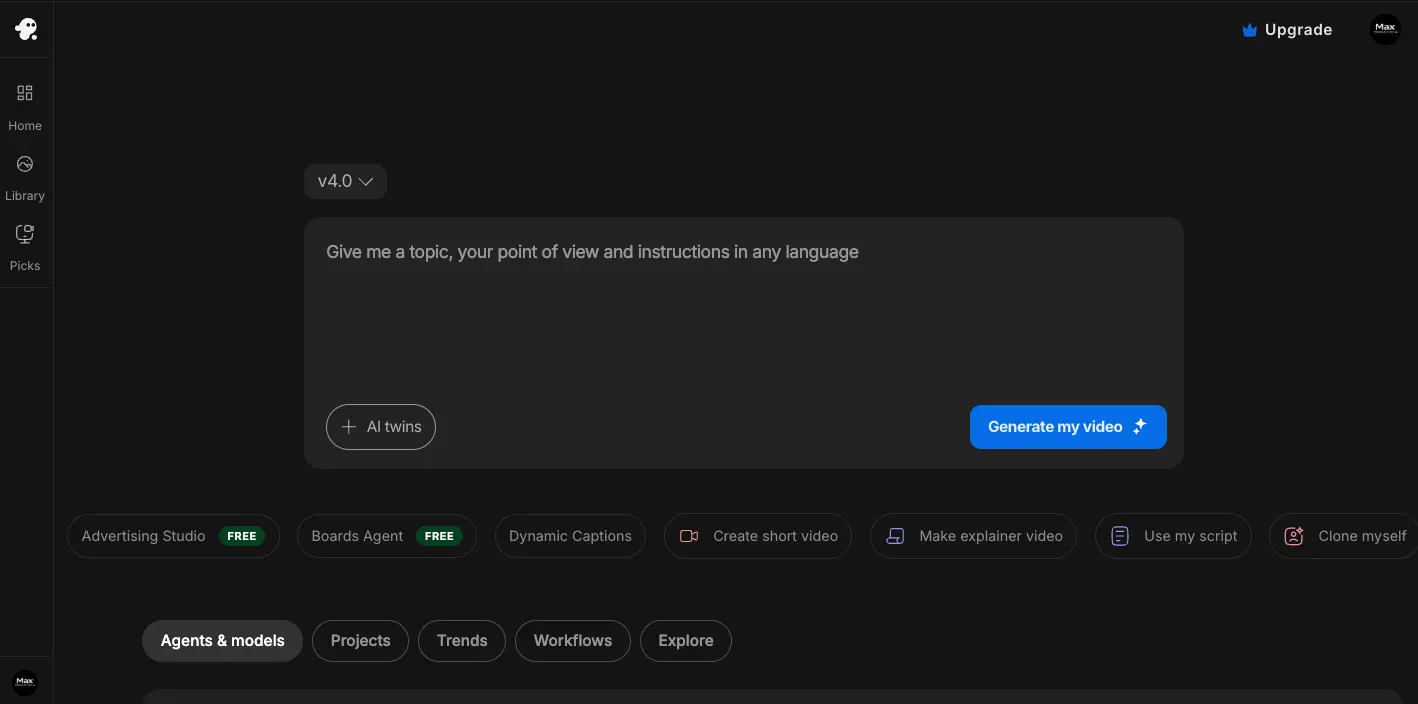
The Most Complete AI Video Pipeline
— With Real Rough Edges
InVideo AI is the closest thing to a "type and publish" video tool that actually works in 2026. The Sora 2 and VEO 3.1 integrations alone would cost you $450+/month through their standalone products — InVideo bundles both from $28/month and wraps them in a full production pipeline. Script, footage, voiceover, subtitles, music, export — all from one prompt. That's genuinely impressive. But let's be honest: the AI scripts are formulaic, about one in four editing commands needs a retry, and credits get consumed on bad outputs with no refund. Treat it as a rapid-drafting engine, not a finished-product machine, and you'll get serious value from it.
✓ What We Love
- Only platform with Sora 2 + VEO 3.1 bundled from $28/mo
- Full prompt-to-publish pipeline — no editing skills needed
- Voice cloning from a 30-second sample
- New Advertising Studio for product-to-ad automation
! Could Be Better
- Credits consumed on poor outputs — no refund policy
- AI scripts are generic and need heavy rewriting
- Unused generation minutes don't roll over
What Is InVideo AI?
Who built it, what it actually does, and whether the hype matches reality.
InVideo AI is a full-stack video creation platform that takes a text prompt and delivers a complete video — script, stock footage, voiceover, subtitles, background music, transitions — without requiring you to touch a timeline or learn editing software. Founded in 2017 in Mumbai by Sanket Shah, the company has raised $52.5 million from Sequoia Capital and Tiger Global and now claims over 50 million users across 190+ countries.
Here's the thing — InVideo AI isn't just another "type a prompt, get a video" tool. What sets it apart in 2026 is its integration of frontier generative models. It's currently the only platform that bundles access to both OpenAI's Sora 2 and Google's VEO 3.1 within a single subscription. To put that in perspective: Sora 2 standalone via ChatGPT Pro costs $200/month, and VEO 3.1 Ultra runs around $250/month. InVideo packages both from $28/month. That price gap is the single biggest reason this tool deserves attention.
The platform actually runs two parallel products. InVideo AI is the generative, prompt-first experience — you describe what you want and the AI handles everything. InVideo Studio is a traditional drag-and-drop timeline editor for people who want manual control. This review focuses on the AI product, which is where the company's development energy is clearly pointed.
Does every video come out perfect? Not remotely. The AI scripts are competent but formulaic — they'll get you a serviceable first draft, not a polished final script. Text-based editing commands work roughly 75% of the time without needing a retry. And if you're covering niche or abstract topics, expect the AI's footage selections to miss the mark fairly often. I'd estimate you'll want to manually swap 30–50% of B-roll clips for anything that isn't a mainstream subject.
Who Is InVideo AI Best For?
Social media managers producing 5–20 videos per week, e-commerce teams needing product ads without a photography budget, faceless YouTube channel builders, marketing agencies managing multiple brands, and multilingual content creators publishing across 2–10 languages. It's a volume tool — the economics only make sense if you're producing regularly.
Worth noting: InVideo AI's user satisfaction tells two different stories depending on who you ask. Professional reviewers and power users — marketers, agencies, high-volume creators — tend to rate it very positively. Casual users who expected a "hit generate and publish" experience are the ones leaving negative feedback, often citing the gap between what the InVideo GPT chatbot promises and what the software actually delivers. The 94% plan renewal rate reported by enterprise reviewers suggests that people who stick past the initial learning curve generally find lasting value.
See InVideo AI in Action
Real screenshots from the platform showing the v4.0 interface, generative models, and editing workflow.
V4.0 Dashboard
The main prompt interface where every video starts
The v4.0 interface is refreshingly simple. Type your topic, point of view, and any instructions in natural language — in any language — then hit "Generate my video." The shortcut bar below offers one-click access to Advertising Studio (free), Boards Agent (free), Dynamic Captions, and specialized workflows like "Create short video" or "Clone myself." It's one of the cleaner AI video dashboards I've used.
Generative Models Hub
Access to Sora 2, VEO 3.1, Kling 3.0, and more — all under one roof
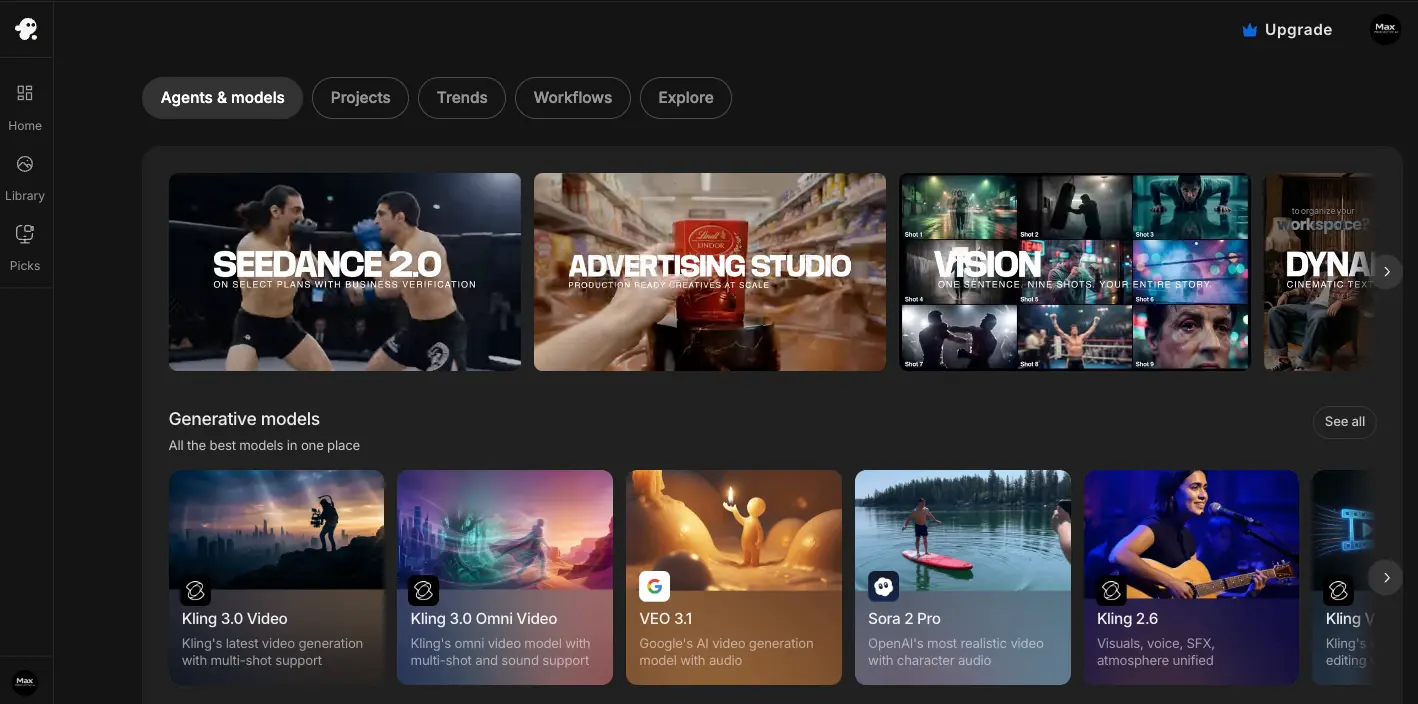
This is where InVideo AI's value proposition becomes concrete. All the frontier generative models — Sora 2 Pro, VEO 3.1, Kling 3.0, Kling 3.0 Omni — accessible from a single interface alongside specialized workflows like Seedance 2.0 (motion), Advertising Studio (product ads), and Vision (multi-shot storytelling). You'd need separate subscriptions totaling $500+ to access these models individually elsewhere.
Maxwell — The AI Scripting Agent
InVideo's built-in AI agent for collaborative video scripting
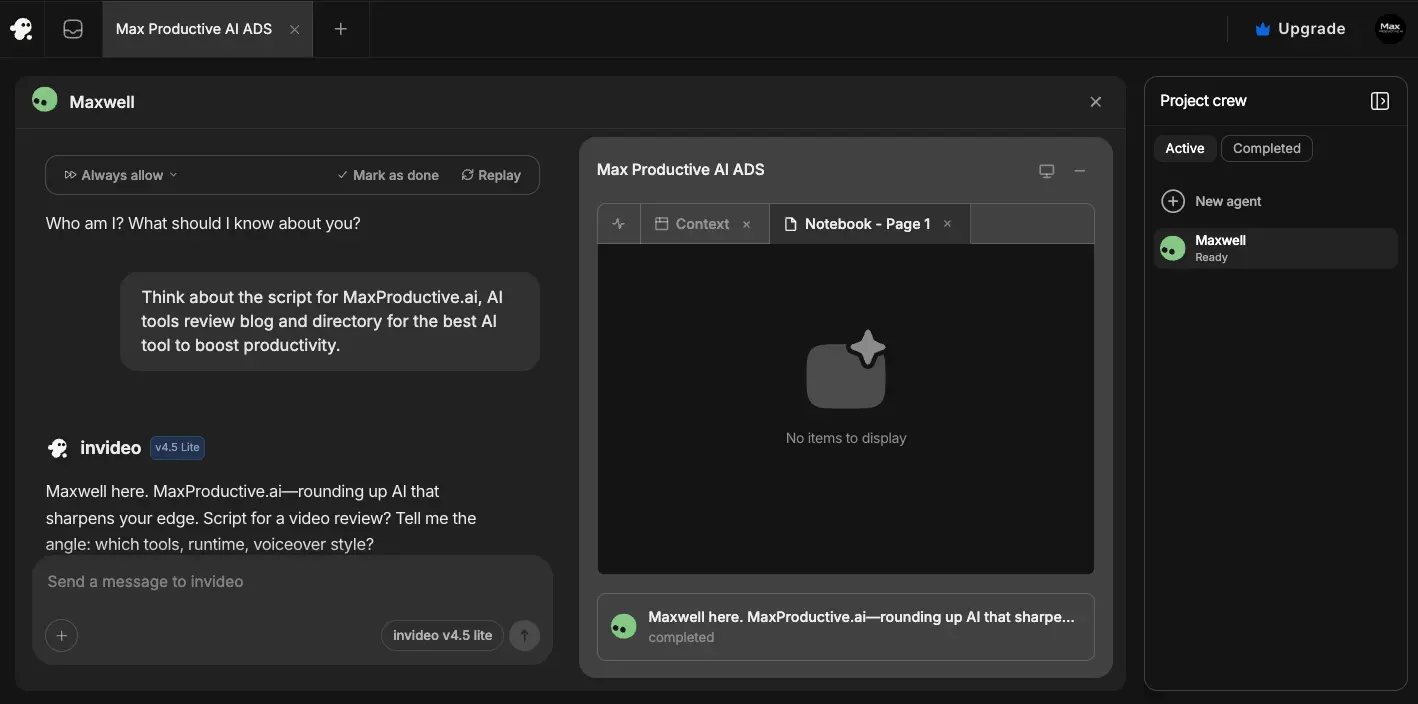
Maxwell is InVideo's AI agent system — think of it as a production assistant you chat with. Tell it your topic, target audience, runtime, and voiceover style, and it generates a script you can iterate on through conversation. The notebook panel lets you feed context documents so the AI stays grounded in your specific talking points. It's a nice touch, though the scripts still skew generic and need editing for any brand-specific messaging.
Want to test InVideo AI's generative models?
Try InVideo AI Free →Free plan available • No credit card requiredMedia Editor — Scene Replacement
Swap scenes with uploaded media, stock footage, or AI-generated clips
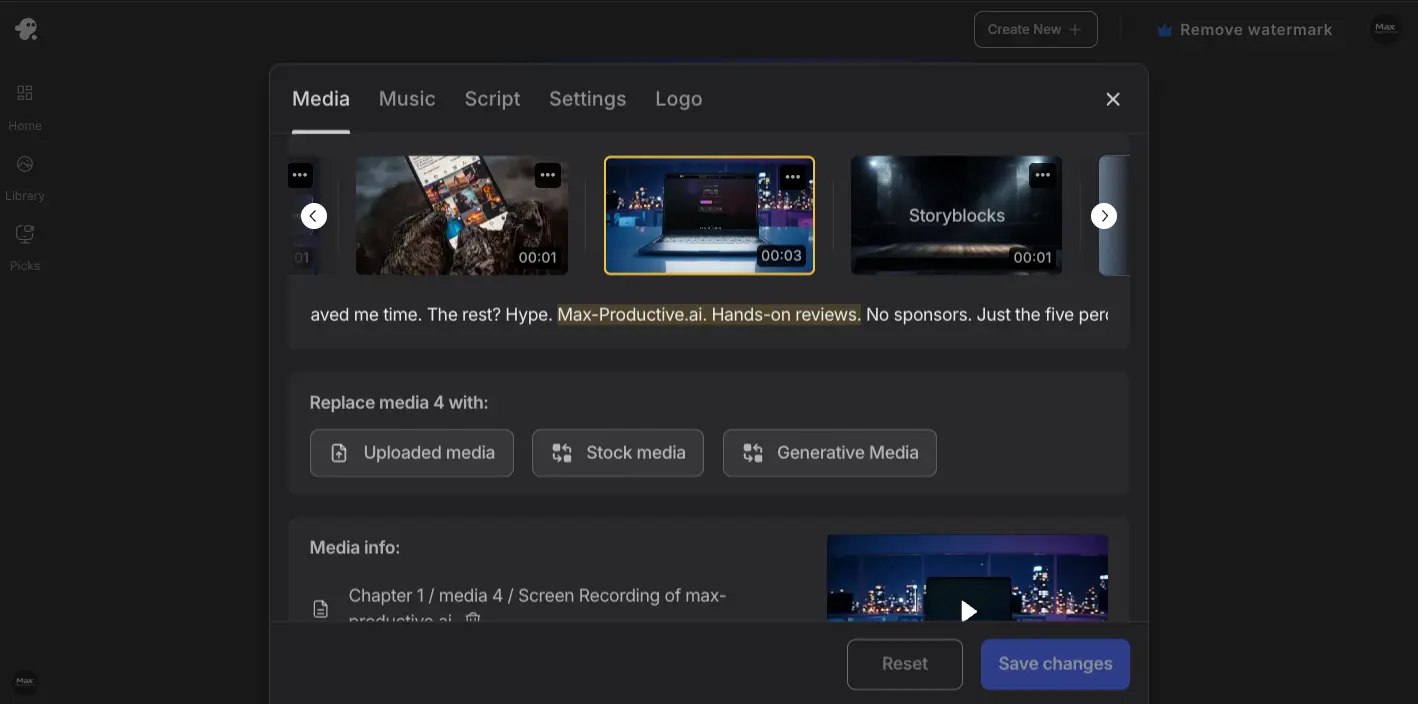
When the AI picks the wrong footage — and it will for niche topics — this is where you fix it. Click any scene to replace media from three sources: your own uploads, the 16M+ stock library (iStock, Storyblocks), or generative AI models. The tabs for Media, Music, Script, Settings, and Logo keep editing organized. It's not as precise as a full timeline editor, but it works well for the "80% AI, 20% human polish" workflow InVideo is designed around.
AI Tools — Looks, Boards, Angles
Specialized creative tools for visual consistency and multi-shot projects
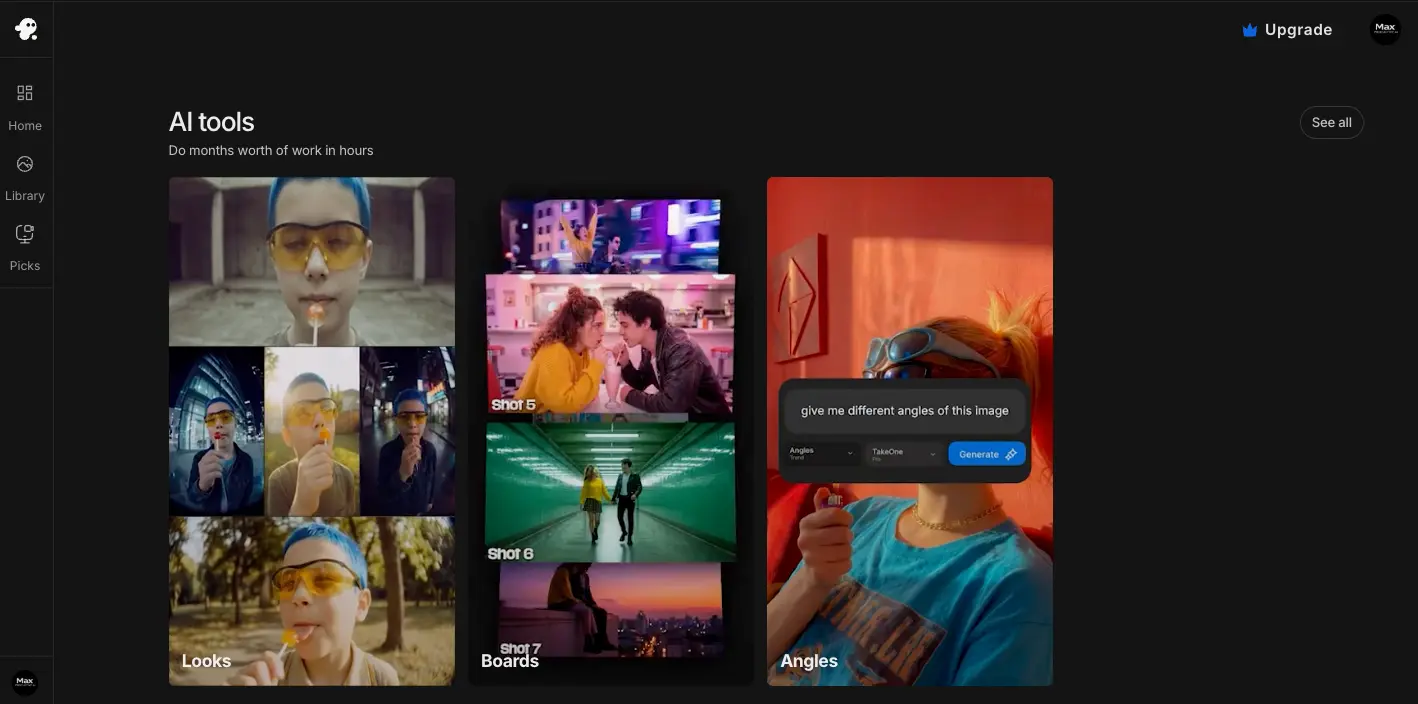
The AI Tools section is where InVideo goes beyond basic text-to-video. Looks lets you define a visual style and apply it across multiple shots for consistency. Boards is essentially a storyboard planner — "one sentence, nine shots, your entire story." And Angles does exactly what it says: give it an image and a prompt like "give me different angles of this image," and it generates variations. These tools are what separates InVideo from simpler prompt-to-video generators.
Video Output Preview
The finished product — ready to edit further or export
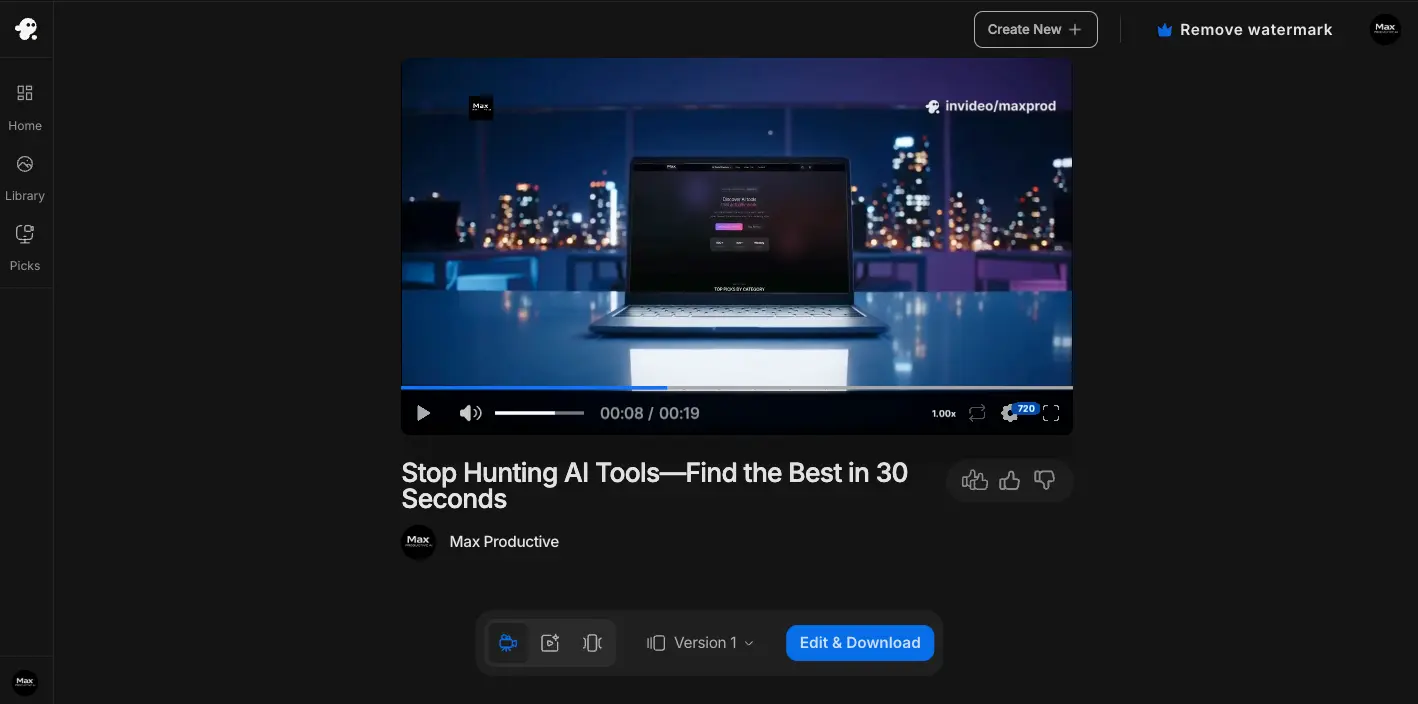
Here's the output after a simple prompt. The video includes auto-generated script text, branded overlays, and background music. The "Edit & Download" button opens the full media editor, and version controls let you iterate without losing earlier drafts. One minor gripe: the default preview is 720p — you'll need to export for full resolution, which consumes credits. It's a small thing, but it means you're using credits to evaluate quality, which ties into the broader "credits consumed on everything" complaint.
How InVideo AI Works
From a text prompt to a published video in four steps. It really is that simple — with caveats.
Type Your Video Prompt
Describe what you want in plain language: the topic, tone, length, target platform, and any specific instructions. Something like "Create a 60-second TikTok explainer about protein intake for beginners, friendly tone, with a call to action." InVideo accepts prompts in any language. The better your instructions, the closer the first draft lands — vague prompts produce vague videos. Honestly, spending 2 extra minutes on a detailed prompt saves you 10 minutes of editing later.
AI Assembles the Full Video (3–20 Minutes)
This is where InVideo handles over 500 micro-decisions that would otherwise require a skilled editor. The AI writes a script, selects footage from the 16M+ stock library (or generates clips via Sora 2, VEO 3.1, or Kling), records a voiceover in your chosen language and voice, adds subtitles, selects background music, and assembles transitions. Short-form content (under 60 seconds) typically generates in 3–5 minutes. Longer videos can take 10–20 minutes. The output is a first draft, not a finished product — but it represents hours of work compressed into minutes.
Edit by Typing (Or Use the Visual Editor)
Don't like a scene? Type "replace scene 3 with a coffee shop interior." Want a different voiceover? Type "change voice to British female." InVideo's conversational editing interface handles about 75% of these commands correctly on the first try. When it doesn't, you can use the visual media editor to manually swap scenes, adjust scripts, or replace footage from uploaded files, stock media, or generative AI. It's a hybrid approach — chat for speed, manual editor for precision.
Export in Multiple Formats
Videos export simultaneously in 16:9 (YouTube), 9:16 (TikTok/Instagram Reels), and 1:1 (Instagram feed) — no duplicate production effort required. Free plan exports include a watermark; paid plans export watermark-free with full commercial rights. Direct publishing integrations and team collaboration features with real-time comments round out the workflow.
Credit Math to Consider
On the Plus plan, 50 AI minutes/month translates to roughly 5–15 completed videos depending on length and how many iterations you need. Heavy revisers can burn through minutes fast. On the Max plan (200 minutes), budget approximately 20–60 videos/month. And remember: unused minutes don't carry over — they reset on the first of each month regardless of how much you used. Factor that into your plan decision if your output volume fluctuates.
Key Features
What you're getting across InVideo AI's plan tiers in April 2026.
Sora 2 + VEO 3.1 Integration
The headline feature. Both OpenAI's Sora 2 and Google's VEO 3.1 are built directly into the InVideo pipeline, generating cinematic, physics-accurate clips that are inserted alongside stock footage. Access to both models would cost $450+/month separately. Currently no other single platform offers this combination.
Full Text-to-Video Pipeline
Type a prompt → get a video with script, footage, voiceover, subtitles, music, and transitions. The AI handles 500+ micro-decisions per video. For non-editors, this is the entire point — it replaces a production workflow that would otherwise require a script writer, editor, voice artist, and stock footage subscription.
Voice Cloning
Upload a 30-second audio sample, get a voice clone you can use across all videos. Two clones on Plus, five on Max. Multiple testers rank this among InVideo's strongest features — the sample requirement is genuinely short and the output quality is adequate for social media. Supports up to 6 different voices in a single video.
Advertising Studio
Launched March–April 2026. Feed it one product photo and it generates Amazon A+ content, 360° product videos, A/B ad variant sets, and hero-style ad reels. The Money Shot feature turns 4–8 reference photos into a multi-shot commercial that preserves your actual packaging and logo text. This is a genuine differentiator for e-commerce teams.
AI Twins (v4.0)
Upload a 30-second video of yourself or paste a product link, and InVideo generates multilingual content featuring your likeness — UGC-style avatars optimized for TikTok and Instagram. It's not at HeyGen's Avatar IV level of realism, but it's good enough for social content and costs significantly less.
VFX House (Kling o1)
Post-production tools that previously required DaVinci Resolve: Relight (modify scene lighting), Prop Swap (replace objects), AI Colorist (film-grade color grading), and one-click VFX editing. Sounds like marketing fluff until you actually use it — the Relight feature alone can save a scene that would otherwise need reshooting or scrapping.
50+ Languages
30+ AI voices across 50+ languages with auto-translation for voiceover and subtitles. The multilingual support isn't just translation — premium voices on conversational scripts are genuinely hard to distinguish from human narration in casual listening. For brands targeting non-English markets, this can replace hiring separate voice actors for each language.
10,000+ Templates & 16M+ Assets
The broadest template library in its category — covering YouTube intros, Instagram Stories, product promos, explainer videos, real estate walkthroughs, and more. Stock assets integrate iStock, Storyblocks, and Shutterstock with 80–320 credits/month depending on your plan. If templates matter to your workflow, no competitor matches this depth.
Beyond these headline features, InVideo includes Nano Banana Pro (Google DeepMind's image model) and Seedream (ByteDance) for AI image generation within videos, multi-format simultaneous export (16:9, 9:16, 1:1), real-time team collaboration with timeline comments, a mobile app on iOS and Android, and brand kit support for agencies managing multiple clients. It's a packed feature set — possibly the most packed in the AI video space right now.
Start with the free plan — no credit card required:
Try InVideo AI →Free plan: 10 AI min/week • Paid from $28/monthPricing Plans
Four tiers from free to premium. The credit math matters — read the fine print.
Free
- ✓ ~10 AI minutes/week
- ✓ 4 video exports/week
- ✗ Watermark on all videos
- ✗ No commercial rights
- ✗ No voice cloning
- ✗ No iStock assets
Plus
- ✓ 50 AI minutes/month
- ✓ Unlimited exports (no watermark)
- ✓ Commercial usage rights
- ✓ 2 voice clones
- ✓ 80 iStock credits/month
- ✓ Sora 2 + VEO 3.1 access
Max
- ✓ 200 AI minutes/month
- ✓ Everything in Plus
- ✓ 5 voice clones
- ✓ 320 iStock credits/month
- ✓ Priority processing
- ✓ Team collaboration
Important: Unused AI generation minutes do NOT roll over to the next month — they reset on the 1st regardless of usage. A ~20% discount applies on annual billing.
Pricing last verified April 2026. Visit InVideo AI for current rates.
How Does InVideo AI's Pricing Compare?
The value proposition is clear if you look at model access alone. But here's the honest comparison within the video tool category: Synthesia starts at $18/month (annual) for corporate training videos. HeyGen starts at $24/month (annual) for avatar-led content. Fliki starts at $21/month (annual) with a larger voice library. Kling AI starts at just $6.99/month for pure generative clips. InVideo AI's $28/month Plus sits in the middle — but it's the only one offering the full pipeline plus frontier generative models.
Detailed Pros & Cons
An honest breakdown based on platform research, user feedback, and hands-on walkthrough.
✓ Pros
No other single platform currently bundles both OpenAI's Sora 2 and Google's VEO 3.1 generative video models. Accessing them separately would cost $450+/month. For creators who want frontier-quality AI clips integrated into a production pipeline rather than standalone raw clips, this is the strongest value proposition in the AI video market right now.
Script, footage selection, voiceover, subtitles, background music, transitions, multi-format export — all from a single prompt. For non-editors, this eliminates the need for 4–5 separate tools or subscriptions. The time savings are real: what would take a skilled editor several hours compresses to 3–20 minutes for a first draft.
The 30-second sample requirement is genuinely short (most competitors need 60+ seconds), and the resulting clone is adequate for social media publishing. Multiple independent testers rank it among InVideo's strongest features. For agencies managing multiple brands or faceless YouTube builders, having 2–5 clones per account is a meaningful capability.
This is InVideo's most significant 2026 launch. One product photo → Amazon A+ content, 360° videos, A/B ad variant sets, and hero-style ad reels. The Money Shot feature preserves actual product packaging and logo text — a real step beyond generic stock footage for e-commerce advertisers who previously needed photography budgets.
Unlike several competitors that offer only a trial period, InVideo's free plan is permanent — 10 AI minutes/week, 4 exports. Watermarked and without commercial rights, but sufficient to genuinely test whether the platform works for your content type before spending anything. That's a meaningful advantage over tools that require payment before you can evaluate quality.
Relight, Prop Swap, AI Colorist, and one-click VFX editing — tools that previously required DaVinci Resolve or After Effects. These aren't just buzzword features; the Relight tool can genuinely rescue footage that would otherwise need to be scrapped due to poor lighting conditions. Powered by Kling o1 under the hood.
✗ Cons
This is InVideo AI's most frustrating issue. If the AI misunderstands your prompt and produces an unusable video with spelling errors, wrong footage, or reversed physics, those credits are gone. There's no credit-back mechanism for poor outputs. One Reddit user documented losing $125 on a completely unusable startup promo. When your generation budget is finite, losing credits to AI mistakes feels especially punishing.
Let's be direct: InVideo's AI writes competent but bland scripts. For quick social content where the writing isn't the star, that's fine. For any video where the script needs to be sharp, brand-specific, or persuasive — sales videos, brand stories, thought leadership — you're rewriting most of what the AI produces. The Maxwell scripting agent helps, but don't expect it to replace a human copywriter.
Unused AI generation minutes reset on the first of each month. If you produce 30 videos one month and 5 the next, those unused minutes are simply lost. For teams with inconsistent output volume — which is most small teams — this is a real cost consideration. It effectively penalizes sporadic usage, which is ironic for a tool designed to make video creation easier.
About one in four conversational editing commands needs a retry or manual correction. "Replace scene 3 with a city skyline" might work perfectly. "Make the transition at 0:15 more dramatic while keeping the pacing tight" might not. The visual media editor is available as a fallback, but it defeats the purpose of the "just type" promise. Commands work best when they're simple and specific.
Full refunds are only approved within 7 days of purchase and only if zero credits have been used. Since most users will use credits immediately to evaluate the tool, this effectively means no refunds in practice. Mobile app subscribers must go through Apple or Google's refund processes. This is one of the most consistently criticized aspects in user reviews.
InVideo's AI footage selection works well for mainstream subjects — fitness, cooking, travel, basic business topics. For anything specialized, technical, or abstract (B2B software, scientific concepts, niche hobbies), the AI frequently picks generic or mismatched clips. Budget for manually replacing 30–50% of B-roll on complex subjects. The 16M+ library helps, but the AI's selection logic is the weak link.
InVideo AI vs Alternatives
How InVideo AI stacks up in the AI video generator space — pipeline tools and generative engines compared.
| Feature | Reviewed InVideo AI | HeyGen | Synthesia | Fliki |
|---|---|---|---|---|
| Starting Price | Free / $28/mo | Free / $24/mo | Free / $18/mo | Free / $21/mo |
| Pipeline Type | Full end-to-end | Avatar-focused | Corporate L&D | Voice-first |
| Generative Models | Sora 2 + VEO 3.1 + Kling | Avatar IV (proprietary) | AI Playground (Sora 2, VEO) | Third-party AI clips |
| Voice Cloning | ✓ 2–5 clones (30s sample) | ✓ 1+ clones | Limited (Enterprise) | ✓ 1–3 clones |
| Stock Library | 16M+ assets | Limited stock | Basic backgrounds | Standard library |
| Templates | 10,000+ | 75+ | 60+ | 500+ |
| Languages | 50+ | 175+ | 120+ | 75+ |
| Best For | Social ads, YouTube, agencies | Avatar-led, B2B outreach | Corporate training, HR | Podcasters, blog-to-video |
Which Tool Is Right For You?
InVideo AI
ReviewedBest for: High-volume social media teams, e-commerce advertisers, faceless YouTube builders, and agencies who need the most complete prompt-to-publish pipeline available. The Sora 2 + VEO 3.1 bundled access and new Advertising Studio make it the strongest all-around choice if you're producing 5+ videos per month and need generative video quality alongside a production workflow.

HeyGen
Best AvatarsBest for: Personalized talking-head videos, spokesperson content, and B2B outreach. HeyGen's Avatar IV produces near-4K, near-human-quality video that outperforms every other avatar tool including InVideo's AI Twins. It also leads the market in multilingual video translation with 175+ languages and lip-sync. Choose HeyGen if avatar realism is your primary concern.

Synthesia
Enterprise TrainingBest for: Corporate training, HR onboarding, and enterprise multilingual communication where avatar quality, LMS integration (Cornerstone, Docebo, SAP), and SOC 2 Type II compliance matter. Synthesia can sell into Fortune 500 environments that InVideo cannot. Not designed for social, ads, or creative content.

Fliki
Voice-FirstBest for: Podcasters, audiobook creators, and blog-to-video teams who care most about voice quality. Fliki offers the largest AI voice library in the market — 2,000+ standard, 1,000+ ultra-realistic, and 350+ studio-quality voices. At $21/month, it's cheaper than InVideo with better voice selection, but lacks generative video models and the Advertising Studio.
Runway Gen-4
Cinematic ClipsBest for: Directors, filmmakers, and commercial creatives who need the highest raw generative video quality with character/object consistency across scenes. At $12/month, Runway offers the cheapest professional-grade generative clips — but zero production pipeline. You'll need a separate editing tool to build a publishable video. Choose Runway for quality; choose InVideo for speed.

Kling AI
Budget GenerativeBest for: Budget-conscious creators who want the best photorealistic generative clips per dollar. Kling AI's Standard plan at $6.99/month is the cheapest entry to professional-grade human-motion generation. Like Runway, it's a raw generative engine — no scripts, voiceover, or templates. InVideo actually uses Kling o1 in its VFX House, so the models complement each other.

Hedra
Character AnimationBest for: Creators who need expressive, character-driven AI video with realistic facial animation and performance capture. Hedra's Character-3 engine specializes in turning a single portrait photo into a talking, emoting video — a different approach from InVideo's full pipeline. Choose Hedra if character animation and expressive performance are your priority over end-to-end production.
Frequently Asked Questions
Should You Try InVideo AI?
InVideo AI is the most feature-complete end-to-end video pipeline for non-professional creators in 2026. The Sora 2 + VEO 3.1 bundled access, Advertising Studio, VFX House, voice cloning, and 16M+ asset library represent genuine, industry-leading value — especially for e-commerce teams, social media agencies, and high-volume content creators. No other single tool wraps this many capabilities into one subscription starting at $28/month.
But it's not without real problems. AI output inconsistency means credits get consumed on bad generations with no path to a refund. The scripts need rewriting for anything beyond basic social content. Unused minutes vanish monthly. And about 25% of your editing commands won't land on the first try. These aren't minor issues — they shape your daily experience with the tool and affect the real cost beyond what you see on the pricing page.
Our Recommendation
Start with the free plan (10 AI minutes/week) to test output quality for your specific content type. If the footage selection and voiceover quality work for your niche, upgrade to Plus ($28/month) — that's the right entry point for regular creators. Save the Max plan ($50–60/month) for when you're consistently producing 15+ videos per month and need the extra generation minutes. Don't commit annually until you've used the tool for at least one full billing cycle at the monthly rate.