
SaneBox
SaneBox filters your inbox from behind the email app you already use. It moves low-priority mail and newsletters into their own folders, sends you a daily digest of what it moved, and tells you when people haven't replied. If your inbox is the problem but your email app isn't, start here.
Try SaneBox Free →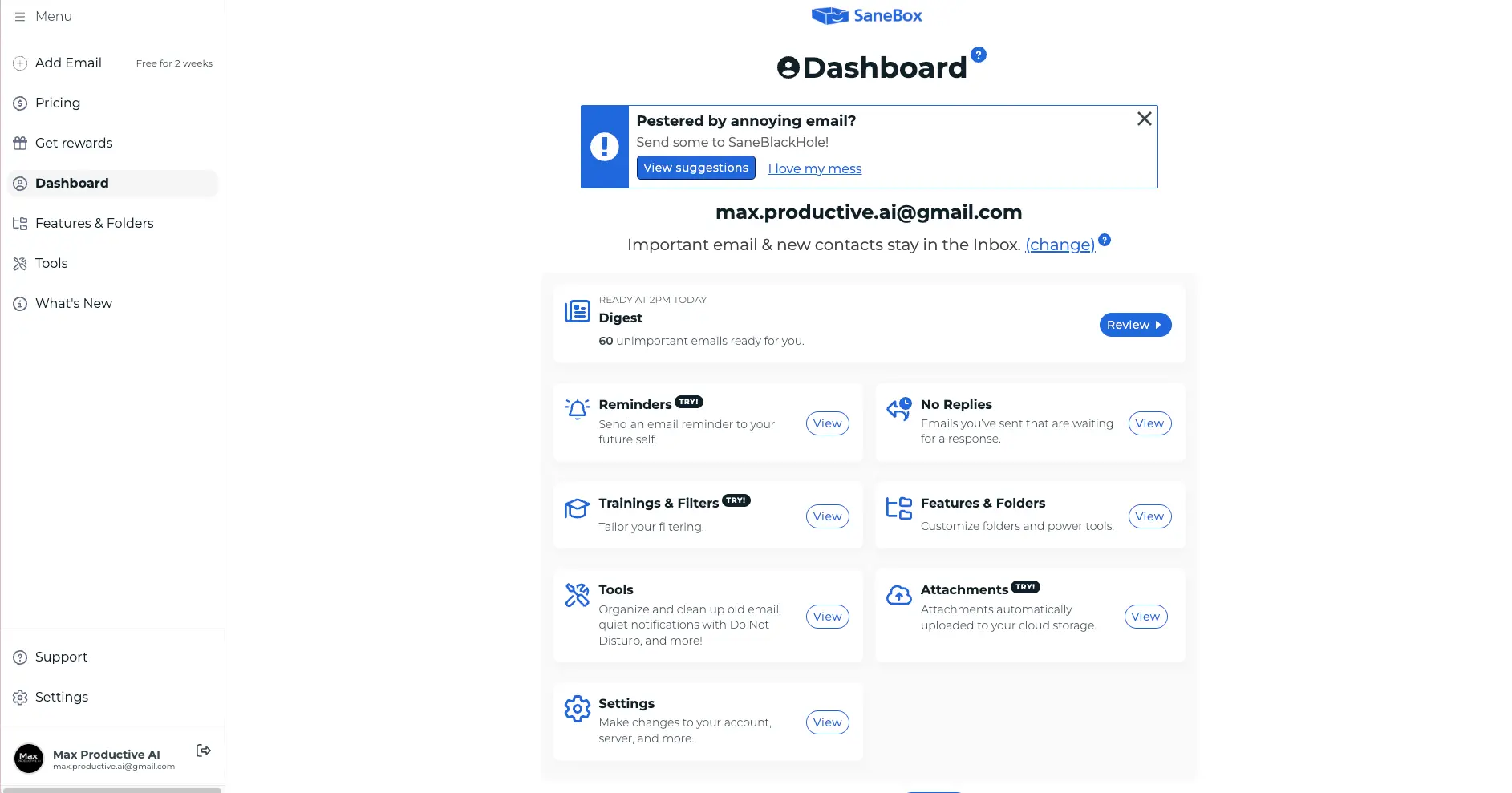
The Best Inbox Filter for People
Who Like Their Email App
SaneBox does one job very well: it keeps your inbox for the email that matters, without asking you to change email apps. It works on the mailbox itself, so the same sorting shows up in Gmail, Outlook and Apple Mail, and you train it just by moving an email to the right folder. On our own Gmail account it kept hundreds of newsletters and low-priority emails out of the inbox, and the Daily Digest makes the odd misfile easy to catch. The catch is pricing. There's no free plan, the trial lasts 7 days, and the feature-count model means most people will end up on the Lunch plan at about $9 a month.
✓ What We Love
- Works with Gmail, Outlook, iCloud and any IMAP inbox, no new app
- Training is just moving an email to the right folder
- Daily Digest and follow-up reminders are genuinely useful
- Core filtering reads headers, not your full messages
! Could Be Better
- No free plan, and 7 days is a short trial for a tool that learns
- Feature-count pricing makes the cheapest plan hard to live with
- AI drafting is new and well behind AI-first email clients
What Is SaneBox?
Not an email app. A filter that sits behind the one you already use.
SaneBox is an AI email management service that connects to your mailbox and decides which incoming messages deserve your attention. Important email and messages from new contacts stay in the Inbox. Everything else gets moved into folders SaneBox creates for you: @SaneLater for mail that can wait, @SaneNews for newsletters, @SaneBlackHole for senders you never want to hear from again. Once a day, a Digest lists what it moved so nothing disappears without you knowing.
The part that sets it apart is where it works. Most tools in this space want you to switch email apps. Shortwave, Superhuman and Spark Mail are all clients you read and write in. SaneBox moves email on the mail server itself, so its folders show up wherever you check your mail: Gmail on the web, Outlook at the office, Apple Mail on your iPhone. It supports Gmail, Microsoft 365, Exchange, iCloud, Yahoo, AOL, Fastmail and any IMAP or ActiveSync account. POP-only accounts are the one exception.
SaneBox has been doing this for more than a decade, and in 2026 it finally added a generative AI layer. Reply Draft writes answers in your tone and drops them into your normal Drafts folder, and an Android app arrived in September to sit alongside the iOS one. If you've read reviews saying SaneBox can't write replies or has no Android app, they're out of date. The AI side is still modest next to the AI-first clients, though. Nobody should buy SaneBox for its drafting. You buy it for the filtering, and the filtering is excellent.
How We Evaluated SaneBox
For this SaneBox review, I connected SaneBox to the Max Productive AI Gmail account on a trial and let it sort real incoming mail, newsletters, notifications and all. I set up the trainable folders, worked through the Daily Digest, and went through the Trainings & Filters and Reminders settings. Pricing comes from SaneBox's own site and help documentation. I didn't test the new Reply Draft feature or the Android app, so those parts rely on SaneBox's documentation, and the picture of long-term reliability comes from public user reviews and forum discussions rather than my own months of use.
So who is it for? Anyone who gets dozens of emails a day, likes the email app they already have, and is tired of newsletters and notifications burying the messages that matter. Consultants, founders and managers with several inboxes get the most out of it, because one subscription cleans up all of them the same way. If you want AI to read and answer your email for you, look at Fyxer or Superhuman instead. If you want to wipe out a huge backlog of old mail, Clean Email is built for that job.
See SaneBox in Action
Screenshots from our own SaneBox account, connected to a live Gmail inbox.
Dashboard Overview
Every SaneBox tool on one page, with today's Digest at the top
The dashboard is plain but easy to read. The Digest sits on top with a count of what SaneBox moved today, 60 emails on this account, and below it every tool gets its own tile. The line that matters most is under the email address: "Important email & new contacts stay in the Inbox." That's a sensible default. A first email from a new client won't get buried while SaneBox is still learning. If you'd rather screen strangers, that's a setting you change later. The banner at the top nudging you to try SaneBlackHole, with an "I love my mess" opt-out, gives you a fair idea of the product's tone.
Trainable Folders
Switch each Sane folder on or off, or build your own
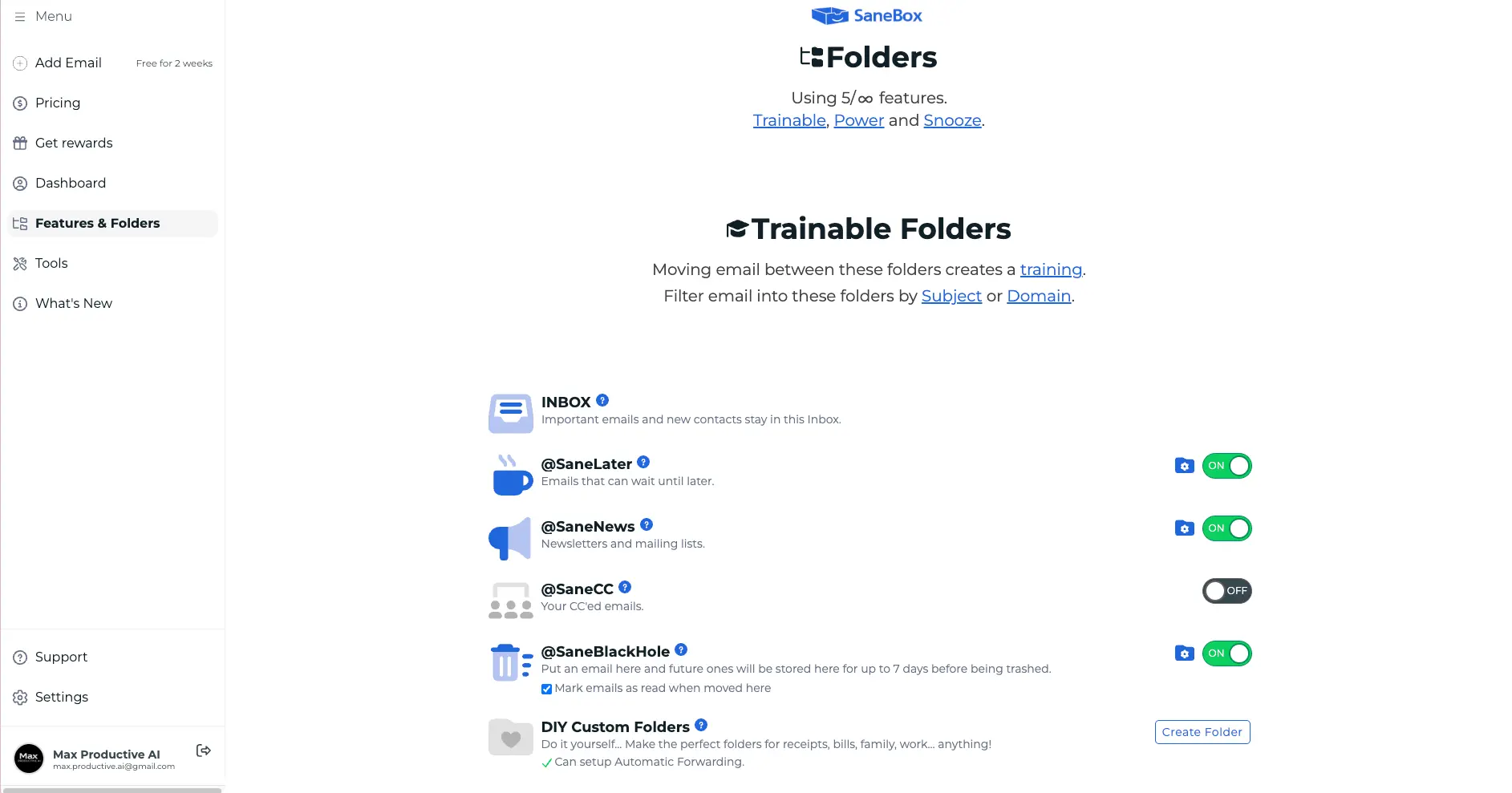
This is the control room. Each Sane folder has its own toggle, and moving email between them is what trains SaneBox. You can also route mail by subject or domain from here. Look at the line at the very top: "Using 5/∞ features." On the trial everything is available, but that counter is exactly what your paid plan limits. Snack allows two features, Lunch six. By the time I'd set up a sensible configuration I was already at five, which tells you which plan most people will need. More on that in the pricing section.
SaneBox Folders Inside Gmail
No new app. The folders appear as ordinary Gmail labels
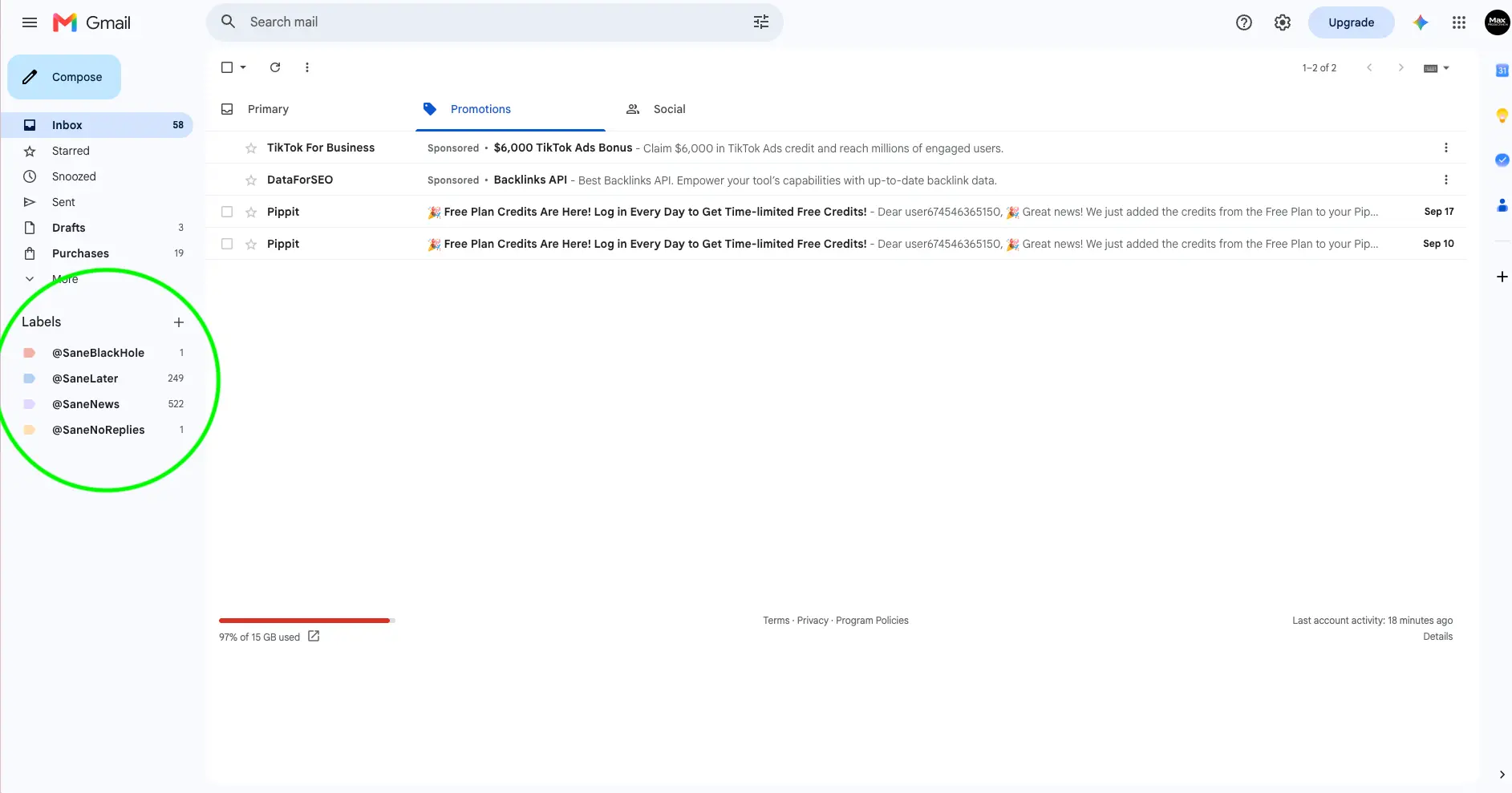
This is the screenshot that explains SaneBox best. There's nothing new to open. In Gmail, the Sane folders are labels in the sidebar, and on this account they were holding 249 unread emails in @SaneLater and 522 in @SaneNews. That's more than 750 unread messages that would otherwise have been in the inbox. Because the sorting happens on the mail server, the same labels show up in the Gmail app on your phone or in any other client connected to the account. In Outlook or Apple Mail they'd look like normal folders.
Want to see what SaneBox would pull out of your inbox?
Start Your Free Trial →7-day free trial • No credit card requiredDaily Digest
Review everything SaneBox filtered in one pass
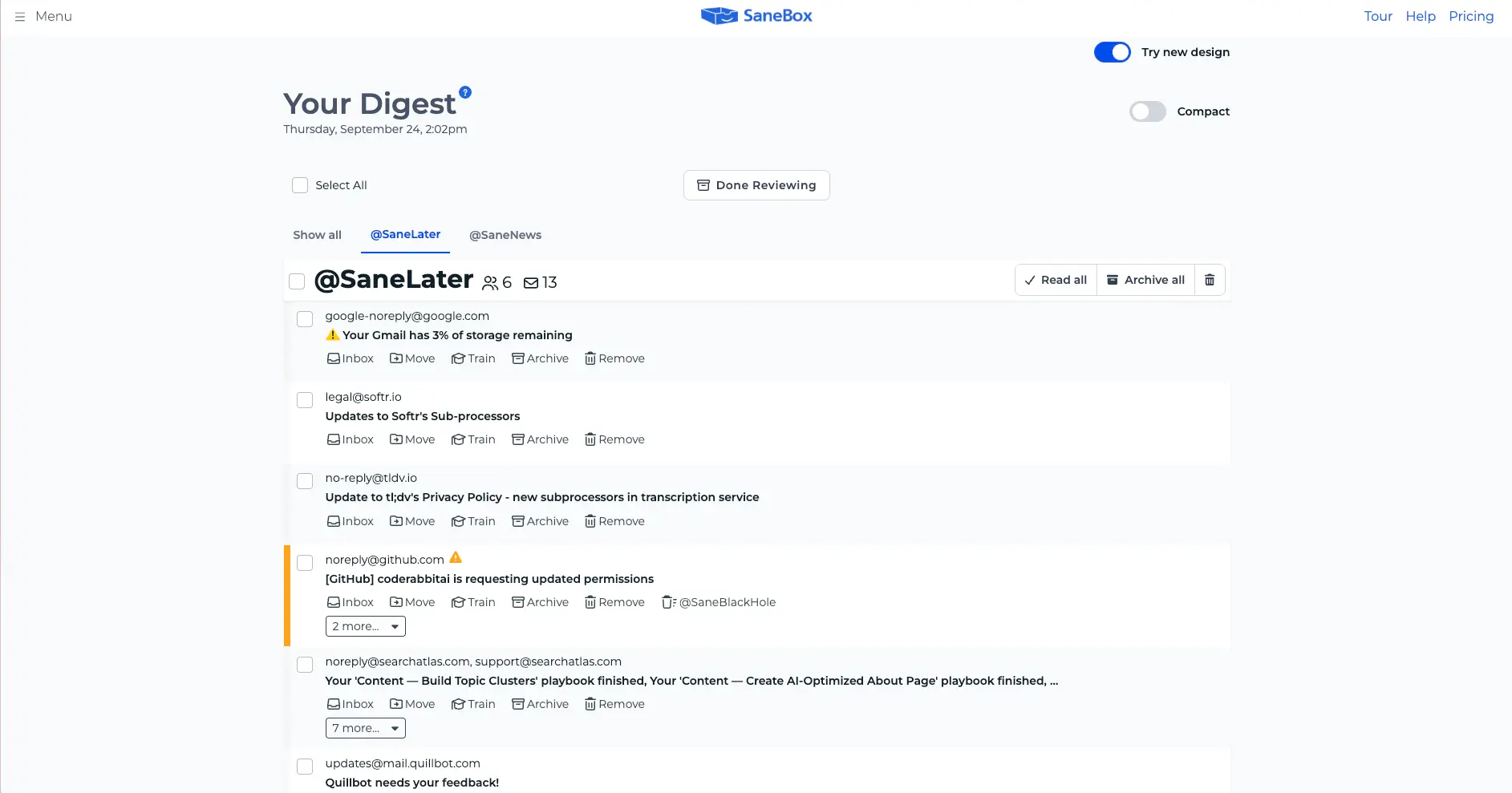
The Digest is what makes trusting a filter possible. Each filtered email gets a row with buttons to send it back to the Inbox, move it, train SaneBox on it, archive it or remove it. Here's a real example from my own Digest: the top item in @SaneLater is Google warning that the Gmail account has 3% of its storage left. That's not something I'd want to wait on. One click on Inbox puts it back and teaches SaneBox for next time. The rest of the list (a sub-processor update, a privacy policy notice, a product feedback request) is exactly what belongs in SaneLater. Check the Digest daily for the first week or two and the corrections add up quickly.
Trainings & Filters
See every correction you've made and set your own rules
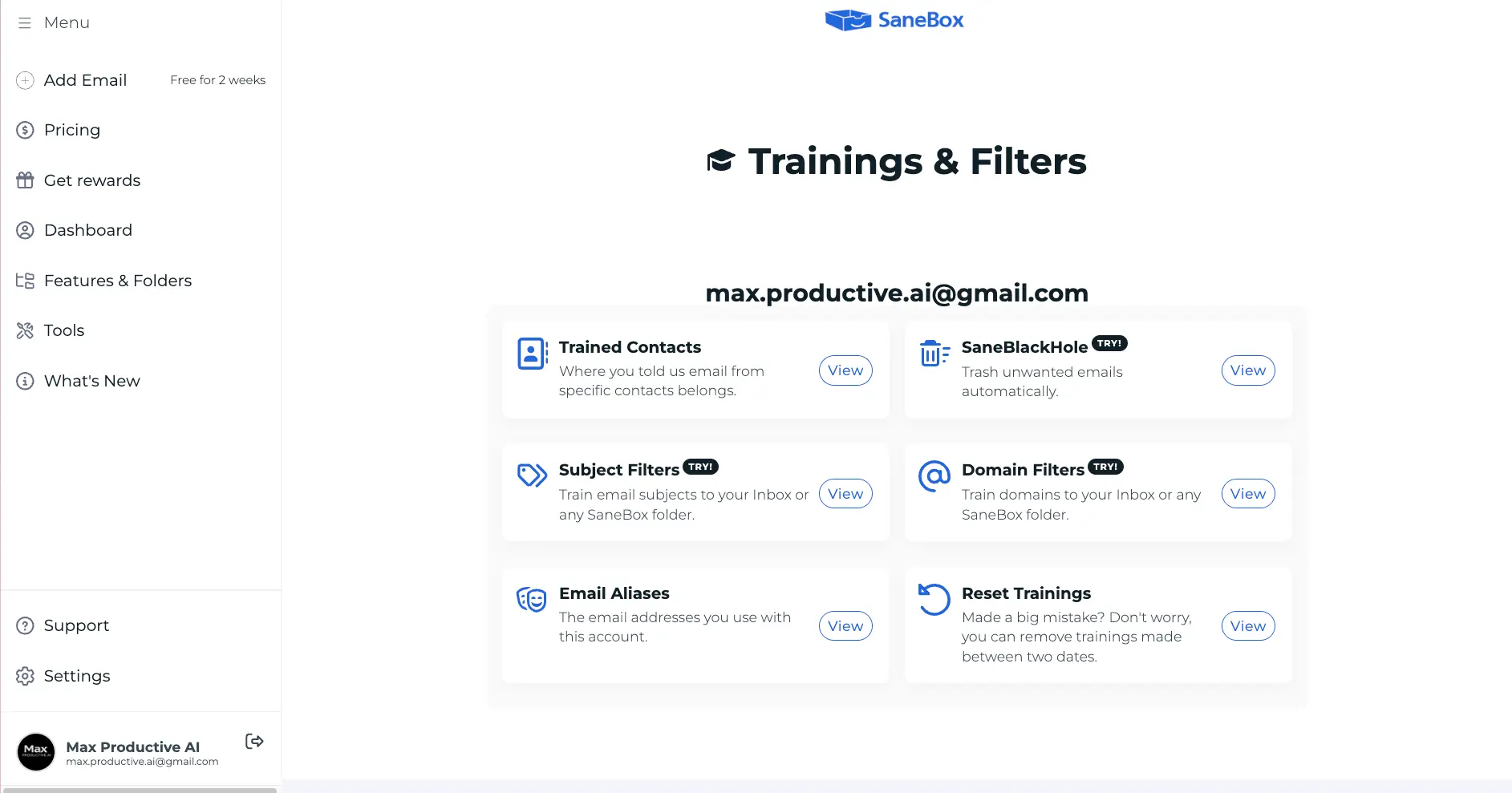
If you like control, this page is for you. Trained Contacts lists every sender you've corrected, so you can review or undo a decision. Subject and Domain Filters let you force a whole domain, say your bank or your biggest client, straight to the Inbox or into any Sane folder. Email Aliases tells SaneBox about your other addresses so it doesn't treat your own mail as a stranger's. And Reset Trainings removes everything you trained between two dates, which is a thoughtful safety net if you go on a dragging spree you later regret.
Reminders & Follow-Up Settings
Follow-ups that work from any email app
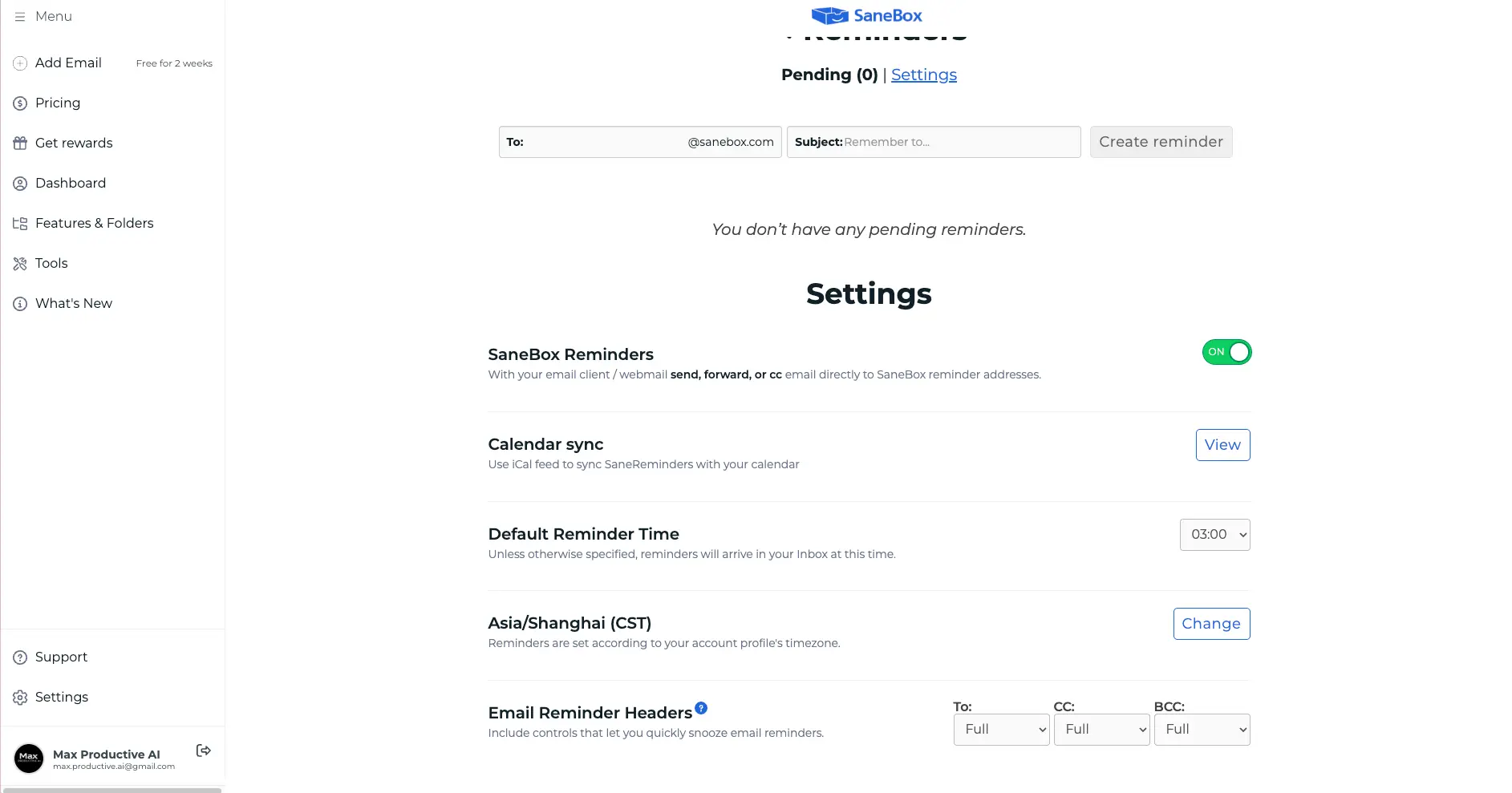
SaneBox reminders work through email addresses, which sounds odd until you use it. Send, forward or CC a message to an address like monday@sanebox.com and it comes back to your Inbox on Monday. Because it's just email, it works from any app on any device, with nothing to install. You can also create reminders straight from this page and sync them to your calendar with an iCal feed. One practical tip: check the default reminder time and timezone before you start. They decide when everything lands, and you don't want a reminder showing up in the middle of the night.
How SaneBox Works
Connect, let it sort, correct it, then add the extras. Most of the work happens in the first week.
Connect Your Mailbox
Sign up and connect your email account. Gmail and other supported providers connect through OAuth, so you grant access without handing over your password and can revoke it any time. Other providers connect over IMAP, Exchange or ActiveSync. There's nothing to download. SaneBox creates its folders in your account, looks at your recent mail history, and starts sorting within minutes.
Let It Sort Incoming Mail
For each new message SaneBox looks at the sender, the subject and your history with that sender: whether you open their emails, how often you reply, how quickly. Mail from people you deal with stays in the Inbox, along with first-time senders by default. Newsletters go to @SaneNews and lower-priority mail to @SaneLater. You don't write a single rule. It works out the pattern from what you already do.
Train It by Moving Email
When SaneBox gets something wrong, move the email to the right place, from any email app on any device. That move is the training. It applies to future mail from the same sender. The Daily Digest speeds this up with one-click Inbox and Train buttons, and Subject or Domain Filters handle the cases where one sender sends both important and unimportant mail. Most of your corrections happen in the first week or two, which is exactly when the Digest earns its keep.
Add the Tools You Need
Once the basic sorting is right, switch on the extras: SaneBlackHole for senders you're done with, SaneNoReplies to track emails nobody has answered, reminders and snooze, Do Not Disturb, and Reply Draft if your plan includes AI. Keep an eye on the feature counter while you do it. Every tool you turn on uses a slot from your plan, and that's what decides between Snack, Lunch and Dinner.
What SaneBox Reads, and What It Doesn't
For its core filtering, SaneBox looks at headers like the sender, subject line and date, plus how you interact with each sender. It says it never stores full emails or attachments, and your mail stays on your own server. Its security is assessed every year as part of Google's verification for apps with sensitive Gmail access, it has passed external security audits by Leviathan Security Group, and it runs an ongoing HackerOne program. One honest caveat: optional features that need message content, like Reply Draft and attachment handling, do process more of the email to do their job. SaneBox says that content is used only to provide the feature.
Low Risk to Try
There's nothing to migrate and no new app to learn, so trying SaneBox doesn't disrupt anything. If SaneBox goes offline, your email still arrives as normal, just unsorted until it's back. And if you cancel, you choose whether to keep the Sane folders and their contents or have them removed.
Your First Week With SaneBox: A Simple Plan
Seven days is enough to judge SaneBox if you use them well. Day 1: connect your busiest inbox and switch on only SaneLater and SaneNews. Leave "new contacts stay in the Inbox" as it is. Days 2 and 3: open the Digest every evening and send anything misfiled back to the Inbox. Add your other addresses under Email Aliases. Days 4 and 5: drag your worst newsletters and cold pitches into SaneBlackHole, turn on SaneNoReplies, and add a Domain Filter for anyone who must always reach you, like your bank or your biggest client. Days 6 and 7: look at the feature counter on the Folders page. That number tells you which plan to buy.
SaneBox Features: What Each Tool Does
The folders and tools that make up SaneBox, and which ones you'll actually use.
SaneLater Priority Filtering
The heart of the product. Anything SaneBox judges can wait leaves the Inbox for @SaneLater. It isn't a spam folder. It's the "I'll look at this when I have time" pile, sorted for you. It learns from your behavior and your corrections, and it's the feature you'll notice from the first day.
SaneNews
Newsletters and mailing lists get their own folder, so reading them becomes something you do on purpose rather than a constant interruption. On our account this folder filled up faster than any other. If you subscribe to a lot of newsletters, it's the single biggest relief.
Daily Digest
A once-a-day summary of the unread email SaneBox filtered, with buttons to rescue, train, archive or delete each one. It's the safety net that lets you stop checking SaneLater by hand. On Android it now arrives as a phone notification.
SaneBlackHole
Drag an email from a sender you're done with into @SaneBlackHole and you won't see them again. Future emails go straight there and move to Trash after seven days. A newer setting can also try to unsubscribe you from mailing lists you train there. It works better than hunting for unsubscribe links that don't work.
SaneNoReplies & Reminders
SaneNoReplies keeps a list of emails you sent that nobody has answered, and a newer AI option leaves out messages that never needed a reply, like a quick "thanks". Reminders bring an email back on a date you pick, by sending or CCing an address like monday@sanebox.com. For anyone who chases clients or suppliers, this pair is worth the subscription on its own.
Reply Draft (SaneDrafts)
SaneBox's newest feature writes reply drafts in your tone and puts them in your normal Drafts folder, usually 10 to 15 minutes after a qualifying email arrives. It skips receipts, newsletters and alerts, never sends anything on its own, and is limited to plans that include SaneBox's AI features. SaneBox has also added AI email summaries. Both are handy extras, but they make SaneBox an inbox filter with an assistant on the side, not an AI inbox.
SaneScreener & SaneCC
SaneScreener holds email from first-time senders in a separate folder until you approve or reject them, a good fit if your address is public. SaneCC pulls emails you're only copied on out of the main Inbox. Managers copied into every thread will feel the difference straight away.
Snooze, Do Not Disturb & More
Snooze sends an email away until a better time. Do Not Disturb holds back even important mail during focus hours. Attachments can be uploaded to your cloud storage automatically, SaneTodo turns emails into tasks in Todoist or TickTick, and DIY folders learn categories like receipts or family. Pick what fits; each one uses a feature slot.
Two things worth knowing before you choose a plan. First, almost all of this counts toward your plan's feature allowance, including SaneLater and SaneNews themselves. Turn on the five tools that make SaneBox feel complete and you've already outgrown Snack. Second, don't judge SaneBox by its AI list. Reply Draft and the summaries are welcome additions, but the reason some users have stayed with SaneBox for ten years is the quiet, reliable sorting, and that part has had a decade of polish.
See which features come with each plan:
Check SaneBox's pricing →7-day free trial • Plans from $5.42/mo billed annuallySaneBox Pricing
Three plans named after meals, priced by email accounts and by how many features you switch on.
Snack
- ✓ 1 email account
- ✓ Choose 2 SaneBox features
- ✓ Works with any IMAP or Exchange inbox
- ✓ Email and chat support
- ✗ Two feature slots fill up fast
- ✗ No phone support
Lunch
- ✓ 2 email accounts
- ✓ Choose 6 features per account
- ✓ Room for SaneLater, SaneNews, BlackHole, NoReplies, Reminders & Snooze
- ✓ Covers a work and a personal inbox
- ✓ Email and chat support
- ✗ No phone support
Dinner
- ✓ 4 email accounts
- ✓ Every SaneBox feature
- ✓ No feature counter to manage
- ✓ Phone support
- ✓ Email and chat support
- ✓ Built for heavy multi-inbox users
Two-year billing: Snack $4.54/mo, Lunch $7.46/mo, Dinner $22.04/mo, paid upfront ($109, $179 and $529)
Free trial: 7 days with every feature, no credit card required. 30-day money-back guarantee on request through support
Discounts: 25% off any plan for education, non-profit and government organizations. Reply Draft is available on plans that include SaneBox's AI features, so check the live plan details if drafting matters to you
Pricing last verified October 2026. Visit SaneBox for current rates.
Is SaneBox Worth It?
SaneBox says its users spend 3 to 4 fewer hours a week on email. That's the company's own number, so take it with a pinch of salt. But you don't need anything close to it. If SaneBox saves you five minutes a day of scanning past newsletters and notifications, that's around two and a half hours a month for about 30 cents a day. For most people with a busy inbox, the math works within the first week.
Here's the part of SaneBox pricing that trips people up. You don't just pick a plan, you pick features, and nearly everything counts as one, including SaneLater and SaneNews themselves, plus extras like Snooze and custom folders. Snack's two slots are gone the moment you switch on SaneLater and SaneNews, which leaves you with a filter and nothing else. My trial account was using five features after a normal setup. So for most people, Lunch at $9.08 a month is the real starting price, and Snack only makes sense if you're certain you only want basic sorting on one inbox.
So which plan should you choose? Snack suits a single inbox where you only want the core sorting. Lunch is the right plan for most people: a work and a personal account, with room for SaneBlackHole, the follow-up tools and snooze. Dinner makes sense if you run three or four inboxes, want every feature without counting, or need phone support. If you're not sure, run the trial with the tools you'd really use and let the feature counter decide for you.
Pay attention to the billing period too. Monthly billing costs around 75% more than annual on Snack and Lunch, so once the trial convinces you, go annual. Two-year billing is cheaper still if you're sure. Against the competition, SaneBox sits in the middle. Clean Email is cheaper at $29.99 a year for one account and $99.99 a year for ten, which makes SaneBox's $319-a-year Dinner plan look steep for multi-inbox households. On the other side, Fyxer starts at $22.50 a month on annual billing, Superhuman at $25, and Shortwave's Business plan at $30 a seat. Those tools do more with AI, but if what you want is a clean inbox, SaneBox Lunch costs a fraction of them.
SaneBox Pros & Cons
What SaneBox gets right, and the trade-offs you should know about before paying.
✓ Pros
No migration, no new interface, no new habits. SaneBox works with Gmail, Microsoft 365, Exchange, iCloud, Yahoo, AOL, Fastmail and any IMAP or ActiveSync account, and the sorting follows you to every device and client. If you have a work Outlook and a personal Gmail, one setup cleans both, in whichever app you happen to open. The AI-first clients only sort mail inside their own app.
There are no rules to write. If SaneBox gets it wrong, move the email where it belongs and it applies the correction from then on. You can do it from your phone, your laptop or the Digest. For people who've given up on Gmail filters because they take too much upkeep, this is the main appeal.
The worry with any filter is missing something important. The Digest answers that with one daily list of everything that was filtered and one-click buttons to rescue or retrain. It's the feature that lets you stop opening SaneLater "just in case".
SaneNoReplies tracks the emails nobody answered, and its AI option leaves out the ones that never needed a reply. Reminder addresses like monday@sanebox.com work from any email app, and reminders sync to your calendar. For consultants and anyone who chases people for answers, these are the features you end up using most after the filtering.
Core filtering runs on headers such as sender, subject and date, not stored message bodies, and your mail stays on your own server. SaneBox goes through Google's yearly security assessment, has passed external audits by Leviathan Security Group and runs a HackerOne program. You can revoke access through OAuth at any time. That's a better story than most AI email tools can tell.
2026 brought Reply Draft, smarter reply tracking and a long-requested Android app. Many reviews online haven't caught up and still say SaneBox has no AI drafting and no Android support. Both are now wrong, and it's a good sign for a product this mature.
✗ Cons
There's no free tier at all, and the trial lasts 7 days. That's tight for a tool that gets better the longer it watches your inbox. You'll need to use the week deliberately to judge it fairly, and the regular "please add a free plan" requests in user reviews are understandable.
Counting SaneLater and SaneNews as "features" means Snack's two-feature limit is used up by the basics. It makes the cheapest price look better than it is and turns plan choice into a puzzle. A simpler "everything included, priced by inbox" model like Clean Email's would be easier to understand.
Our own Digest had a Google storage warning sitting in SaneLater. Easy to fix, but it shows why you need to watch the Digest in the first weeks. Some long-time users also report the occasional important email still being filtered years in. SaneBox is a filter, not a mind reader, so don't stop checking the Digest altogether.
Reply Draft and summaries are a start, but there's no chat over your mailbox, no natural-language search, no attachment analysis. Shortwave, Superhuman and Spark Mail are far ahead here. If AI help with reading and writing email is your main goal, SaneBox isn't the right tool.
SaneLater, SaneNews, SaneCC, SaneBlackHole, SaneNoReplies, SaneScreener, SaneTodo. The folder names are clear once you know them, but the first look at the settings can feel busy, and some users find the dashboard more complex than they expected.
Snack and Lunch users get email and chat support; phone support is reserved for the $26.58-a-month Dinner plan. And if you still use a POP-only email account, SaneBox can't connect to it at all.
SaneBox Alternatives Compared
These tools solve different problems. The right pick depends on whether you want to keep your email app.
| Feature | Reviewed SaneBox | Clean Email | Fyxer | Shortwave | Superhuman | Spark Mail |
|---|---|---|---|---|---|---|
| Type | Inbox filter | Inbox cleaner | AI email assistant | AI-first email client | Premium email client | Email client |
| Entry Paid Price | $5.42/mo (annual) | $29.99/yr | $22.50/mo (annual) | $30/seat/mo (Business) | $25/mo (annual) | Free plan + paid tiers |
| Works With | Any IMAP, Exchange or ActiveSync inbox | Gmail, Outlook, Yahoo, iCloud, IMAP | Gmail, Outlook | Gmail / Google Workspace only | Gmail, Outlook | Most providers |
| Keeps Your Email App | ✓ | ✓ | ✓ | ✗ New client | ✗ New client | ✗ New client |
| AI Reply Drafts | ✓ Reply Draft (new) | ✗ | ✓ Core feature | ✓ Advanced | ✓ Advanced | ✓ Spark +AI |
| Standout Strength | Learning priority filter + Digest | Bulk cleanup & Auto Clean rules | Drafts + meeting notes | AI search over years of email | Speed + Ask AI | Polished multi-account client |
| Best For | Busy pros who like their email app | Clearing a huge backlog | Gmail/Outlook users wanting an AI assistant | Gmail power users | Executives who live in email | Budget-minded switchers |
SaneBox vs Clean Email: The Short Version
This is the comparison most people are actually making, because both connect to your existing mailbox and leave your email app alone. The difference is the job. SaneBox is about the email arriving today: it learns who matters and keeps everything else out of the way, automatically, from now on. Clean Email is about the email you already have: it groups thousands of old messages so you can bulk-delete, unsubscribe and set Auto Clean rules, and it's cheaper at $29.99 a year for one account. If you're sitting on 40,000 unread emails, start with Clean Email. If the daily flow is what wears you down, SaneBox is the better tool. Our SaneBox vs Clean Email comparison goes into more detail.
What About Gmail's AI Inbox?
Google is building its own AI sorting into Gmail, which raises a fair question: do you still need SaneBox? The biggest practical difference is reach. Gmail's AI Inbox lives in Gmail, while SaneBox applies the same filtering across Outlook, iCloud, Fastmail and every other account you connect, and adds the Digest, follow-up tracking and SaneBlackHole on top. We compared the two in detail in SaneBox vs Gmail's AI Inbox.
Which Tool Is Right For You?
SaneBox
ReviewedBest for: Busy professionals who like the email app they already use and want the inbox to show only what matters. It's the strongest option if you have several accounts across different providers, because one subscription sorts all of them the same way. The Digest and follow-up tools are why you'll keep it. Start with the 7-day trial on your busiest inbox and plan on the Lunch plan.

Clean Email
Closest RivalBest for: Clearing out a large backlog and keeping it clean with rules. Clean Email groups old mail by sender and type for bulk actions, handles unsubscribes, and runs Auto Clean rules in the background. It's cheaper than SaneBox, especially across many accounts ($99.99 a year for ten), lets you clean up to 1,000 emails for free, and offers a 14-day Premium trial. It relies more on rules you set than on learning your habits. See how it compares with SaneBox →

Fyxer
AI AssistantBest for: Gmail or Outlook users who want an AI assistant rather than a filter. Fyxer sorts incoming email into categories, writes reply drafts in your voice, takes meeting notes and helps with scheduling. It starts at $22.50 a month on annual billing, so it costs more than SaneBox, but it's doing a broader job. Choose it if writing replies takes more of your time than sorting.

Shortwave
AI-First ClientBest for: Gmail and Google Workspace users ready to switch to a new email client built around AI. Shortwave can search years of email in plain English, analyze attachments, write in your style and organize the inbox with AI filters. It's far more capable than SaneBox on AI, but it doesn't support Microsoft 365 or Exchange, and Business starts at $30 a seat.

Superhuman
Premium PickBest for: Founders, executives and salespeople whose job happens in email. Superhuman is built for speed with keyboard shortcuts, and its Ask AI pulls from your inbox, calendar and the web to draft replies, find availability and answer questions. At $25 a month on annual billing it's a different budget from SaneBox, and it solves a different problem: working faster inside email rather than seeing less of it.

Spark Mail
Free PlanBest for: People happy to switch email apps who want a polished client with smart inbox features and a free plan to start. Spark groups and prioritizes mail inside its own app, and its +AI assistant can search, summarize and draft. The sorting only exists inside Spark, though, so you lose it the moment you open Gmail or Outlook. SaneBox's filtering follows you everywhere.
Frequently Asked Questions
Should You Try SaneBox?
SaneBox is the best tool I know for one specific problem: an inbox full of things that aren't worth your attention right now. It sorts on the mailbox itself, so it works with whatever email app you use and across every account you connect. Training is as simple as moving an email, the Daily Digest makes mistakes easy to catch, and the follow-up tools quietly save you from dropped threads. On our test account, more than 750 unread newsletters and low-priority emails sat in SaneLater and SaneNews instead of the inbox, and there was nothing to install.
It isn't perfect. There's no free plan, the trial is short, and the feature-count pricing makes the cheapest plan look better than it is. It will misfile the odd important email while it learns. And if you want AI to read, search and answer your email, Shortwave, Superhuman or Fyxer go much further. But if you like your email app and simply want it to show you less, SaneBox is still the one to beat in 2026.
Our Recommendation
Start the 7-day trial on your busiest inbox and follow the first-week plan above: basics first, Digest every evening, extras from day four. If the Digest has stopped surprising you by day seven, SaneBox is working. Keep it, pick the plan that matches the number of features you actually used (most people land on Lunch), and pay annually, because monthly billing costs about 75% more.