
Gamma vs Beautiful.ai: Fast Drafts or Strict Design Control? We Tested Both
Gamma vs Beautiful AI comes down to one trade. Gamma turns a prompt, your notes, or a web page into a flexible, web-style deck in minutes, and you can start with 400 free credits and no card. Beautiful.ai builds fixed slides under strict design rules and hands you an editable PowerPoint or Google Slides file on every paid plan. We built a deck about our own site in both, then checked every pricing, trial, and export claim against each vendor's live pages on September 25, 2026. Our verdict: Gamma for most people, Beautiful.ai when your deck has to live in PowerPoint or Google Slides.

The short answer, as of September 2026: Gamma is the better pick for most people. It's free to start with no card, it drafts a full deck from a prompt, notes, a file, or a URL, and it can publish that deck as a live link or a small website. Beautiful.ai is the right call when your deck has to open cleanly in PowerPoint or Google Slides, or when a team needs every slide on brand without a designer checking. Its help center documents editable PowerPoint and native Google Slides exports on every paid plan. The catch is that there's no free plan, only a trial that needs a card.
Best overall: Gamma
Gamma holds our 4.6 out of 5 rating, the joint-highest in this category. The Free plan needs no card and was enough for us to build a full ten-card deck, and the Agent can rework every card from one instruction. The trade: exports render from Present Mode, Google Slides only gets a PowerPoint upload, and every AI action spends credits.
Best for PowerPoint and Google Slides: Beautiful.ai
Beautiful.ai scores 4.1 with us. Smart Slides keep spacing and alignment right as you type, AI generation is unlimited on paid plans, and exports land in PowerPoint or Google Slides as editable files. The trade: no free plan, a 14-day trial that bills your card automatically, and less freedom to break the layout.
| Tool | Best For | Free Plan | Entry Paid Plan | Rating |
|---|---|---|---|---|
| Gamma | Fast drafts, web sharing, trying before paying | Yes: 400 one-time credits, no card | Plus $9/mo annual ($12 monthly) | 4.6 / 5 |
| Beautiful.ai | PowerPoint and Google Slides output, brand control | No: 14-day trial, card required | Pro $14.50/mo annual ($45 monthly) | 4.1 / 5 |
Prices checked September 25, 2026 against each vendor's pricing page and help center. Gamma's pricing page loads prices by region, so the Gamma figures are its US list prices as published this summer, and they line up with the 28% annual discount its help center describes. Beautiful.ai's main pricing page and an older page on its own site show different Pro prices, so check the amount at checkout.
Both tools will turn a one-line prompt into a decent deck in a couple of minutes, so the first draft won't decide this for you. What decides it is what happens next: where the deck goes, who edits it after you, and what you pay once the free credits or the trial run out. Gamma treats a deck as a web document made of cards that grow with your content, and turns those cards into slides only when you export. Beautiful.ai treats a deck as fixed 16:9 slides with design rules, built to be presented or handed to PowerPoint. Almost every difference below comes back to that split.
Search for this comparison and nearly every page that answers is written by a vendor, Beautiful.ai included. Google's AI summary gets the split roughly right in one sentence (fast and content-first for Gamma, strict design rules and clean PowerPoint exports for Beautiful.ai), but it doesn't show its evidence. This article does. It's the head-to-head follow-up to our Gamma alternatives roundup, where Beautiful.ai ranked first. And whether you typed Gamma vs Beautiful AI, Gamma AI vs Beautiful AI, or Beautiful AI vs Gamma, the answer depends on where your deck ends up.
Gamma vs Beautiful AI at a Glance
| What we compared | Gamma | Beautiful.ai |
|---|---|---|
| How a deck is built | Flexible cards that grow with content, converted to slides on export | Fixed 16:9 slides under Smart Slide design rules |
| Ways to start | One-line prompt, pasted text, a template, or an imported file or URL | Typed or spoken prompt with optional files or links, a template, or an imported PowerPoint |
| Free plan | 400 credits that never refresh, no card, 10 cards per prompt | None. A 14-day Pro or Team trial that needs a card |
| Entry paid plan | Plus, $9 a month on annual billing, 1,000 credits a month | Pro, $14.50 a month on annual billing, unlimited AI |
| How AI use is metered | Credits on every plan; cost varies by action and model | Unlimited AI content generation on paid plans |
| PowerPoint export | On every plan; badge on Free; renders from Present Mode | Editable export on Pro, Team, and Enterprise, notes included |
| Google Slides | Export a PowerPoint file, then upload it; Google swaps embedded fonts | Native export that opens an editable deck in Google Slides |
| Sharing on the web | Live links and websites; custom domains from Pro | Hosted player links; custom player links on Team |
| Team plan | Business, $40 per member a month, billed annually | Team, $40 a month billed annually; confirm seat terms at checkout |
| Our rating | 4.6 / 5 | 4.1 / 5 |
1. Build Philosophy: Web-Style Cards vs Slides With Design Rules
Gamma thinks in cards, not slides. A card grows as you add content, the way a web page does, so one gamma can be read as a document, presented as slides, or published as a website. Gamma 3.0, released on September 15, 2025, put an AI Agent at the center of the editor, and the August 28, 2026 update added native iOS and Android apps and a Slack app.
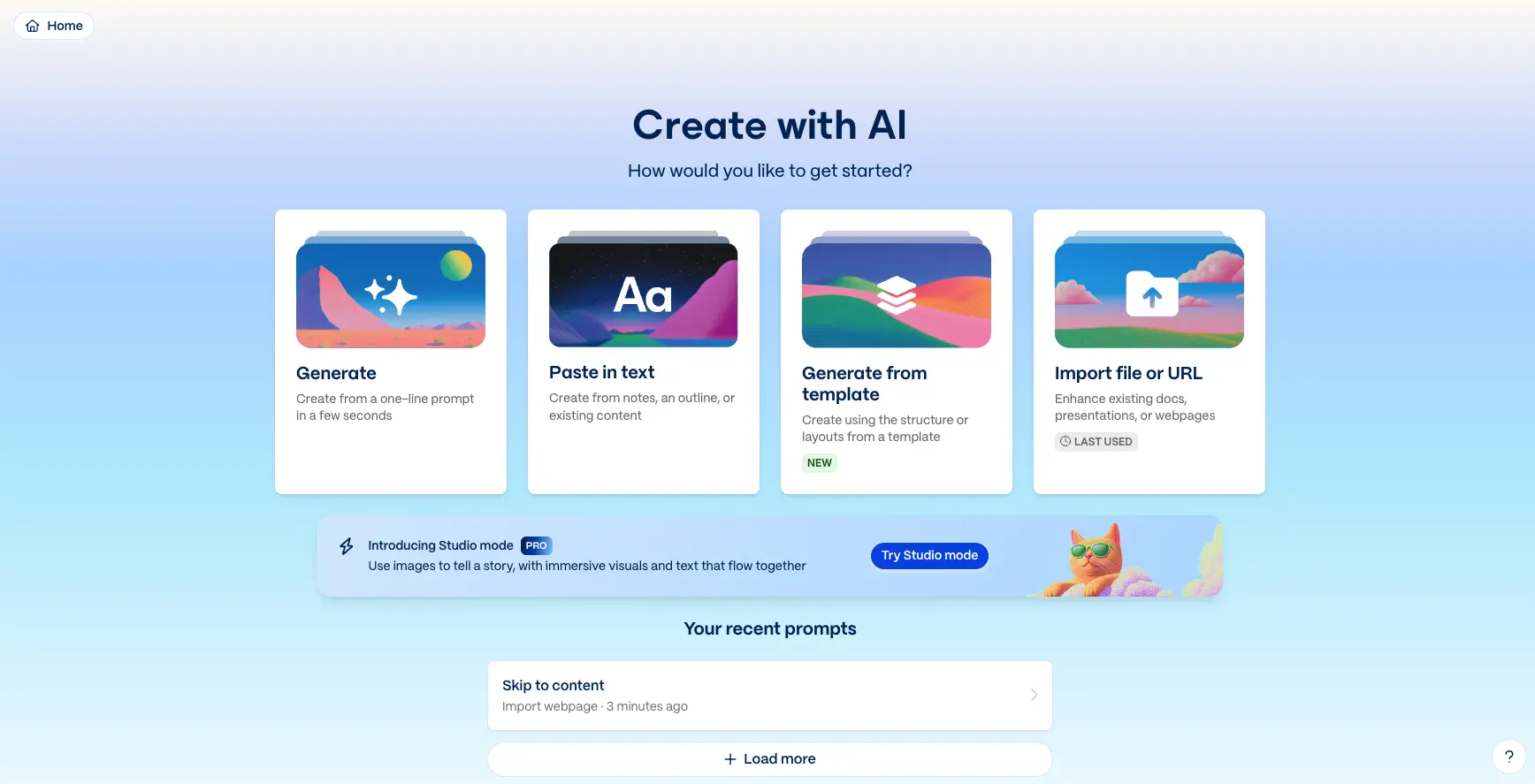
Our Gamma build started on the Create with AI screen below. You get four ways in: a one-line prompt, pasted notes or an outline, a template, or an imported file or URL. We gave it our homepage.
Beautiful.ai thinks in slides. Every slide is a fixed 16:9 canvas, and most are Smart Slides, layouts that re-space and re-align themselves as you type. The AI fills in a structure, and the design system keeps it tidy.
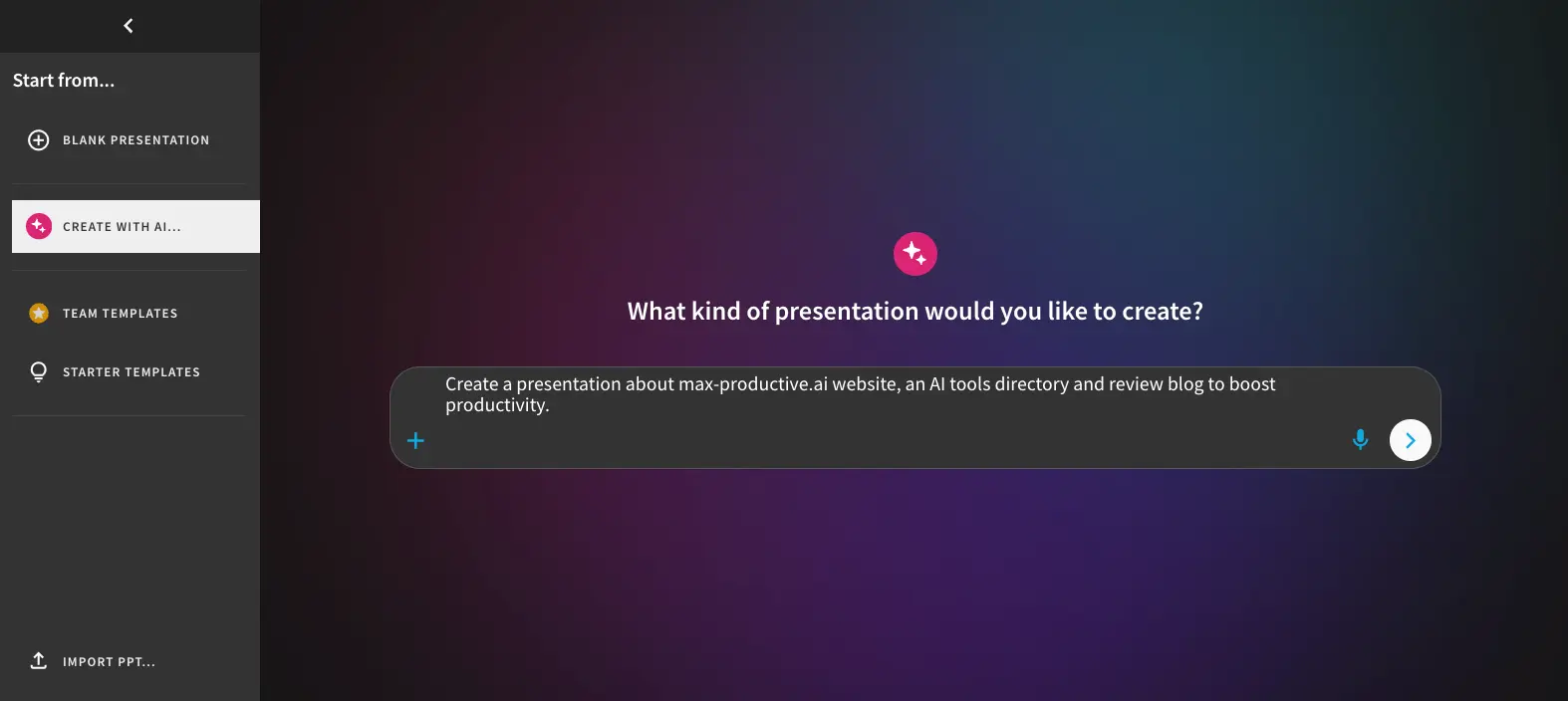
Our Beautiful.ai build started from the prompt box below. You can type a prompt, speak it through the microphone button, or add a file or link with the plus button. The left rail also has starter templates, team templates, and an Import PPT option for bringing in an existing deck.
Which approach suits you depends on your audience. Gamma's cards work best for a deck people will read on a screen or open from a link. Beautiful.ai's slides work best for a deck presented in a room or opened in PowerPoint by someone else. Hold on to that, because it settles the export question in difference 4.
2. From Prompt to Deck: Settings First vs Outline First
The two tools ask for your input at different points, which changes how much you can steer before any slide exists.
Gamma asks you to set the rules first, then generates. After our import, the prompt editor below showed the text it had pulled from our homepage next to a panel of settings. You choose whether Gamma writes new text, condenses yours, or keeps it word for word. You also pick how much text goes on each card, the language, a theme, and whether to split the content freely or card by card. The free account capped us at 10 cards per prompt. (The upgrade banner in our screenshot is older than Gamma's current limits. Plus now allows up to 100.)
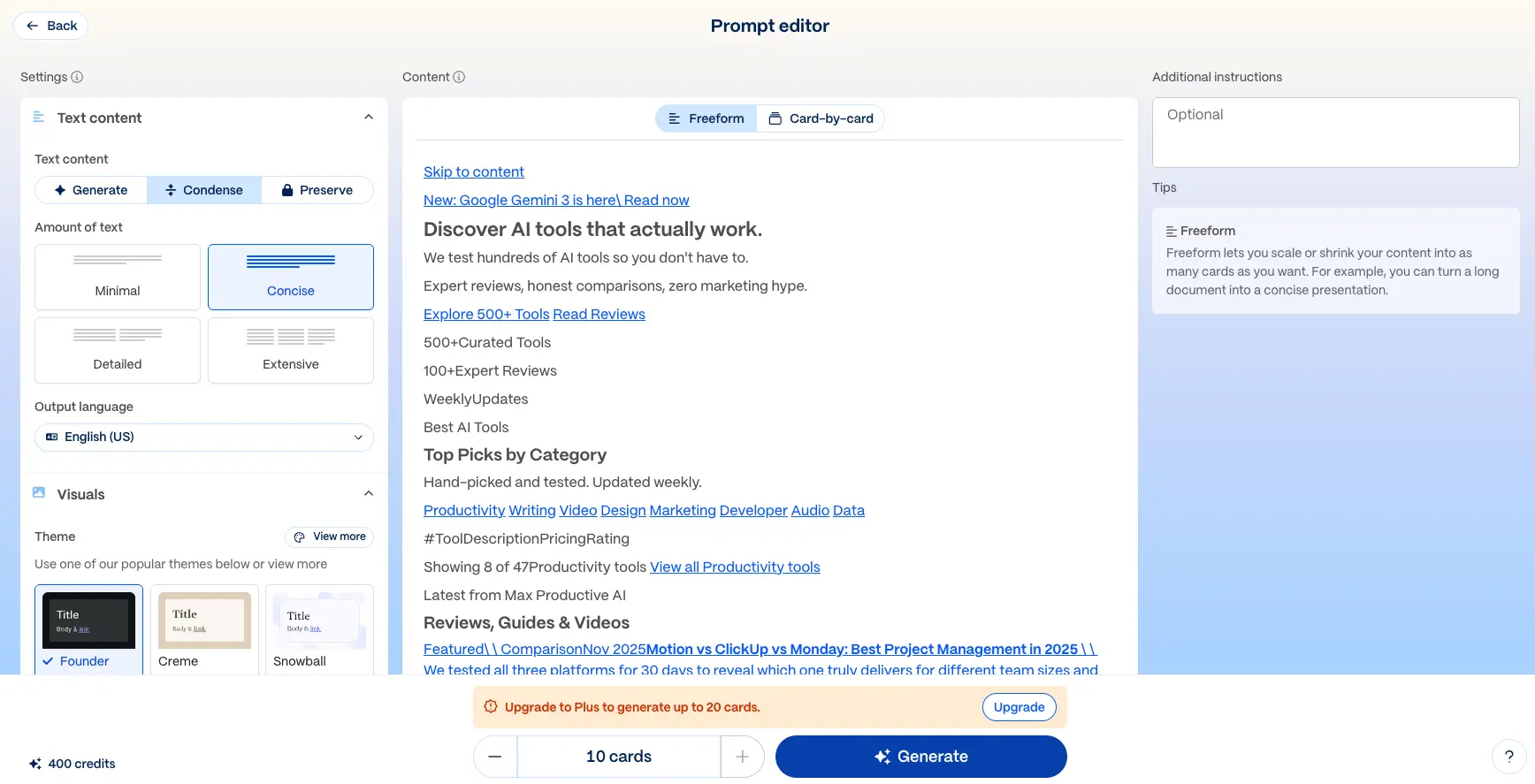
One thing we noticed: the URL import grabbed everything, including our site's skip-to-content link and a promo banner, and Gamma named the saved prompt after that first stray line. None of it ended up on the finished cards, but read the text pane before you press Generate. If your source is messy, Paste in text gives you more control.
Beautiful.ai writes an outline first and waits for your approval. From our one-line prompt it produced ten slides in plain text, each with a title, a subtitle, a few bullets, and an italic note describing the visual it had in mind. Those notes read like a brief you would hand a designer. A chat panel on the right takes revision requests and file attachments, and the generation options sit underneath: theme, image source, AI image style, a Preserve Text switch, and language.
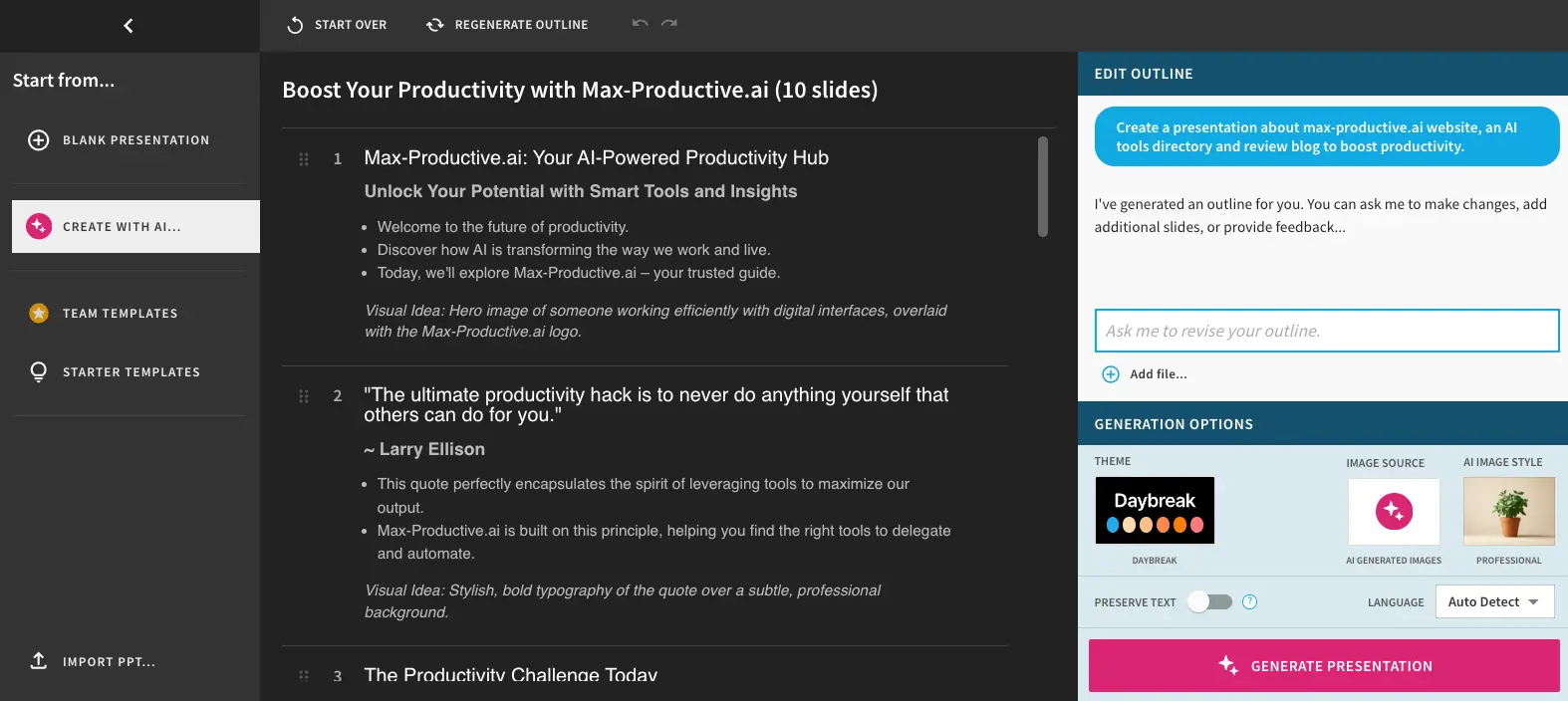
If you think in structure, this is where Beautiful.ai earns its place. You fix the story in plain text, where changes are cheap, before any layout gets drawn. It's also the moment to catch anything the AI made up. Our outline opened slide two with a motivational quote credited to a famous tech executive. Maybe he said it, maybe not. Check lines like that before they reach a client.
Turning an existing script or report into slides? Switch on Gamma's Preserve option or Beautiful.ai's Preserve Text setting first. The Beautiful.ai one was off in our build.
3. Editing and Design Control: An Agent vs Guardrails
Once a gamma exists, most editing runs through the Agent, and the Free plan includes it. On our finished deck, the panel below opened with one box to edit, create, or style anything, set to act on every card at once. Underneath are quick actions to improve the writing, fix spelling and grammar, translate, make text longer or shorter, simplify, or be more specific. You can still edit a single card or just type on the page.

That deck-wide reach is the best thing about editing in Gamma. One instruction can shorten every card or translate the whole deck. Each Agent action spends credits, though, and Gamma says the cost depends on the request and the model, so heavy editing burns through a free balance faster than generating does. Layout changes are quick too. Smart Layouts rearrange content for you, and since May they run up to six columns wide.
Beautiful.ai's editor is built around the slide, not the deck. In the screenshot, our title slide has the Slide AI panel open, offering alternate title designs for the same content, with a thumbs up or down to rate them. Smart Slides handle spacing and alignment as you type, and Beautiful.ai lists more than 300 Smart Slide layouts. On our third slide, four pain points became a neat row of matching cards with no manual layout work. Paid plans also include an AI writing assistant, AI image generation, and translation. When the guardrails get in the way, you switch to a Classic Slide, a blank canvas without the design rules.
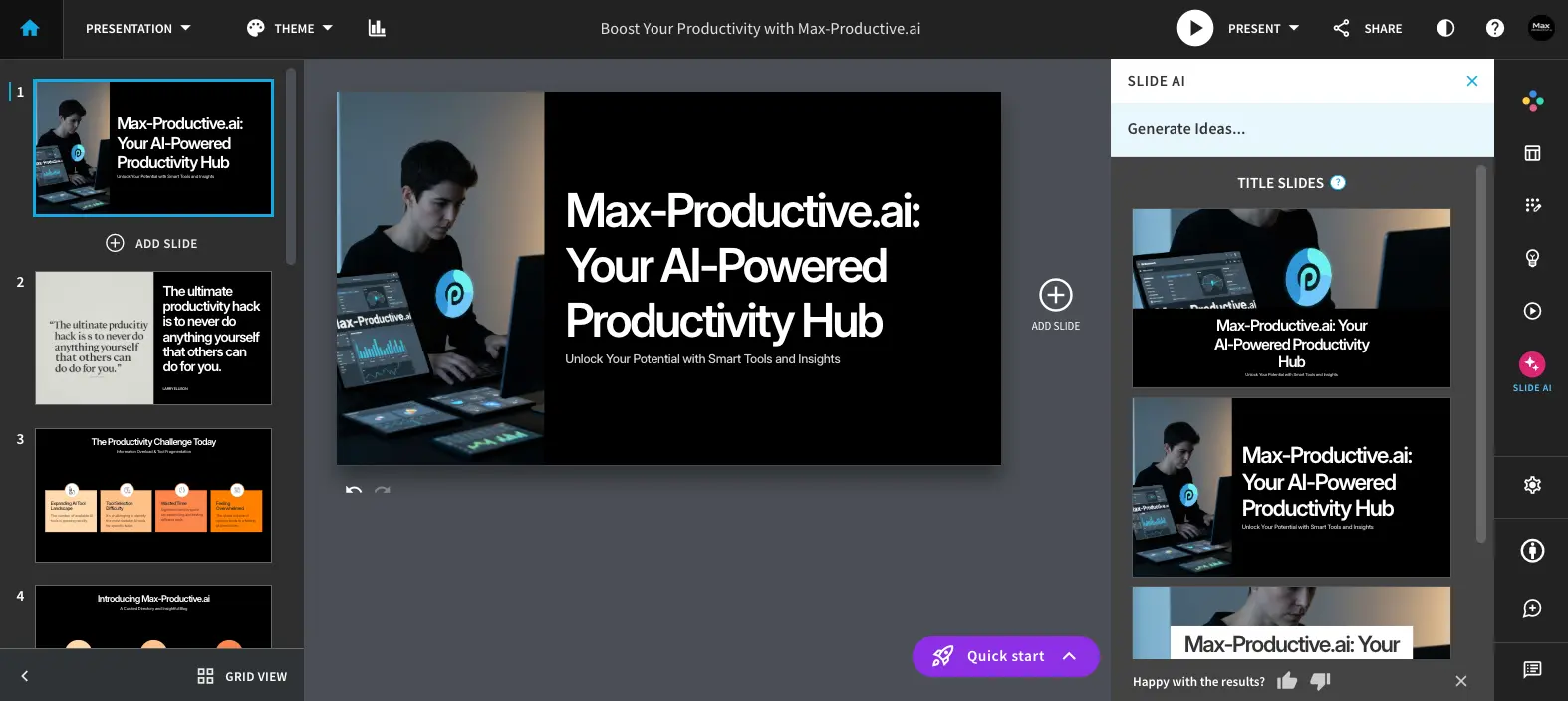
Users describe this trade more than any other. Beautiful.ai makes an ugly slide hard to produce and an unusual one a little harder. Gamma gives you more room and expects you to bring the taste. If several people who aren't designers build your decks, Beautiful.ai's rules are a feature. If you're a designer, or you want each deck to look different, Gamma will suit you better.
4. PowerPoint and Google Slides Export: What Each Vendor Documents
If you only read one section, make it this one. Everything here comes from Gamma's and Beautiful.ai's help centers and Gamma's public changelog, all checked the same day.
Gamma exports to PDF, PNG, and PowerPoint on every plan, including Free, and can post straight to LinkedIn. Two rules shape the file you get. First, in Gamma's words, "Exported content will match how it appears in Present Mode, not Edit Mode," so check the deck in Present Mode before you export. Second, cards grow with their content, so a card can end up taller than a slide. Gamma's help center suggests a fixed card height for decks headed to PowerPoint. On Free, PDF and PowerPoint files carry a Made by Gamma badge. The badge depends on your plan at the moment you export, and files you already exported on Free keep it.
To be fair to Gamma, it has worked hard on exports this year. Its changelog lists five export fixes on May 29 and eight more on June 12. They cover SVG images that broke in Google Slides and Keynote, font names that corrupted files, right-aligned text that shifted, and charts that exported at the wrong size. Since May 15, theme fonts (uploaded ones too) are embedded in the PowerPoint file. Since August 28, tables export as editable tables by default on every plan. Gamma also lists what still falls back. Gradient headings may flatten to one color, and frosted backgrounds and some image effects get simpler styles. Rounded table corners turn square, and italics use a slanted regular font instead of a true italic.
Just as useful is what Gamma's docs don't say. We found no official statement on how speaker notes, embedded media, or animations carry into the PowerPoint file. Test those before you rely on them.
Beautiful.ai's editable PowerPoint export is a named feature on Pro, Team, and Enterprise. Its help center says every element stays editable in PowerPoint, presenter notes included, whether you export one slide or the whole deck. The caveats are short. If your computer doesn't have the deck's fonts, the file looks slightly different, and a Download Fonts button in the export dialog fixes that. Animations, transitions, and audio don't come across. There's also a separate PowerPoint Images option that exports flat pictures of each slide, so pick the editable one on purpose.
Google Slides is where the two are furthest apart. Gamma's pricing page lists Google Slides as an export format, but its help center describes the actual route: export a PowerPoint file, then upload it. Gamma also documents the catch. Google Slides ignores fonts embedded in an uploaded PowerPoint file and swaps in its own, so text can change size or style. Beautiful.ai has a native Google Slides export on Pro, Team, and Enterprise that opens your deck as an editable presentation in a new tab. Video, audio, animations, and transitions are dropped. If your Google account blocks third-party apps, Beautiful.ai suggests exporting to PowerPoint and importing that file instead.
| Export question | Gamma | Beautiful.ai |
|---|---|---|
| PowerPoint file before paying | Yes, on Free, with a Made by Gamma badge | Yes, during the 14-day trial |
| What the file is based on | Each card as it appears in Present Mode | Each slide as designed |
| Editability in PowerPoint | Tables editable by default; Gamma doesn't say every element stays editable | Every element editable, per Beautiful.ai's docs |
| Fonts | Theme and uploaded fonts embedded; rare fallback to local fonts | Install the deck's fonts first with Download Fonts |
| Known losses | Gradient headings, frosted effects, rounded table corners, true italics | Animations, transitions, audio |
| Speaker notes | Not documented | Included and editable |
| Google Slides | PowerPoint download, then upload; Google replaces embedded fonts | Native export on paid plans, opens as an editable deck |
| Recent changes | 13 export fixes since late May; editable tables by default since August 28 | Export help articles refreshed in August 2026 |
Read side by side, the docs point one way. Beautiful.ai built its slides to become PowerPoint and Google Slides slides. Gamma converts a web-style card into a slide, has spent this year closing the gaps, and is upfront about what still falls back. If someone else will edit the deck in PowerPoint or Google Slides, Beautiful.ai is the safer bet on paper. If you'll present from Gamma or send a PDF, the gap barely matters. You can export a test deck on Gamma's free plan and judge the file yourself.
5. Sharing, Analytics, and Teams: A Publishing Tool vs a Brand System
Gamma's other life is on the web. Any gamma can be shared as a live link on every plan, and the same editor builds multi-page websites. Pro adds detailed viewer analytics, password protection for documents, headers and footers, custom branding, and up to 10 custom domains. Ultra and Business raise that to 100. If your deck is really a pitch page or a proposal you'll keep updating after you send it, a Gamma link beats an attachment.
Beautiful.ai shares through its own presentation player. Pro includes viewer analytics, custom fonts, and a desktop player for presenting offline. Team adds slide-level analytics, engagement alerts, and custom player links. Its bigger strength is control. Team also brings real-time co-editing, a shared slide and template library, version control, locked slides, and custom brand themes, and Enterprise adds configurable brand guardrails, single sign-on, user provisioning, and audit logs. If you've ever watched a sales team quietly break a brand template, this is the part of Beautiful.ai you're paying for.
On team pricing, the two land close. Gamma Business costs $40 per member a month on annual billing, with single sign-on and 6,000 credits per member. Beautiful.ai's Team plan has the same annual list price, but its pricing page describes the seats two ways. The plan card says the price includes three users, while the FAQ on the same page quotes it per user for 2 to 20 seats. Confirm the seat count at checkout.
6. Pricing: Credits vs Unlimited AI (Checked September 25, 2026)
If you searched Gamma vs Beautiful AI cost, you need two answers: what each plan costs, and how much AI use that money buys. Beautiful.ai's figures come from its live pricing page. Gamma's page shows prices by region, so its figures below are the US list prices published this summer. Prices are for annual billing unless stated.
| Tier | Gamma | Beautiful.ai |
|---|---|---|
| Free | $0. 400 credits that never refresh, no card, 10 cards per prompt, badge on PDF and PowerPoint exports | No free plan. A 14-day trial of Pro or Team, card required |
| Individual entry | Plus, $9/mo ($12 monthly). 1,000 credits a month, no badge, up to 100 cards per prompt | Pro, $14.50/mo billed annually, or $45 month to month. Unlimited AI, editable PowerPoint and native Google Slides export |
| Individual advanced | Pro, $18/mo ($25 monthly). 4,000 credits, detailed analytics, API, custom branding, 10 custom domains | No separate tier; Pro covers individuals |
| Power user | Ultra, $100/mo, monthly billing only for now. 20,000 credits, the most advanced models, 100 custom domains | No equivalent tier |
| Team | Business, $40 per member/mo. 6,000 credits per member, SSO, 100 custom domains | Team, $40/mo ($50 monthly). Shared libraries, locked slides, brand themes; seat terms differ on the page |
| Enterprise | Custom pricing, admin controls, SCIM, audit logs | Custom pricing, SSO, SCIM, audit logs, configurable guardrails |
| AI metering | Credits for every AI action; cost varies by request and model | Unlimited AI content generation |
| Running low | Paid plans can buy credit packs; plan credits roll over up to twice the monthly amount | Not needed for AI; you pay per plan |
Gamma runs on credits. Generating a deck, asking the Agent for an edit, and creating an image all draw on one balance. Gamma doesn't publish a fixed price per action. Its help center says the cost depends on what you ask for, which model runs it, and how long the output is. Paid credits refresh monthly, even on annual plans, and unused ones roll over up to twice your allowance. Paid plans can buy more credits. The Free plan can't, though each referral adds 200. Annual billing saves 28%, and billing is per person, so a second Pro user doubles the bill. Refunds are tight too: Gamma only refunds within three days of subscribing, and only if you've used a small share of the plan's credits.
Beautiful.ai charges for the seat and doesn't meter the AI, so a heavy editing week costs the same as a quiet one. A couple of details are easy to miss. The annual Pro rate went up after late July, so the $12 still quoted on an older page of Beautiful.ai's own site, and across the web, no longer matches its main pricing page. And the $45 option pitched for a single presentation is Pro billed monthly. It renews every month until you cancel, and monthly subscriptions aren't refundable.
So which is cheaper? At the entry level, Gamma: Plus costs $9 a month on annual billing, against $14.50 for Beautiful.ai Pro. Gamma Pro, at $18, costs more than Beautiful.ai Pro but adds API access and custom domains. On monthly billing the picture flips. Beautiful.ai Pro jumps to $45 a month, while Gamma Pro is $25. If you regenerate all day, also weigh Gamma's monthly credits against Beautiful.ai's unlimited AI. For teams, the list prices are close enough that features should decide. Check Gamma's page for your regional price, and Beautiful.ai's current plans for the amount you'll actually be charged.
7. Free Plan vs Free Trial: What You Can Do Before Paying
Most Gamma vs Beautiful AI free comparisons blur this one, and it's the difference that matters most if you just want to try both.
Gamma's Free plan isn't a trial. There's no time limit and no card, and every new account gets 400 credits that never expire and never refresh. You can generate up to 10 cards per prompt, import PDF and PowerPoint files, and export to PDF, PNG, and PowerPoint with the Made by Gamma badge. When the credits run out, each referral earns 200 more, up to a balance of 2,000, but you can't buy credits without a paid plan. For trying the product, or for someone who needs a deck every month or two, it's a usable plan rather than a teaser.
Beautiful.ai has no free plan for new sign-ups. You get a 14-day trial of Pro or Team with full access, and it needs a credit card. If you don't cancel before it ends, the card is charged in full and billing starts that day. Refunds are narrow. Annual plans may get a partial refund within 24 hours of purchase or renewal, monthly plans get none, and every refund carries a processing fee. Students are the exception, with a free year on a valid .edu email address.
Our advice: try Gamma whenever you like. Start Beautiful.ai's trial when you have a real deck due in the next two weeks, set a reminder for day 12, and export something to PowerPoint before it ends. That's the thing you signed up to find out.
What We Did Hands-On, and a Five-Minute Export Check You Can Run
Everything above that describes a screen comes from our own builds. Here's the exact scope.
In Gamma we used a free account, imported our homepage URL, kept ten cards with the Condense setting, and chose the dark Founder theme. The deck came back with a title card, a card of site statistics, and cards on tool categories, our testing process, and featured comparisons. Gamma also lifted our logo from the page and put it on the title card, which was a nice touch. The AI images leaned hard into purple neon offices. That suits a tech site and would look odd in a finance deck, so pick an image style before you generate. Then we tried the Agent's deck-wide actions. In Beautiful.ai we typed a one-line prompt about the same site, reviewed the ten-slide outline, generated the deck with the Daybreak theme and AI images selected, and opened Slide AI on the title slide.
What we didn't do for this article is export both decks and open the files side by side, so we make no claims about how either file looked in PowerPoint. If export quality decides it for you, the test takes about five minutes. Build a short deck in each tool from the same text, with one table, one chart, and a heading in your brand font. Set Gamma's cards to a fixed height, export both to PowerPoint, and open them. Then upload the Gamma file to Google Slides, use Beautiful.ai's direct Google Slides export, and compare fonts, spacing, and whether you can still edit every element. Do it inside Beautiful.ai's trial window.
What Reddit Says About Gamma vs Beautiful AI (Dated)
If you've been reading Gamma vs Beautiful AI Reddit threads, you've probably seen the same split repeated without dates. Both tools changed a lot in 2026, so here's what we kept, oldest first. None of these threads is big, so treat them as color, not proof.
The most useful thread is also the oldest. On December 2, 2025, a user in r/powerpoint tested six AI presentation agents and wrote up each one. Gamma got credit for strong visuals, but its export flattened or broke some formatting. Beautiful.ai's Smart Layouts kept content aligned but made custom tweaks difficult. A December 18 thread in r/AI_Agents described Beautiful.ai as strong on clean design and spacing but less helpful for organizing the ideas themselves.
Gamma shipped its export fixes in late May and June, so the later threads are worth reading on their own. A July 21 thread in r/GammaApp, comparing Gamma, Canva, and Beautiful.ai for client decks, still called Gamma fast but in need of some PowerPoint cleanup, and Beautiful.ai consistent but rigid. An August 11 post in r/AI_Agents, from someone six months into AI slide tools, reported the same cleanup in Gamma files and found Beautiful.ai's templates restrictive. Two posts on August 26 pulled in different directions: one flagged layout checks in Gamma, and the other got better full-deck results from it. And a September 18 thread raised a problem both tools share. AI will put invented figures on a slide if you let it, so check every number.
What survives the dates: Gamma for speed and first drafts, with an export worth checking, and Beautiful.ai for consistency, with less freedom. Gamma's changelog suggests the export complaints are shrinking. The newer threads say they haven't gone away.
A Note on the Pages That Rank for This Search
Most of what ranks for this comparison is written by someone with a stake in the answer. Beautiful.ai's own Gamma comparison sits near the top. Plus AI (May 2026), Presenti, Monsha, kroma, and NextDocs each compare the pair on the way to recommending their own product. A few predate Gamma's export fixes and Beautiful.ai's price change, and Google's AI summary leans partly on a small Reddit thread from March 2026. None of that is dishonest. It's marketing, and it leaves the refereeing to you, which is why every claim here points back to the vendors' own pages, with dates. For the record, our Gamma review rates it 4.6 and our Beautiful.ai review rates it 4.1. Both ratings were set before this article existed.
How to Choose Between Gamma and Beautiful.ai
Match the tool to where the deck ends up, not to the demo. You want to try AI presentations without paying: Gamma, whose Free plan needs no card. A client or colleague will edit the deck in PowerPoint: Beautiful.ai, where editable export is the documented strength. Your company runs on Google Workspace: Beautiful.ai, whose native Google Slides export avoids Gamma's upload-and-font-swap route. You share decks as links and want to know who read them: Gamma Pro, with detailed analytics and custom domains. You need a pitch page or a small website, not just slides: Gamma. You run a team of non-designers who must stay on brand: Beautiful.ai Team, with locked slides and a shared library. You regenerate and rewrite all day: Beautiful.ai's unlimited AI, or a Gamma plan whose monthly credits fit your habits. You need one deck, once: Gamma Free first; Beautiful.ai's $45 monthly option only if you cancel as soon as you are done.
How Gamma and Beautiful.ai Compare to the Rest
Google's related questions ask which AI beats Gamma and whether Beautiful.ai beats Canva, so here's the rest of the field in one pass. Our Gamma alternatives roundup covers nine options in depth.
Plus AI (4.4) works inside Google Slides and PowerPoint, so there's no export step at all. If the file format is your whole worry, start there, and our Gamma vs Plus AI comparison has the detail. Prezi (4.6) swaps slides for a zooming canvas and suits talks more than documents. Pitch (4.1) is built for teams editing decks together. Decktopus (4.0) is a simpler AI deck builder, covered in our Gamma vs Decktopus comparison. Presentations.AI (4.1), Pi (4.1), and Chronicle (4.0) round out the category, and our presentations directory has every review.
Canva doesn't have a review page with us, but plenty of people already use it. Its free plan includes ten lifetime uses of Magic Design, which covers presentations, and it can download a deck as a PowerPoint file. Canva's help center notes that layouts may shift and that animations and embedded video don't carry over. Beautiful.ai is the stronger choice when a deck must stay consistent and editable in PowerPoint. Canva wins when presentations are one design job among many.
Final Verdict — Gamma vs Beautiful.ai in 2026
| Best overall | Gamma (free to start, flexible cards, decks that double as links and websites, our 4.6/5) |
| Best for PowerPoint and Google Slides output | Beautiful.ai (editable PowerPoint and native Google Slides export on every paid plan, our 4.1/5) |
| Best free option | Gamma (no card, no time limit, credits that never expire) |
| Best for brand consistency across a team | Beautiful.ai (locked slides, brand themes, shared slide library) |
| Best for heavy AI use on a fixed budget | Beautiful.ai (unlimited AI generation on paid plans) |
| Best for sharing decks as links or sites | Gamma (live links on every plan, analytics and custom domains from Pro) |
| AI inside PowerPoint or Google Slides itself | Neither. Look at Plus AI, which works inside both |
Bottom line: Gamma is the better tool for most people. It costs nothing to start, turns rough notes into a clean deck quickly, and gives you a link, a website, or a file at the end. Beautiful.ai is the better tool for a specific group: people whose decks get edited in PowerPoint or Google Slides by someone else, and teams who need every slide on brand without policing it. Whether you searched Gamma vs Beautiful AI or Beautiful.ai vs Gamma, the fairest test is the one you run yourself. Build one real deck in each, export it to the format your audience uses, and open the file. It takes five minutes and will tell you more than any comparison, ours included.