
Is ClickUp Free? Every ClickUp Free Plan Limit in One Place (2026)
Yes, ClickUp is free, and the Free Forever plan never expires. What trips people up is how the limits work. A few are fixed caps, one resets every month, and several are one-time counters that never refill. We read ClickUp's pricing page and Help Center on October 6, 2026 and put every ClickUp free plan limit in one place, along with what upgrading costs and who really needs to.
The short answer, as of October 2026: yes. The ClickUp free plan, called Free Forever, costs $0, has no time limit, and includes unlimited tasks and unlimited members. The catch is in how the limits work. You get 60MB of storage, 5 Spaces and 100 automation actions a month, and features like Gantt charts, Custom Fields and Dashboards come with 60 uses each that never reset. For simple task management, that's plenty. For a team that plans in Gantt or reports in Dashboards every day, the free plan works more like a long trial.
The free plan is enough if
You manage work in List, Board and Calendar views, which have no usage counter. Solo users, freelancers and small teams with a simple workflow can stay on Free Forever for as long as they like. The trade: storage is tight at 60MB, so keep big files somewhere else and paste the link into the task.
Plan to upgrade if
You rely on Gantt charts, Custom Fields or Dashboards every week. Those run on one-time counters, and a busy team can use them up in days. The Unlimited plan costs $7 per member a month on yearly billing and removes most of these caps. The trade: ClickUp upgrades the whole Workspace, so every member becomes a paid seat.
| What | Free Forever | Does It Reset? |
|---|---|---|
| Tasks and members | Unlimited | No cap |
| Storage | 60MB | No, it's a total |
| Spaces | 5 | No, it's a total |
| Automations | 5 active, 100 actions | Yes, every month |
| Gantt, Timeline, Workload | 60 uses each | No |
| Custom Fields | 60 uses | No |
| Dashboards | 60 uses | No |
| AI (Brain) | 25 AI answers, 500 credits | No |
Limits checked on ClickUp's pricing page and Help Center on October 6, 2026. ClickUp can change them at any time, so confirm on its site before you plan around a number.
ClickUp's pricing page opens with a generous promise: unlimited tasks and unlimited members, free forever. Then you start using it, and a few weeks later a feature you like asks you to upgrade. New users ask about it all the time in ClickUp's community, usually in some version of the same question: is the free plan a real plan, or a demo?
It's a real plan. The trouble is that ClickUp explains its limits across more than a dozen Help Center articles, and those pages don't always agree with each other. So we went through them and built the page we wanted to find: every free plan limit, whether it resets, and what happens when you reach it.
ClickUp Free Plan Features: What You Get for $0
Start with what has no cap, because the ClickUp Free Forever plan gives you more of it than most free plans do.
Unlimited tasks and unlimited members. You can invite your whole team without paying per seat. Several competing free plans stop at two users, as you'll see in the comparison further down.
The everyday views. List, Board, Calendar and Table views are all available with no usage counter. If your team lives in a Kanban board or a simple task list, you may never touch a limit.
Docs, sprints and the basics. ClickUp's pricing page also lists collaborative Docs, sprint management, in-app video recording, two-factor authentication and 24/7 support on Free Forever.
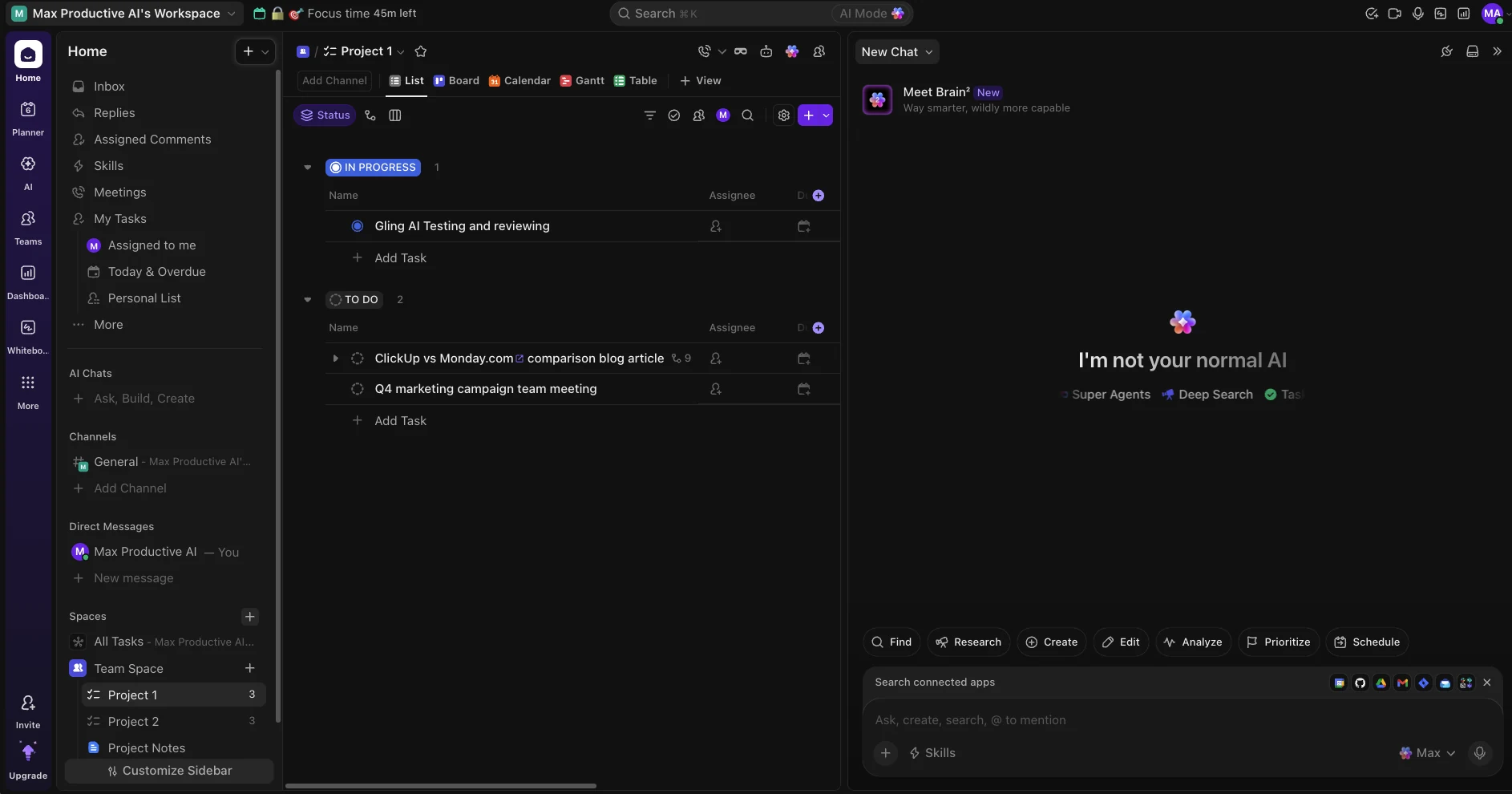
This is our own Free Forever workspace. The tabs across the top show List, Board, Calendar, Gantt and Table, and the Brain² AI panel sits on the right. Everything you see here works on the free plan. Not all of it is unlimited, though, and that difference is what the rest of this guide is about.
Coming from another tool? ClickUp has official importers for Trello, Asana, Monday.com, Notion, Todoist and Jira, and they work on every plan, including the free one.
The Three Kinds of "Free" in ClickUp
This is the part the pricing page doesn't make obvious. Next to many features, the Free Forever column simply says "Trial." Behind that one word, the free plan mixes three very different kinds of allowance.
1. No cap at all. Tasks, members, and the List, Board, Calendar and Table views. Use them as much as you want.
2. Fixed caps. Totals such as 60MB of storage, 5 Spaces, 3 Whiteboards and 1 Form. They don't reset, but they don't wear out through use either. Stay under the number and you're fine.
3. One-time uses. This is the group that surprises people. Features like Gantt, Custom Fields and Dashboards come with a set number of "uses" for the whole Workspace. ClickUp's Help Center is direct about it: these uses do not reset. When they're gone, your data stays where it is, but you need to upgrade to keep using the feature.
There's also one allowance that does refill. Automations get 100 actions a month, and the count starts again on the first of each month.
All of these limits apply per Workspace, not per person. Sixty Gantt uses are shared by everyone on the team.
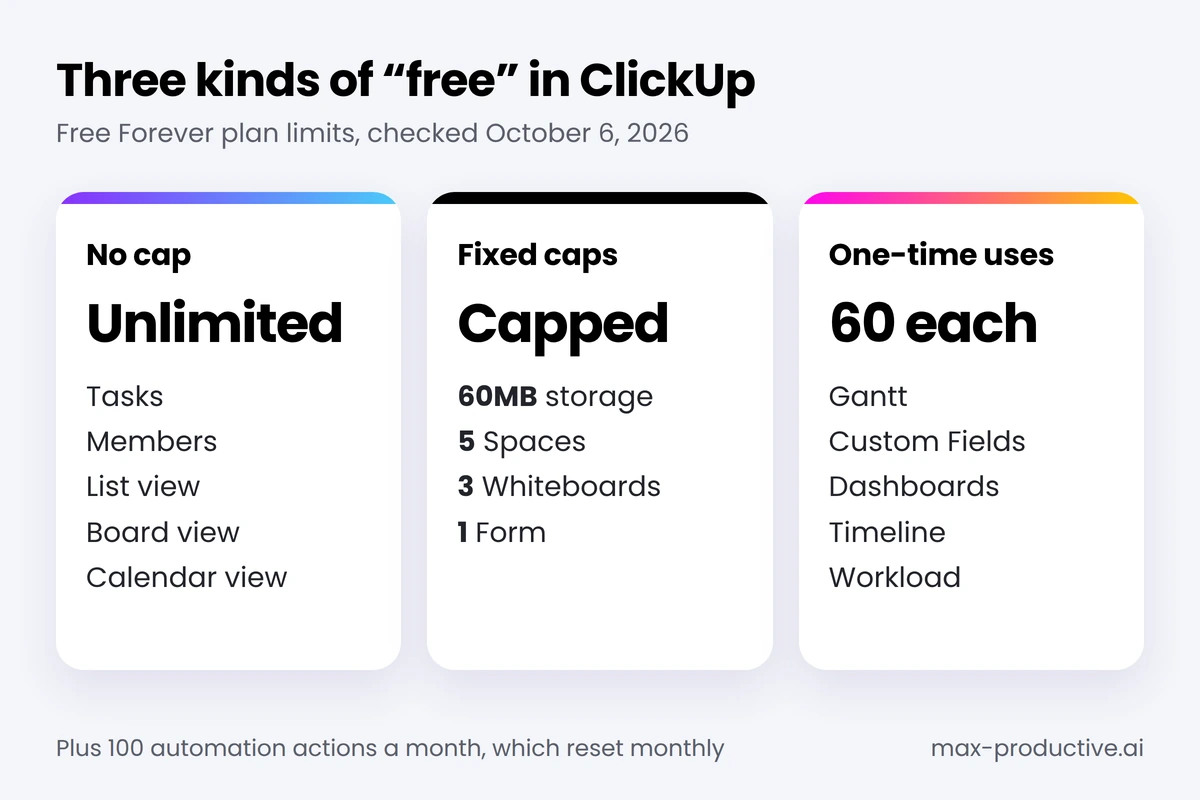
So when the pricing page says the free plan includes Gantt charts, read it as: you can use Gantt 60 times, in total, across your whole team. That one detail explains most of the frustration you'll see from free users.
ClickUp Free Plan Limits: The Full List
Here is every limit we could confirm, grouped by how it behaves. The third column shows what the same feature looks like on Unlimited, ClickUp's first paid plan, so you can see what an upgrade would change.
Fixed caps (they don't reset, and they don't run out through use)
| Feature | Free Forever | Unlimited Plan |
|---|---|---|
| Storage | 60MB in total | Unlimited |
| Spaces | 5 | Unlimited |
| Lists per Space | 40 | 200 |
| Folders per Space | 100 | 200 |
| Whiteboards | 3 | 10 |
| Forms | 1 | Unlimited |
| Activity view history | 24 hours | 7 days |
| Chat message history | 30 or 90 days (see note) | Unlimited |
One-time uses (shared by the whole Workspace, never reset)
| Feature | Free Forever | Unlimited Plan |
|---|---|---|
| Custom Fields | 60 uses | Unlimited |
| Gantt view | 60 uses | Unlimited |
| Timeline view | 60 uses | 100 uses |
| Workload view | 60 uses | 100 uses |
| Dashboards | 60 uses | 100 uses |
| Embed view | 40 uses | 100 uses |
| Goals | 100 uses | Unlimited |
| Time tracking | 100 uses | Unlimited |
| Sprint Points | 100 uses | 100 uses |
| Email in ClickUp | 100 uses | Unlimited |
| Chat messages | 1,000 in total | Unlimited |
Monthly and rate limits
| Feature | Free Forever | Unlimited Plan |
|---|---|---|
| Automations | 5 active, 100 actions a month | 500 active, 1,000 actions a month |
| API | 100 calls a minute | 100 calls a minute |
| Imports | 60 a day | 60 a day |
Note on Chat history: ClickUp's pricing page says 30 days for Free Forever, while its Help Center article on Chat limits says 90 days. Sources, all checked October 6, 2026: ClickUp's pricing page and these Help Center articles: Workspace storage limits, Views availability and limits, Custom Fields uses, Dashboards availability and limits, Automations availability and limits, Time Tracking availability and limits, Chat availability and limits, Brain AI availability and limits, How AI Credits are consumed, Pricing per user role and plan.
Not on the free plan at all. Mind Maps, Map view and Team view only start on Unlimited. Private views start on Business. On Free Forever, guests can't be given limited permissions, and according to ClickUp's views documentation you can't export data from List and Table views.
If you were hoping for a single page on ClickUp's site with all of this, we looked for one too and didn't find it.
ClickUp Free Plan Limitations You'll Hit First
Not all of these limits matter equally. Going by how ClickUp counts uses, and by what new users describe in its community, six of them tend to arrive first. The chart shows how quickly a normal routine uses them up.
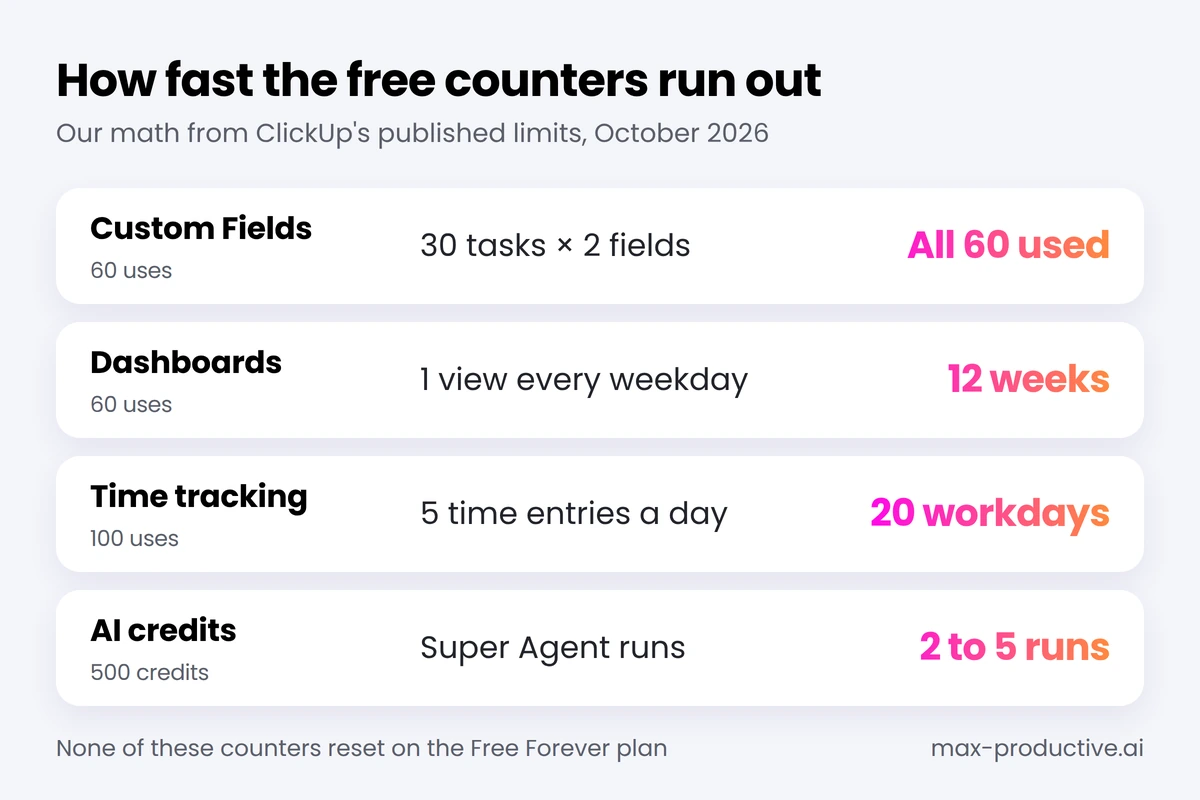
Custom Fields (60 uses). A use is counted every time you set a value on a task. Choose a dropdown option and that's one use. Add two labels to the same task and that's two. A list of 30 tasks with two fields each uses the entire allowance. Creating the fields themselves is free, and so is linking tasks with Relationships. Once you reach 60, you can still clear existing values, but you can't add new ones. Our advice: decide which one or two fields you really need before you fill anything in, and don't experiment on real tasks.
Dashboards (60 uses). Simply viewing a Dashboard counts as a use. So does adding, editing or removing a card. Open one every weekday morning and you'll run out in about three months, sooner if you spent uses building it. If you want reporting on the free plan, save it for a weekly review.
Gantt, Timeline and Workload (60 uses each). Treat these as planning-session tools, not as your home screen. Do your day-to-day work in List, Board or Calendar, where nothing is counted, and open ClickUp's Gantt chart view when you're actually scheduling a project.
Storage (60MB). Tasks themselves don't count toward storage. Attachments do, including files in Chat, cover images, and voice or screen recordings. A handful of screen recordings can fill 60MB on their own. Keep large files in your usual cloud drive and link to them from the task. One warning: plenty of older guides still quote 100MB for the free plan. ClickUp's pricing page and its storage documentation both say 60MB.
Time tracking (100 uses). Creating, editing or deleting a time entry each counts as a use. If you log five entries a day, that's about a month of work. Freelancers who bill by the hour will reach this one quickly.
Automations (100 actions a month). That sounds like a lot until one rule fires on every status change. ClickUp emails owners and admins at 90% and 100% of the allowance. Once you go over, your automations pause until the count resets at the start of the next month. With only five active automations allowed, pick the ones that save you the most time.
Is ClickUp AI Free? Two Separate Meters
ClickUp's AI, called Brain, is switched on in every workspace as a trial. On the free plan it runs on two meters that have nothing to do with each other, and neither one resets.
Brain uses. A Free Forever workspace gets 25 uses if it has up to 10 people, or 50 uses if it has more. Anything that generates an AI response counts as one use.
AI credits. Each free workspace also gets 500 AI credits in total. Credits pay for the automatic features: Super Agents, Autopilot Agents, AI Fields and AI Cards. Chatting with Brain doesn't use credits.
ClickUp publishes estimates of what each feature costs, and they show how far 500 credits go.
| AI Feature | Estimated Credits per Use | Uses from 500 Credits |
|---|---|---|
| AI Field | 10 | About 50 |
| AI Card | 20 | About 25 |
| Image generation | 100 | 5 |
| Super Agent or Autopilot Agent run | 100 to 300 | About 2 to 5 |
According to ClickUp, every Super Agent run uses credits, even when the agent only returns an answer. That helps explain a complaint we've seen from new users, who watch their credits disappear without ever opening Brain. Automatic features draw from the same pool, so if you switch on AI Fields or try an agent while exploring, the 500 credits can go quickly.
When the trial runs out, the automatic AI features pause. A free workspace can't buy an AI add-on on its own. You have to move to a paid plan first, then add Brain AI from $9 per user a month or Everything AI from $28. We cover Brain² and Super Agents in more detail in our ClickUp review.
Members, Guests and Who Becomes a Paid Seat
The free plan puts no limit on people. Members are unlimited, and so are guests. The one restriction is on guests: on Free Forever they must be given full access to whatever you share with them. You can't make a client view-only.
The bigger surprise comes when you upgrade. ClickUp's pricing FAQ is clear that you can't upgrade only yourself. The whole Workspace moves to the paid plan, and every member becomes a paid seat. A five-person team that needs Gantt for one project manager pays for five seats, not one.
On paid plans, view-only guests stay free. Guests who can edit are limited: Unlimited includes five with your first paid member and two more for each member after that, and Business includes ten, plus five for each additional member. If you invite an editing guest beyond that allowance, ClickUp adds a paid member seat automatically, so check your open guest seats before you invite a client.
| Team Size | Unlimited (Yearly Billing) | Business (Yearly Billing) |
|---|---|---|
| 1 person | $7 a month | $12 a month |
| 3 people | $21 a month | $36 a month |
| 5 people | $35 a month | $60 a month |
| 10 people | $70 a month | $120 a month |
Our math from ClickUp's list prices on October 6, 2026: $7 and $12 per member a month, billed yearly. On monthly billing the rates are $10 and $19.
ClickUp Pricing: What Upgrading Costs in 2026
As of October 2026, ClickUp has four plans: Free Forever at $0, Unlimited at $7 per member a month, Business at $12 per member a month, and Enterprise at a custom price. Those are the yearly-billing rates. Paying monthly costs more.
| Plan | Yearly Billing | Monthly Billing |
|---|---|---|
| Free Forever | $0 | $0 |
| Unlimited | $7 per member a month | $10 per member a month |
| Business | $12 per member a month | $19 per member a month |
| Enterprise | Custom quote | Custom quote |
What Unlimited removes. Storage, Spaces, Gantt charts, Custom Fields and Forms all become unlimited. You also get guests with permission controls, native time tracking, Goals, and ten times the automation actions.
What stays capped on Unlimited. This is the detail most people miss: Unlimited isn't unlimited everywhere. Dashboards, Timeline and Workload move from 60 uses to 100, and they still don't reset. Mind Maps arrive with 40 uses. Those counters only disappear on Business.
In practice, the choice comes down to this. If Custom Fields, Gantt or storage is your problem, Unlimited solves it. If you report in Dashboards or balance workloads every week, budget for Business.
ClickUp advertises a 100% money-back guarantee, and its Help Center gives new customers 30 days to ask for a full refund. That makes a paid plan a fairly low-risk test once you've outgrown the free one.
Is the ClickUp Free Plan Enough for You?
For simple task management, yes. For weekly planning and reporting, not for long. ClickUp's own Help Center describes Free Forever as the plan for personal use, and the limits fit that description. Here's how it plays out for four common situations.
Solo users and freelancers: yes, for most. Unlimited tasks and the core views cover personal task management comfortably. The 25 Brain uses are a taste, not a tool. Watch storage and Custom Fields, and you can stay free for as long as you like.
Small teams of 2 to 10: a good place to start. Because members are unlimited, you can bring everyone in and see whether the team actually adopts ClickUp for project management before anyone pays. Run on List, Board and Calendar. Expect Custom Fields to be the first wall you hit.
Agencies and client work: plan for Unlimited. Free guests get full edit access to whatever you share, and that's rarely what you want with clients. Permission-controlled guests start on Unlimited.
Managers who plan and report every week: Business. If Gantt, Workload and Dashboards are how you run the team, the free counters won't last long, and Unlimited only stretches some of them.
A fair way to put it: Free Forever is a permanent home for simple task management, and a long trial of everything else.
ClickUp Free Plan vs Asana, Trello, Monday.com, Notion and Todoist
How does that stack up against the other free plans people usually compare? We took these figures from each company's own pricing page.
| Free Plan | People | Main Limits |
|---|---|---|
| ClickUp Free Forever | Unlimited members | 60MB storage, 5 Spaces, one-time uses on advanced features |
| Asana Personal | 2 users | List, Board and Calendar only. No Timeline or Gantt |
| Trello Free | 10 collaborators per Workspace | 10 boards, 250 automation runs a month |
| Monday.com Free | 2 seats | 3 boards, 3 docs |
| Notion Free | Built for individuals, 10 guests | 5MB per file upload, block limit for teams of two or more |
| Todoist Beginner | 1 account, 5 people per project | 5 personal projects, 3 filter views |
Source: each company's pricing page, checked October 6, 2026.
ClickUp is the only one in this group with no cap on team members. The trade-off is the one-time counters. Asana and Monday.com limit how many people can join. ClickUp limits how often you can use its advanced features. Which trade suits you depends on whether your constraint is headcount or reporting.
If you're weighing ClickUp against Monday.com specifically, our ClickUp vs Monday.com comparison and our three-way Motion vs ClickUp vs Monday guide go deeper, and our Monday.com review (4.5) covers its paid plans.
And if ClickUp feels like more tool than you need, a lighter option may fit better. Todoist (4.3) keeps personal task lists simple, and you can try Todoist for free. Taskade (4.5) combines tasks, notes and AI agents in one workspace. For scheduling rather than project management, Reclaim AI (4.8), Motion (4.4) and Sunsama (4.3) plan your day around your calendar, and Superlist (4.1) blends tasks with notes. You'll find all of them in our time management tools directory.
How to Start on the Free Plan Without Wasting Your Uses
A little planning in the first hour protects most of your counters. This is the order we'd follow.
1. Create your free workspace. Sign up for ClickUp and stay on Free Forever while you set things up. There's no deadline to decide.
2. Sketch your five Spaces before you build. One Space per team or client area usually works. Inside each Space you have room for 100 Folders and 40 Lists, so the limit is rarely a problem if you plan the structure first.
3. Import instead of retyping. If your tasks live in Trello, Asana, Monday.com, Notion or Todoist, use ClickUp's importer. It saves hours, and it lets you judge ClickUp with your own work in it.
4. Choose your Custom Fields once. Pick the one or two fields that matter, such as client or budget, and fill them in carefully. Remember that every value you set is a use.
5. Make List, Board or Calendar your daily view. Keep Gantt, Workload and Dashboards for weekly planning. If you want to sketch ideas, you have three ClickUp Whiteboards to work with.
6. Go easy on AI until you know what you'd pay for. Use your Brain answers on questions about your own work, and leave agents and AI Fields switched off until you've decided they're worth a paid add-on.
Final Verdict — Is the ClickUp Free Plan Worth It?
| Is ClickUp free? | Yes. Free Forever costs $0 and doesn't expire |
| Truly unlimited | Tasks, members, and the List, Board, Calendar and Table views |
| Fixed caps | 60MB storage, 5 Spaces, 3 Whiteboards, 1 Form |
| One-time uses | 60 each for Gantt, Custom Fields, Dashboards, Timeline and Workload |
| Monthly allowance | 100 automation actions, with 5 active automations |
| AI trial | 25 Brain uses and 500 credits, one time only |
| First paid step | Unlimited at $7 per member a month, billed yearly |
Bottom line: as of October 2026, ClickUp's Free Forever plan has no limit on tasks or team members, and it never expires. Of the six free plans we compared, it's the only one without a cap on people. Its real limits are 60MB of storage, 5 Spaces, 100 automation actions a month, and one-time counters of 60 uses on features like Gantt, Custom Fields and Dashboards. If you manage work in lists, boards and calendars, you can stay free indefinitely. If you plan and report every week, use the free plan to test ClickUp with your real projects, then move to Unlimited or Business once the counters run low.